
Best 24 Inch 144Hz Monitors in 2026: Smooth Screens for Every Budget
Disclosure: We may earn a commission when you buy through links on this page, at no extra cost to you. As an Amazon Associate I earn from qualifying purchases. Learn more

Best 24 inch 144Hz monitors give smoother motion than 60Hz screens at a modest cost. Compare IPS and VA panels, sync support and stands.
A 144Hz refresh rate redraws the screen 144 times a second, more than twice as often as a standard monitor, and that makes motion look markedly smoother in games, scrolling and even moving the cursor. At 24 inches, the best 24 inch 144Hz monitors are also affordable, which is why this size and speed is the default choice for most budget gaming desks.
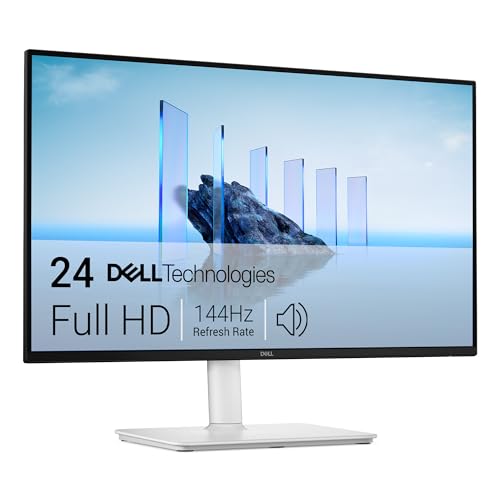
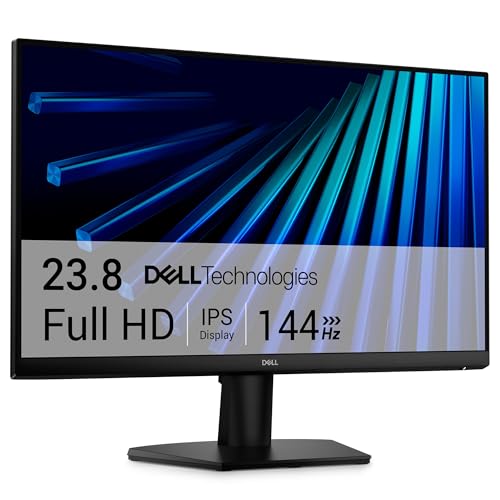
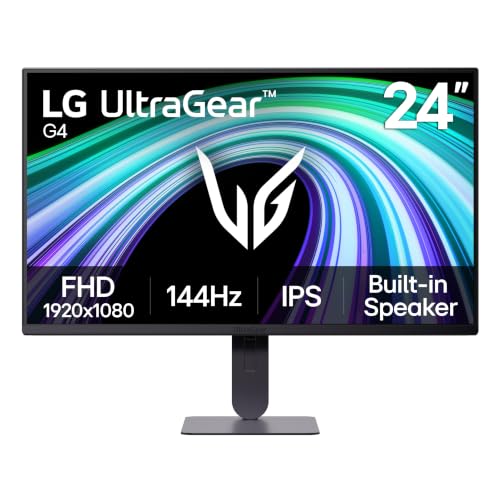
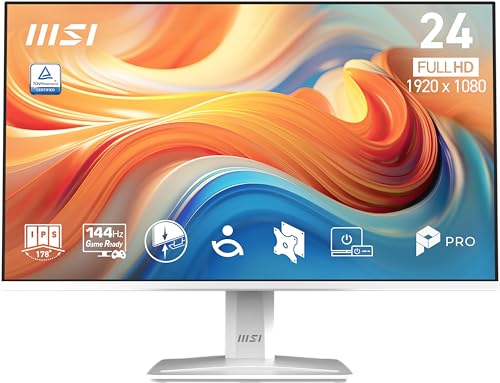
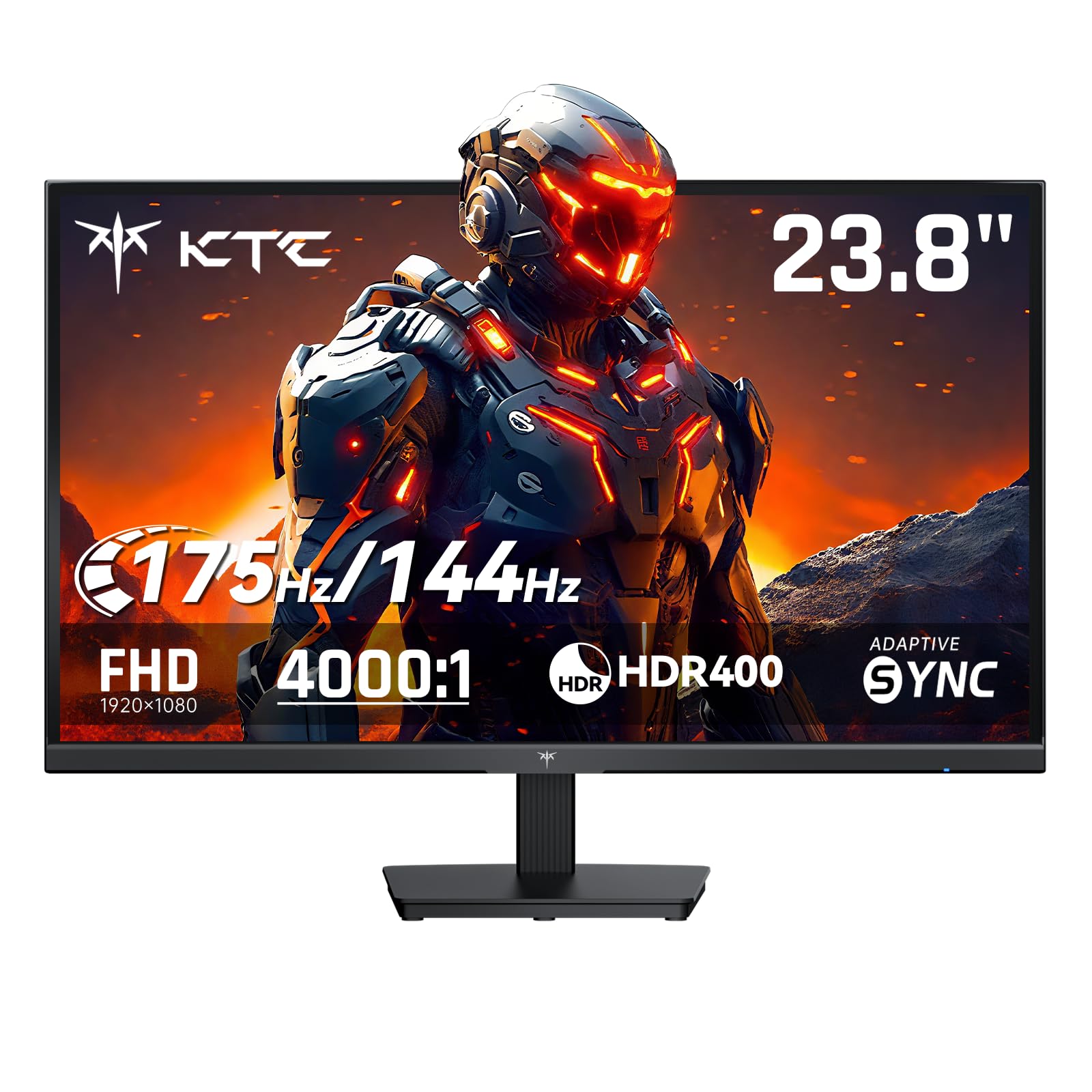
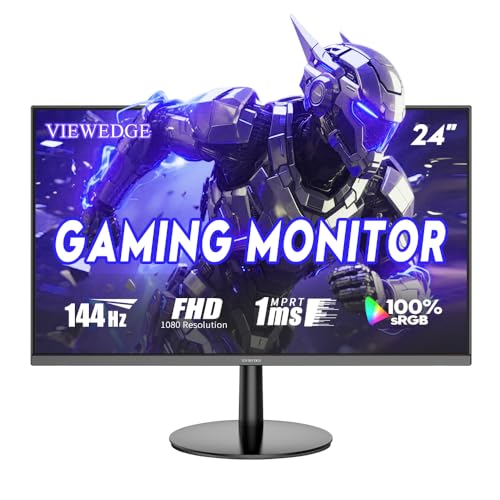
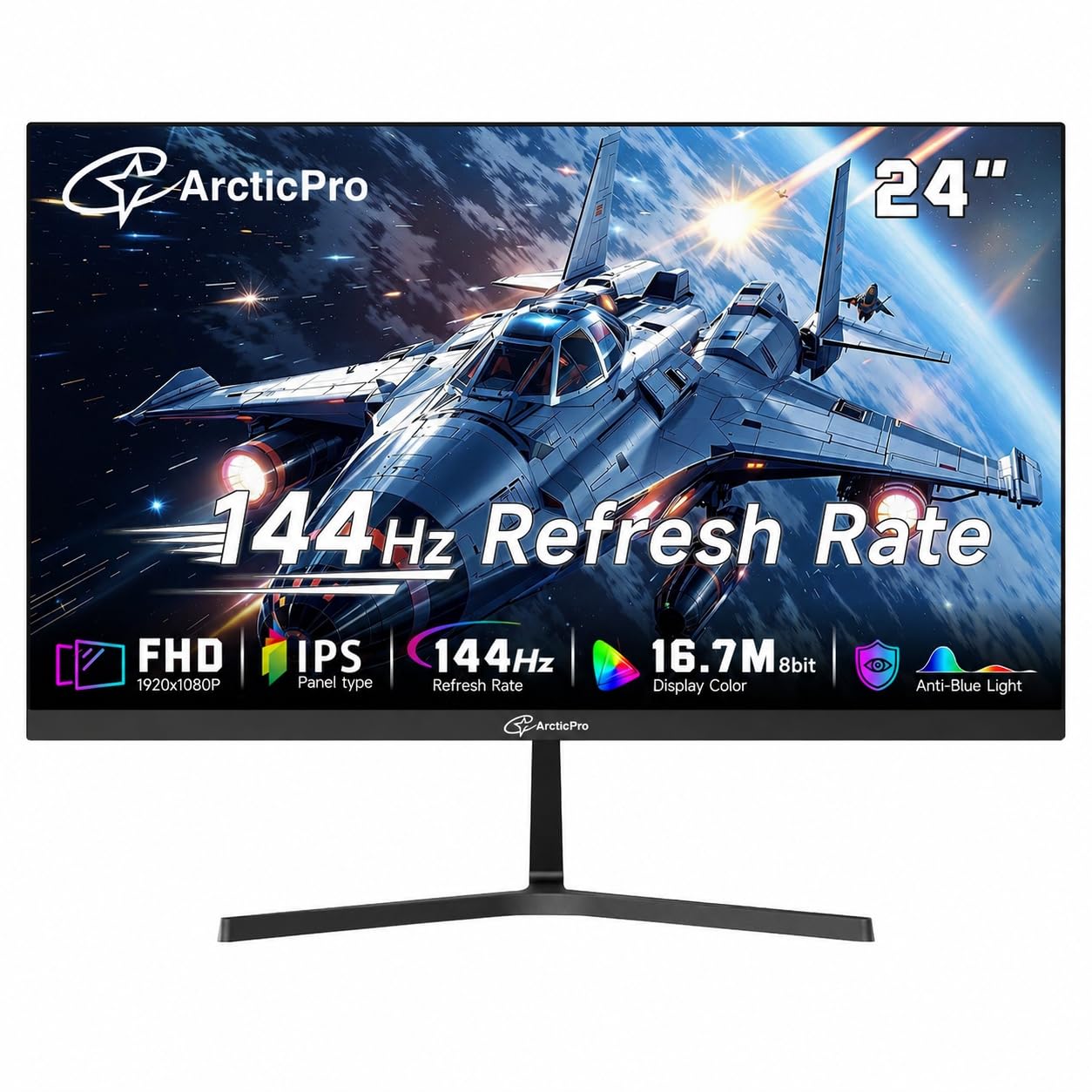
The product table lists current 24-inch 144Hz models with IPS and VA panels, flat and curved designs and a range of extras. The sections below explain which choices matter and which are marketing, so you spend where it counts.


What 144Hz Actually Changes
Higher refresh rates reduce the blur you see when objects move and cut the delay between your input and the screen. In shooters and racing games, it is easier to track a moving target. Outside games, you will notice smoother scrolling and a more fluid cursor.
The gain depends on your computer. To see 144 frames a second, your graphics card must render at that rate, and a weak system will not reach it in demanding games. Even then, the monitor feels smoother in lighter games and on the desktop. Remember to select 144Hz in your display settings after setup, since many systems default to 60Hz.
IPS or VA at This Speed
IPS panels give wide viewing angles, strong color and fast response, and most of the table's models use them. VA panels have deeper blacks and higher contrast, which suits dark games and films, but they can smear dark transitions at high speed. Both work well at 144Hz for most players.
If you care about color accuracy or share the screen, pick IPS. If you play in a dark room and want richer blacks, a VA model is a fair choice. Check the panel type in each listing, since marketing pages often skip it.
Adaptive Sync and Response Time
Adaptive sync features such as FreeSync or G-Sync Compatible match the monitor to your graphics card's frame rate, preventing tearing and stutter when the rate varies. Look for the technology that matches your graphics card, though most modern cards work with both.
Response time claims of 1ms are measured in specific modes, so treat them as a rough guide. A clean image with little overshoot matters more than the headline number. Adjust the overdrive setting if you see trails or a halo around moving objects.
Flat or Curved
A curved 24-inch screen is a style choice more than a performance one. The curve is mild at this size, and some people find it more immersive while others find it distracting for office work. If you plan to use two monitors side by side, flat screens line up more neatly.
Ports, Stand and Extras
Look for DisplayPort and HDMI, because the combination gives you flexibility for a PC and a console. Check which port supports the full 144Hz; some HDMI ports on budget models cap the rate. Built-in speakers are present on a few models, and a headphone jack is useful.
The stand is often basic, with tilt only. If you want height adjustment, choose a model that has it or add a VESA arm. A thin bezel helps with dual setups. For a broader look at the size, see the best 24 inch monitors, or the best IPS 24 inch monitors if panel type is your priority.
Console and Work Use
A 144Hz monitor works with consoles, although many consoles output at lower rates, so the main gain is for PC. For office use, the same monitor doubles as a comfortable everyday screen, and a smoother desktop is a quiet benefit. If you want higher resolution, check our guide to the best 24 inch 4K monitors, though they trade speed for sharpness.
For a pure office monitor with comfort features, the best 24 inch PC monitors may fit better.
Mistakes to Avoid
Do not forget to enable 144Hz in the operating system, and do not use an old cable that limits the rate. Do not choose by curve or lighting. And do not pay for a faster panel than your computer can drive. The best 24 inch 144Hz monitors earn their price in smoothness and reliability, not in extras.
Getting the Best Picture Out of the Box
Switch the monitor to a standard or sRGB mode first, since gaming presets often oversaturate color and crush shadows. Turn on adaptive sync in both the monitor menu and your graphics driver, and set overdrive to a medium level, which keeps motion clean without halos. Cap your frame rate a few frames below the refresh rate if you see tearing near the top of the range.
If the image looks dull, check that the PC outputs full-range color over HDMI, and make sure the cable is certified for the rate you want. A good DisplayPort cable is the simplest way to avoid trouble on a desktop, and it costs little.
Budget Tiers in the Table
The lowest-priced models at 24 inches and 144Hz are basic but adequate. Mid-priced models add better stands, a calibrated look and longer warranties. The most expensive ones in the table add sync certification, brighter panels and refinements for competitive play. For most people, the middle is the sweet spot, since the gap in daily comfort between a cheap and a mid-priced monitor is larger than the gap between mid and premium.
FAQs
Is 144Hz noticeably better than 60Hz?
Yes, in motion. The difference is easy to see in games and scrolling.
Do I need a powerful PC for 144Hz?
For high frame rates in demanding games, yes. Lighter games reach it easily.
Should I choose IPS or VA?
IPS for color and angles, VA for contrast.
Will it work with a console?
Yes, though the higher rate mainly benefits PC.
Final Thoughts
The best 24 inch 144Hz monitors pair a clean panel with adaptive sync and a stand that suits your desk. Decide between IPS and VA, check the ports and make sure your system can drive the rate. Then compare the models in the product table.
Prices and availability can change, so check the product page before ordering.


