
Best 2TB Internal Hard Drives for 2026: HDD, SATA SSD or NVMe?
Disclosure: We may earn a commission when you buy through links on this page, at no extra cost to you. As an Amazon Associate I earn from qualifying purchases. Learn more

The best 2tb internal hard drives for desktops and NAS builds, from budget 3.5 inch HDDs to fast NVMe SSDs, with a plain guide to which type fits your PC.
The best 2tb internal hard drives are not all the same kind of product, and that is the first thing to sort out. A 2TB internal drive can be a spinning 3.5 inch hard disk, a 2.5 inch SATA solid state drive, or a small M.2 NVMe stick, and each one suits a different job. The product table brings all three together so you can compare real prices.
This guide explains how the types differ, what changes between a desktop and a NAS, and how to avoid the two or three mistakes that cause most returns. If you only need the short version: pick an SSD for the system and games, and a hard disk for bulk storage where price per terabyte matters.
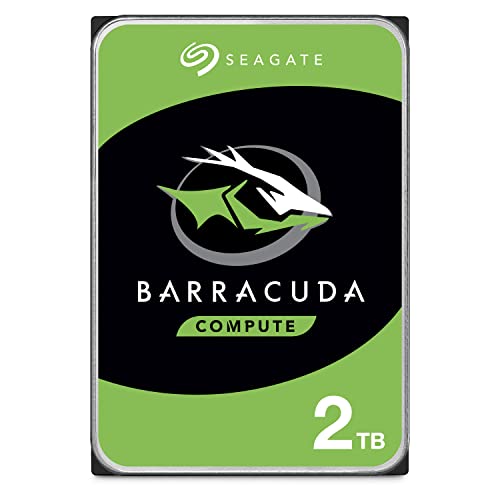


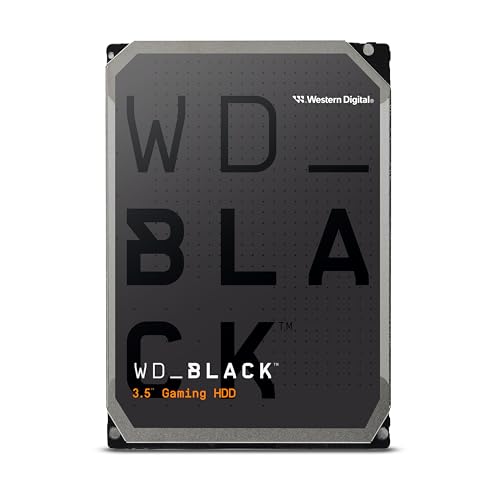


Three kinds of 2TB internal drive
3.5 inch hard disk drives
These are the classic desktop drives, with spinning platters, a SATA data port and a separate power connector. They give the lowest price per terabyte and are still a sensible home for photos, video archives and backups. The trade-offs are noise, heat, a slower response when many small files are read, and a bigger footprint inside the case.
2.5 inch SATA SSDs
A SATA SSD uses the same cable as a hard disk but has no moving parts. It makes an older desktop or laptop feel much faster, and it fits almost any machine with a free SATA port and drive bay. Speeds are capped by the SATA interface, so it will not match NVMe, but real world loading times are close for most people.
M.2 NVMe SSDs
NVMe sticks plug straight into the motherboard and are the quickest of the three. They suit game libraries, video editing scratch space and fast boot drives. You need a free M.2 slot, and you should check whether your board supports the PCIe generation of the drive you choose, because a newer drive in an older slot simply runs at the slot's speed.
How to choose the best 2tb internal hard drives for your PC
Start with the job, not the spec sheet. A single boot and games drive is a different purchase from a media vault, and both differ from a drive that will run all day in a NAS or a recorder.
- Boot and games: choose an NVMe or SATA SSD, since load times and responsiveness matter more than capacity price
- Bulk storage: a 3.5 inch hard disk at 7200 RPM gives the lowest cost per terabyte for files you open rarely
- NAS and always-on use: pick a drive sold for that purpose, such as the NAS or surveillance lines, and read the listing for workload and warranty details
- Laptop upgrade: only the 2.5 inch or M.2 formats will fit, so skip the 3.5 inch drives
Check the interface before you add anything to the cart. A SATA drive needs a free SATA port and, for a 3.5 inch model, a power lead from the supply. An M.2 drive needs a free slot, and some slots share bandwidth with SATA ports, so using one can switch another port off. The motherboard manual lists this in a short table.
CMR, SMR and why it matters for hard disks
Hard disks write data in two ways. Conventional recording (CMR) handles steady writes well, while shingled recording (SMR) packs tracks more tightly and can slow down badly during long writes such as a RAID rebuild or a large backup. For a single desktop drive used for storage this is rarely a problem. For a NAS or a drive that will be rebuilt often, read the product page and prefer CMR when the maker states the recording type.
Cache size and RPM are the other numbers you will see. A 7200 RPM drive responds faster than a 5400 RPM one but runs warmer and louder, while a 5400 RPM drive is quieter and cooler, which many NAS owners prefer.
What to expect to pay
Prices move often, so use the table for the current picture. In general, a 2TB hard disk sits at the low end, a SATA SSD costs noticeably more, and NVMe drives vary a lot depending on speed class. The fastest PCIe 5.0 drives cost a premium that only workstation users and enthusiasts usually need, while mainstream PCIe 4.0 drives deliver most of the benefit for much less.
Do not ignore the warranty. SSDs usually list a terabytes-written rating next to a multi-year warranty, and hard disks list their own warranty terms. A longer warranty from a known maker is a cheap form of insurance, though it never replaces a proper backup.
Setting up a new drive
- Back up anything important on the old drive before you start
- Power the PC off, unplug it and touch the metal case to discharge static
- Fit the drive in a bay or slot and connect the data and power cables firmly
- Open Disk Management on Windows or Disk Utility on macOS and initialize the drive with GPT
- Format it, give it a clear name and, for a system drive, clone or reinstall the operating system
If you are cloning an old hard disk to an SSD, use the free tool that most drive makers offer and let it finish before you swap cables. Keep the old drive untouched for a few days until you are sure everything boots and opens correctly.
FAQ
Is a 2TB SSD better than a 2TB hard disk?
For speed, yes, by a wide margin. For price per terabyte, a hard disk wins. Many builders use a smaller SSD for the system and a 2TB hard disk for bulk files, which keeps the PC quick without paying for fast storage you do not need.
Can I use a 3.5 inch drive in a laptop?
No. A laptop takes 2.5 inch or M.2 drives. A 3.5 inch drive is for desktops, NAS boxes and external enclosures with their own power.
How long do internal drives last?
There is no fixed number. Hard disks wear mechanically, SSDs wear by total data written, and both can fail without warning. Treat any drive as temporary and keep a second copy of anything you cannot replace.
Do I need a heatsink on an NVMe drive?
Many motherboards include one. A fast drive in a cramped case or under a graphics card benefits from a heatsink, because throttling slows it down. A lightly used drive in a well ventilated case often runs fine without one.
Final thoughts
The best 2tb internal hard drives are the ones that match your job: an SSD for speed, a hard disk for cheap capacity, and a purpose-built drive for a NAS. Compare the type, the interface and the warranty in the product table, then buy the drive that fits your slot and your budget. See also our guide to the best internal hard drives for more capacities.
Prices and availability can change, so check the product page before ordering.


