
Best Blender Laptops at Every Price for 2026: What Your Money Really Gets You
Disclosure: We may earn a commission when you buy through links on this page, at no extra cost to you. As an Amazon Associate I earn from qualifying purchases. Learn more

Pick the best blender laptops for 3D modeling and rendering, with clear guidance on RTX GPUs, VRAM, RAM and cooling at each price level.
3D artists, animation students and indie game developers need a laptop that keeps up with Blender's Cycles ray tracing, Eevee viewport, geometry nodes and sculpting tools. A basic thin and light office laptop usually means sluggish viewports, slow renders, out of memory crashes and thermal throttling that can freeze a project mid-render. Choosing the best blender laptops comes down to matching GPU, video memory and cooling to the work you actually do.
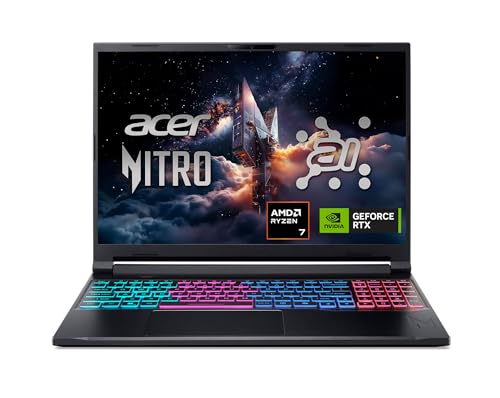
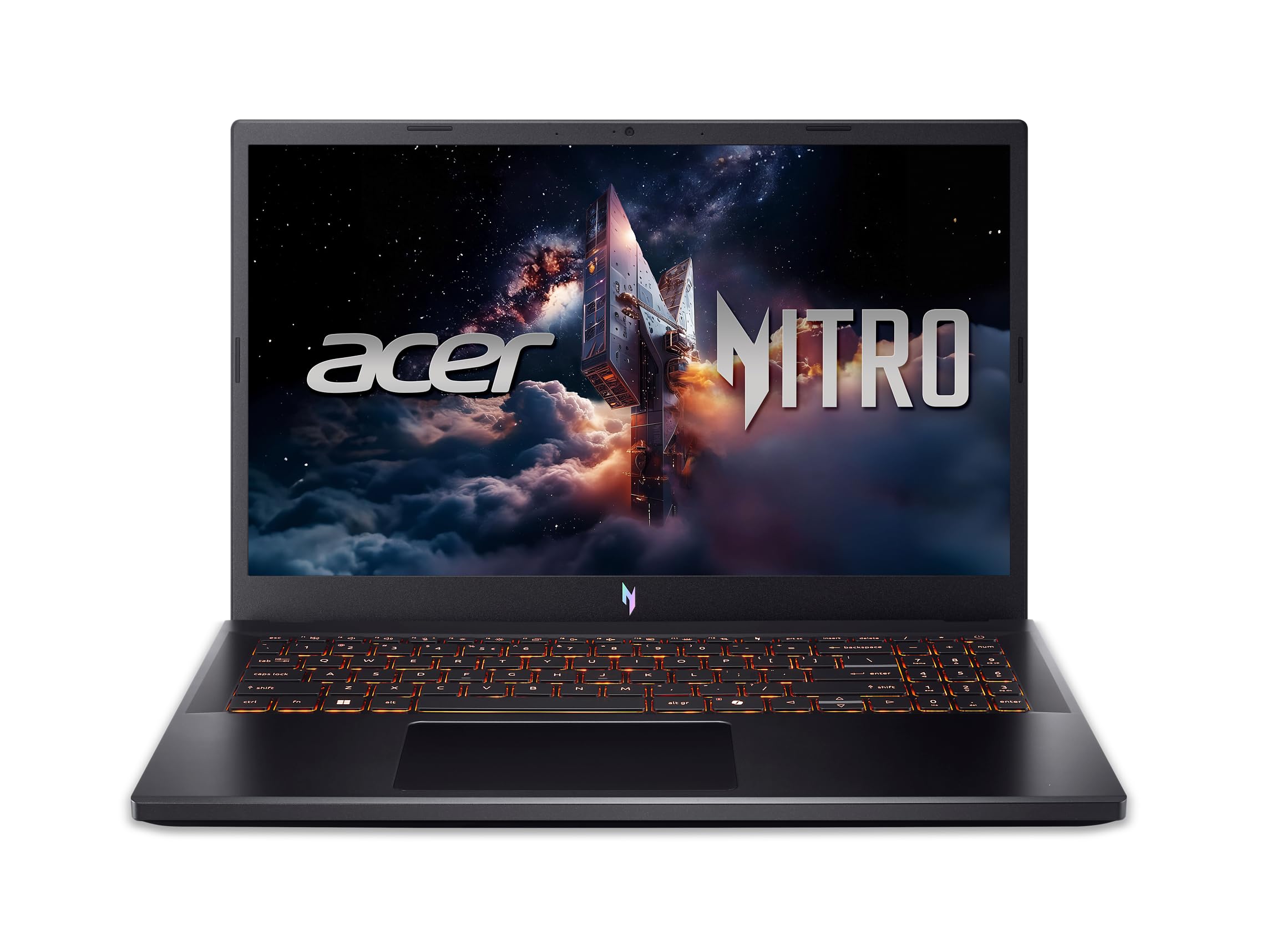
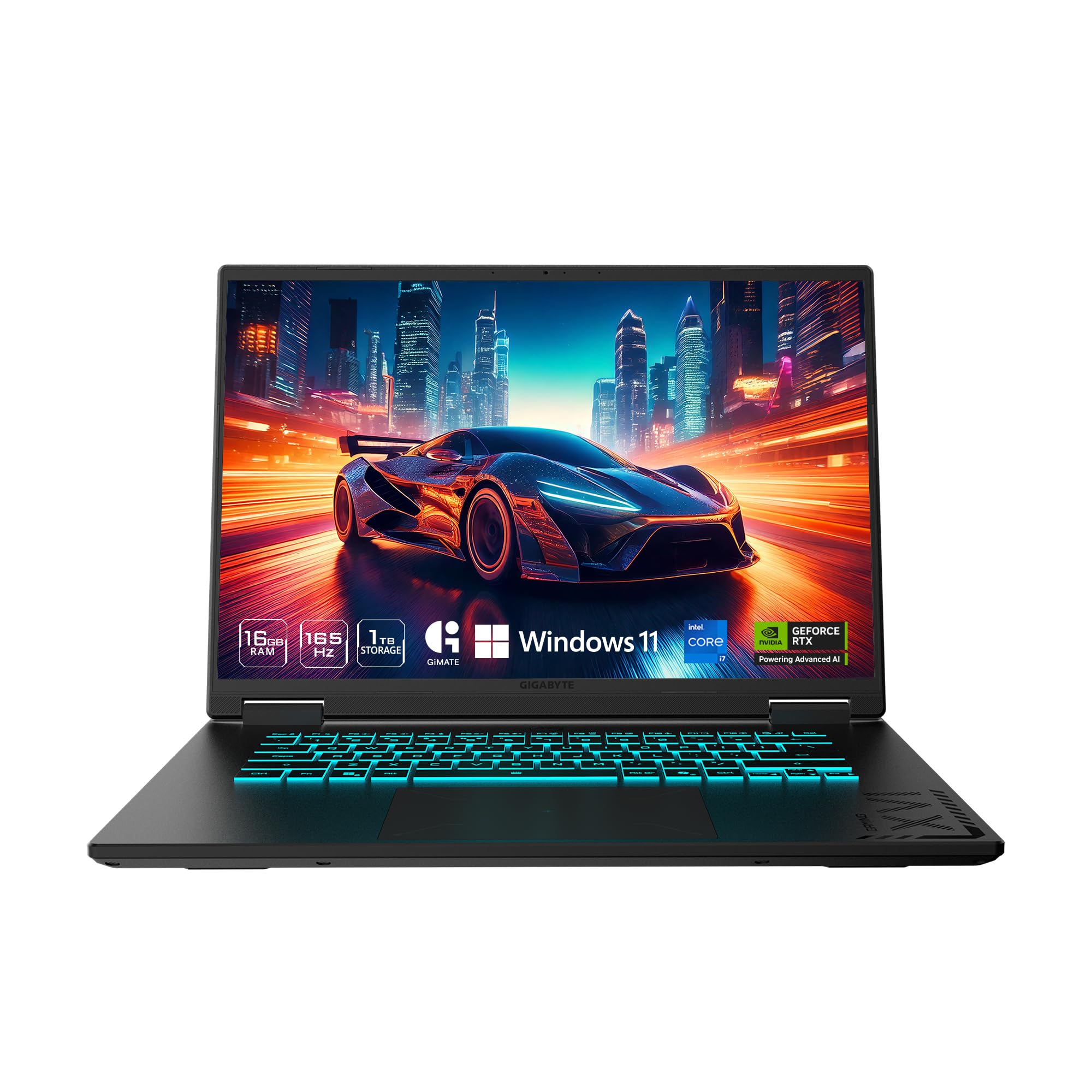
Extra money only pays off when it goes into the parts Blender leans on most: a dedicated NVIDIA RTX graphics card with OptiX ray tracing support, enough VRAM, a multi core processor and fast system memory. Below you will find what each price bracket typically buys, which specifications matter, which ones you can skip, and which add-on costs to plan for. The picks in the table show current options to compare.






What Your Money Gets You at Each Price Tier
Blender laptops fall into three broad price tiers: budget, midrange and premium. Each step up mainly adds VRAM, cooling capacity, memory and display quality, while the core experience of modeling stays similar.
Budget Tier: What to Expect (Around $750 to $1,100)
At this price you typically get a budget gaming or creative laptop with an entry level dedicated GPU, such as an NVIDIA GeForce RTX 4050 or RTX 3060 with 6GB of GDDR6 VRAM, paired with an Intel Core i5 or AMD Ryzen 5 processor and 16GB of RAM.
That is enough for smooth real time modeling, light to medium sculpting, architectural blockouts and fast Eevee viewport navigation. RTX cards support OptiX, which lets Cycles use dedicated ray tracing cores and usually renders much faster than the CPU alone. The limits are the 6GB VRAM ceiling, which can trigger out of memory errors with large 4K texture sets or heavy particle simulations, and plastic chassis that get loud during long render queues.
For students learning 3D fundamentals, this tier is a sensible starting point. You can practice modeling, UV unwrapping, basic shading and short animations, then lower texture sizes or render tile settings when a scene gets heavy.
Midrange Tier: The Sweet Spot for Most 3D Artists (Around $1,200 to $1,900)
The midrange bracket suits freelance artists, indie game creators and animation students. Expect an RTX 4070 class GPU or better with 8GB to 12GB of VRAM, a Core i7 or Ryzen 7 class processor, 32GB of DDR5 RAM and a 1TB to 2TB NVMe SSD.
The extra VRAM lets you render detailed interior scenes with high resolution textures, skin shaders and dense foliage with far fewer memory crashes. Midrange machines also tend to have better cooling, which helps hold GPU clocks steady through long renders, and brighter displays with wide color coverage so textures look right on other screens.
This is also the tier where portability and power start to balance well. Many models stay under roughly 5 pounds and still carry a large battery, though expect to plug in for any serious rendering since battery use drops GPU performance.
Premium Tier: When Spending More Pays Off (Around $2,000 to $3,800+)
Premium laptops use flagship mobile GPUs such as the RTX 4090 Mobile with 16GB of VRAM, or professional workstation graphics, along with top tier Core i9 or Ryzen 9 processors, 64GB or more of RAM and Mini LED or OLED displays.
Spending at this level pays off when your income depends on render speed and heavy scenes. The larger VRAM buffer handles complex fluid and smoke simulations, dense production scenes and very high polygon sculpts more reliably, and long render jobs finish noticeably sooner than on lower tiers.
Features Worth Paying For (and Ones to Skip)
Spend on the components that change render and viewport speed, and save on cosmetic extras such as RGB lighting or oversized marketing claims on the box.
Dedicated NVIDIA RTX GPUs with OptiX Acceleration
A dedicated NVIDIA RTX card is the most important component in a Blender laptop. Cycles is well optimized for OptiX and CUDA, using RT cores for light bounces and AI denoising, which cuts both render time and the number of samples you need.
What to skip: laptops with only integrated graphics are a poor fit for serious Cycles work, since they lack OptiX hardware acceleration and render far more slowly.
Video Memory (VRAM) Capacity: 6GB vs 8GB vs 16GB
Aim for at least 8GB of VRAM for general 3D work, and 12GB to 16GB for professional production. VRAM holds scene geometry, hair and textures during GPU rendering, so if a scene needs 7GB and the card has 6GB, the render fails with an out of memory error.
Check the VRAM figure on the exact GPU model, because laptop versions of a card often carry less memory than the desktop card with a similar name.
System RAM: 16GB vs 32GB vs 64GB
32GB is the practical sweet spot for most 3D creators. The GPU handles final rendering, but system RAM carries sculpting, physics baking, modifiers and running Substance Painter or Photoshop alongside Blender.
What to skip: soldered 16GB configurations that cannot be upgraded, because dense sculpting can fill 16GB quickly. Look for SO DIMM slots so you can expand later.
CPU Single Core vs Multi Core Performance
You want both strong single core speed and a healthy core count. Modeling, modifiers and viewport playback depend mostly on single thread clock speed, while simulations and video encoding use every core. A modern hybrid CPU with roughly 8 to 14 cores is a good target.
Display Quality: Color Accuracy and Resolution
A 15.6 or 16 inch screen with close to full sRGB or DCI P3 coverage and around 400 nits of brightness is a good target. A 16:10 QHD+ panel (2560 x 1600) adds vertical room for timelines and shader nodes.
If you need a cheaper machine for lighter tasks, the same logic applies: pay for the part you use most, and treat screen size and color as the next priority after GPU and memory.
Long Term Costs to Factor In
A creative laptop needs little upkeep, but a few add-ons help it perform over a working life of several years.
- Storage expansion: project files, asset libraries and simulation caches take up hundreds of gigabytes. A fast 2TB secondary M.2 NVMe SSD costs around $60 to $100.
- Cooling pad: long renders push CPU and GPU temperatures high. A dual fan cooling pad can lower chassis temperatures by a few degrees.
- External monitor: many artists connect a 27 or 32 inch color calibrated 4K monitor at their desk through DisplayPort over USB C.
- Dust cleaning: every several months, blow dust out of the vents with compressed air so fans keep moving enough air during long renders.
Common Buying Mistakes to Avoid
The most common mistake is paying for a fast CPU and a thin body while accepting a weak GPU. Blender's rendering speed follows the graphics card far more than the processor.
Other pitfalls include ignoring the power limit of the GPU (the same card name can run at very different wattages in different chassis), buying a single 8GB RAM stick that blocks dual channel mode, and choosing a glossy low brightness screen. Read the spec sheet for GPU wattage, RAM slots and panel brightness before you order.
Frequently Asked Questions
Can you run Blender smoothly on a laptop?
Yes, a laptop with a dedicated NVIDIA RTX graphics card runs Blender very well. You get real time Eevee viewports and OptiX accelerated Cycles rendering that comes close to desktop speeds on higher end models.
How much VRAM do I need for Blender?
6GB is enough for beginners and simple modeling. For high resolution textures, detailed lighting and complex characters, 8GB to 12GB is recommended to avoid out of memory render failures.
Is Apple Silicon (M2/M3/M4 Max) good for Blender?
Yes, Apple Silicon Macs run Blender natively with Metal support, good battery life and large unified memory for big sculpts. For raw Cycles render speed per dollar, Windows laptops with NVIDIA RTX GPUs and OptiX are generally faster.
How much RAM should a Blender laptop have?
16GB is the minimum for basic modeling, and 32GB is the recommended standard. It gives you room for sculpting, physics simulations and texturing software running together.
Do I need a gaming laptop for Blender?
Not strictly, but gaming laptops are usually the best fit. They pair high wattage RTX GPUs with strong multi core CPUs and better cooling, which Blender needs to render without thermal throttling.
Final Thoughts
Blender rewards a laptop with the right hardware and punishes one without it. Put your budget into an RTX GPU with OptiX, at least 8GB of VRAM and 32GB of upgradeable RAM, and the best blender laptops in the table will give you smooth viewports and reasonable render times.


