
Best Chromebook Laptops: Everything to Know Before Your First Purchase
Disclosure: We may earn a commission when you buy through links on this page, at no extra cost to you. As an Amazon Associate I earn from qualifying purchases. Learn more

Everything first time buyers need to know about choosing a Chromebook.
Chromebooks are the simplest laptops you can buy: they boot in seconds, update themselves in the background, rarely slow down with age and cost far less than most Windows laptops or MacBooks. They are also misunderstood, with many buyers unsure whether a Chromebook can run the apps they need or how much hardware is enough. This beginner friendly guide explains everything you need to know to choose among the best chromebook laptops with confidence.
We start with the basics of ChromeOS, then explain the key specs in plain English, cover picks for specific needs, list the mistakes first time buyers make and walk through setup. By the end you will know whether a Chromebook fits your routine and which specs to look for.


Chromebook Laptops 101: The Basics
A Chromebook is a laptop that runs ChromeOS, Google's operating system built around the Chrome browser. Most of what you do happens in the browser or in web apps: Gmail, Google Docs, Microsoft 365 on the web, Netflix, YouTube, Zoom, Canva and countless others. Chromebooks also run Android apps from the Google Play Store, and many support Linux apps for coding.
Because ChromeOS is lightweight, Chromebooks run smoothly on modest hardware and get automatic security updates. Google guarantees updates for a set period on each model, now up to 10 years for recent Chromebooks. Built in virus protection, sandboxing and verified boot make them among the most secure laptops for families and schools.
The trade off is software compatibility. Chromebooks cannot install traditional Windows or Mac programs such as full Adobe Photoshop, many PC games or specialized engineering software. If you rely on web apps, Android apps or Google services, a Chromebook is an excellent fit; if you need desktop software, a Windows laptop or MacBook is a better choice.
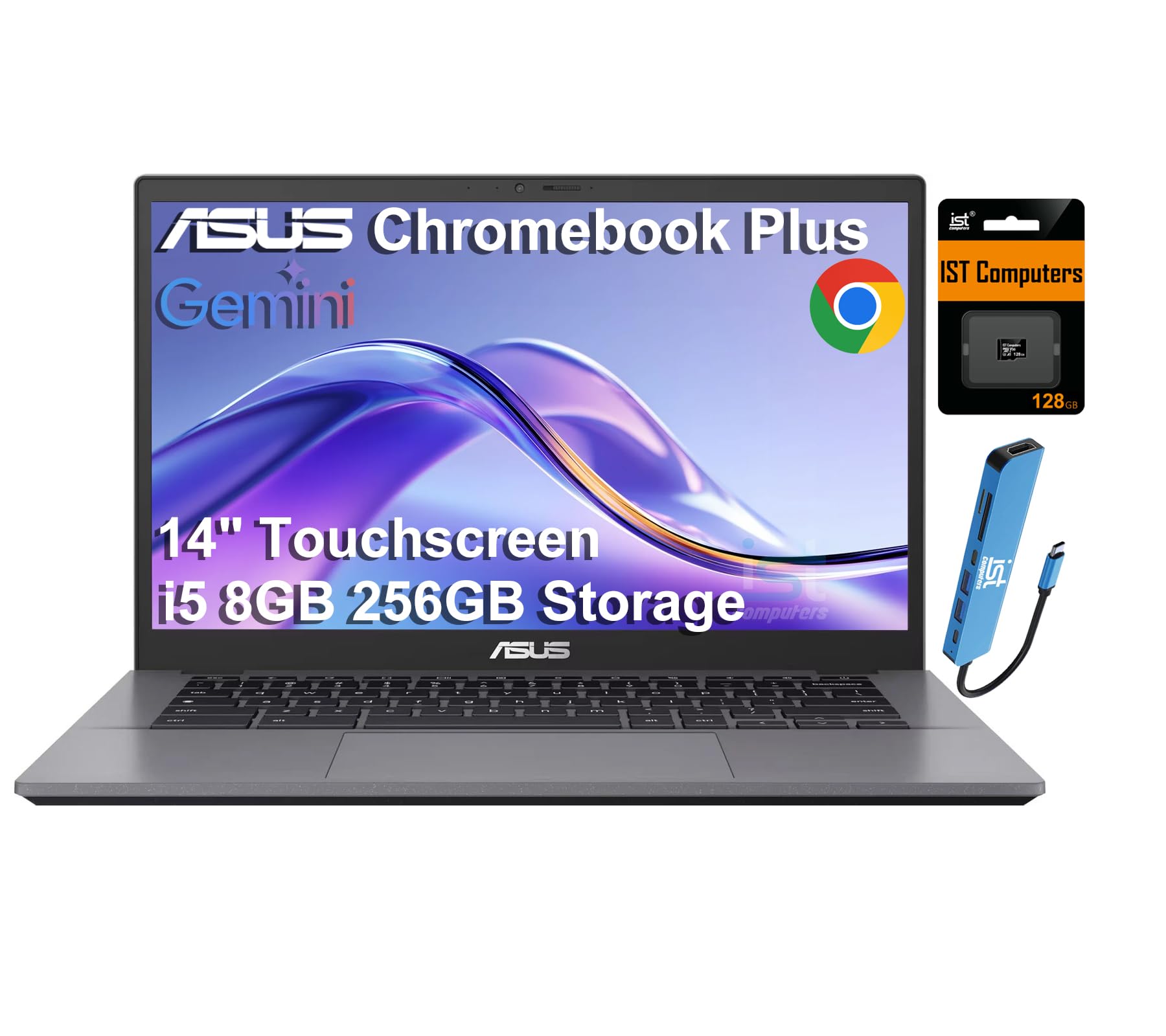
Google's Chromebook Plus label marks models that meet higher minimum specs, including faster processors, at least 8GB of RAM, 128GB of storage, a Full HD display and a 1080p webcam, plus extra AI features. For most buyers, Chromebook Plus is the sweet spot.
Key Specs Explained in Plain English
Focus on the processor, RAM, storage, battery and screen. Each spec below includes what to look for.
Processor and Performance Tier
The processor decides how smoothly the Chromebook handles many tabs, video calls and Android apps. Entry models use Intel Celeron, Intel N100 or N150, or MediaTek chips, fine for browsing, streaming and homework but slower with heavy multitasking. Chromebook Plus models use Intel Core i3 N305, Core i3 1215U or 1315U, Core i5 or AMD Ryzen chips, which feel noticeably faster.
For students and light users, an Intel N100 or N150 is enough. For power users who keep dozens of tabs open, edit photos or use Linux apps, choose a Core i3 or Core i5 Chromebook Plus. Avoid older Celeron N4000 series chips on new purchases, as they feel sluggish.
Graphics (Integrated vs Dedicated GPU)
Chromebooks use integrated graphics built into the processor. They handle video streaming, video calls, light photo editing and Android games well. Dedicated GPUs are not offered on mainstream Chromebooks, so heavy 3D games and video editing are better on Windows or Mac.
Cloud gaming services such as GeForce NOW and Xbox Cloud Gaming stream demanding games to a Chromebook over a fast internet connection, and some Chromebooks are certified for cloud gaming with high refresh screens and anti ghosting keyboards. A stable connection of about 25 Mbps or more makes cloud gaming smooth.
Battery Life in Real World Use
Chromebooks are efficient, and many last 8 to 12 hours of real use on a charge, enough for a full school or work day. Battery life depends on screen brightness, processor and how many tabs and video calls you run. Brands often quote figures under light use, so expect somewhat less with heavy streaming or video calls.
USB-C charging is standard on modern Chromebooks, so you can use the same charger as your phone or a power bank. Fast charging helps top up during a lunch break.
Weight and Portability
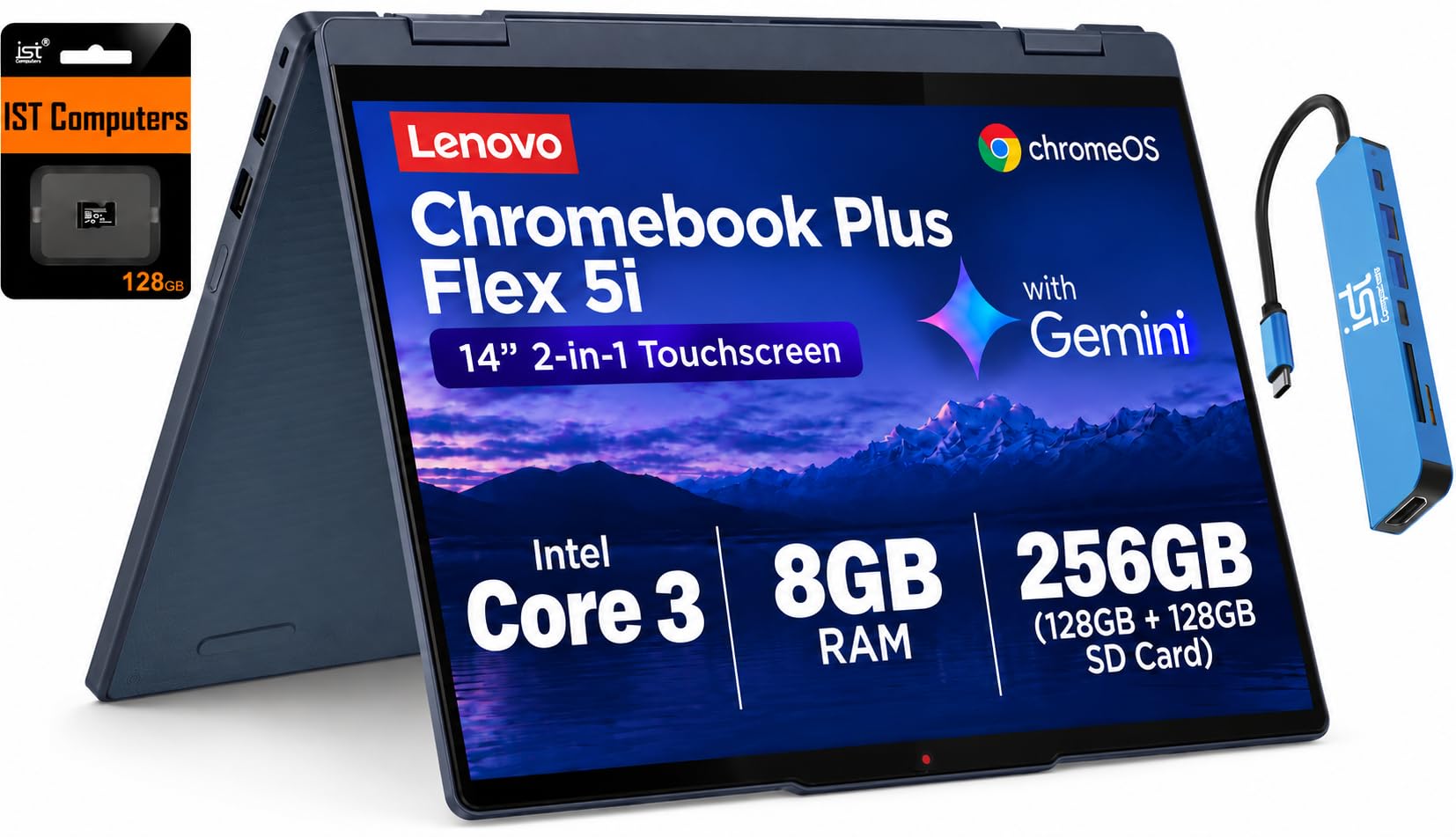
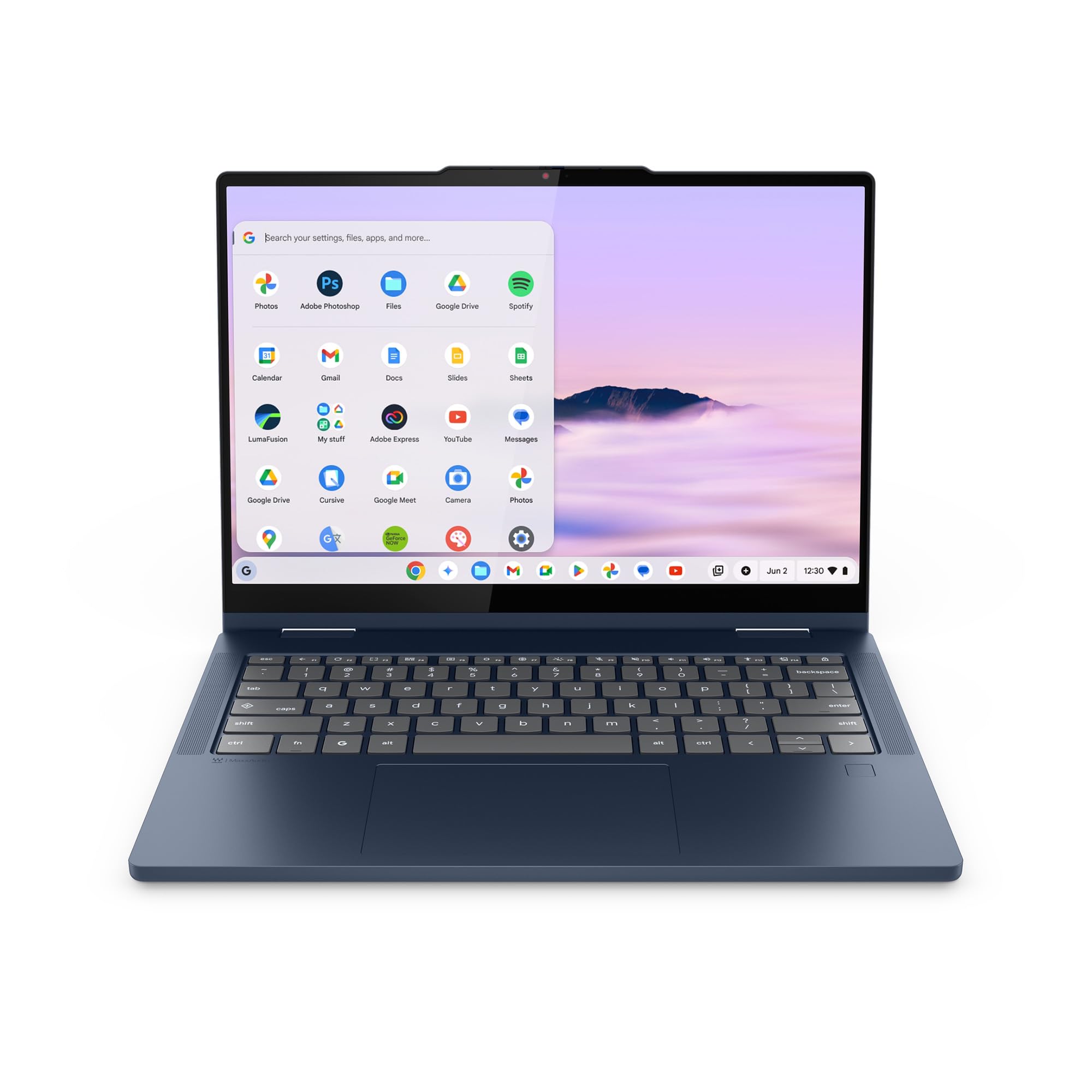
Most 14 inch Chromebooks weigh around 3 to 3.5 lb, and 15.6 inch models around 3.7 to 4 lb. Lighter 11 to 13 inch models weigh under 3 lb and suit young students and travelers. Two in one convertibles, such as the HP Chromebook Plus x360 or Lenovo IdeaPad Flex 5i Chromebook Plus, fold into tablet mode for reading, drawing and note taking but weigh slightly more.
RAM and Storage
RAM lets you keep many tabs and apps open. 4GB is the minimum and suits light use; 8GB is recommended for most people and is required for Chromebook Plus. 16GB helps power users with dozens of tabs or Linux apps. RAM is usually soldered, so buy enough upfront.
Chromebooks rely on cloud storage, so 64GB is workable for light users, but 128GB or more is better for Android apps, offline files and Linux. UFS and SSD storage is faster than eMMC. A microSD slot on some models adds cheap extra space.
Ports and Connectivity
Look for at least two USB-C ports with charging and display output, a USB-A port for older accessories, a headphone jack and ideally a microSD slot. HDMI is useful for presentations, though USB-C to HDMI adapters work too. Wi-Fi 6 or 6E improves speed and reliability on busy networks, which matters since Chromebooks depend on the internet.
Display and Keyboard
Choose a Full HD (1920 x 1080) or higher IPS display for sharp text and wide viewing angles; avoid 1366 x 768 screens on 14 inch models. Touchscreens help with Android apps and two in one use. A backlit keyboard is useful for evening work, and a comfortable keyboard matters for students typing essays.
Chromebook vs Windows Laptop vs MacBook
| Factor | Chromebook | Windows Laptop | MacBook |
|---|---|---|---|
| Typical price | Around $240 to $650 | Around $400 to $1,500+ | Around $1,000+ |
| Software | Web, Android, Linux apps | Widest software and game library | macOS apps, creative tools |
| Security | Automatic updates, built in protection | Needs updates and security software | Strong built in security |
| Speed over time | Stays fast | Can slow with software buildup | Stays fast |
| Best for | Students, families, web based work | Office software, gaming, specialized apps | Creative work, Apple users |
Best Chromebook Laptops for Specific Needs
Narrow your choice by brand, platform and how you work.
Best Chromebooks and Laptops: Tips for First Time Buyers
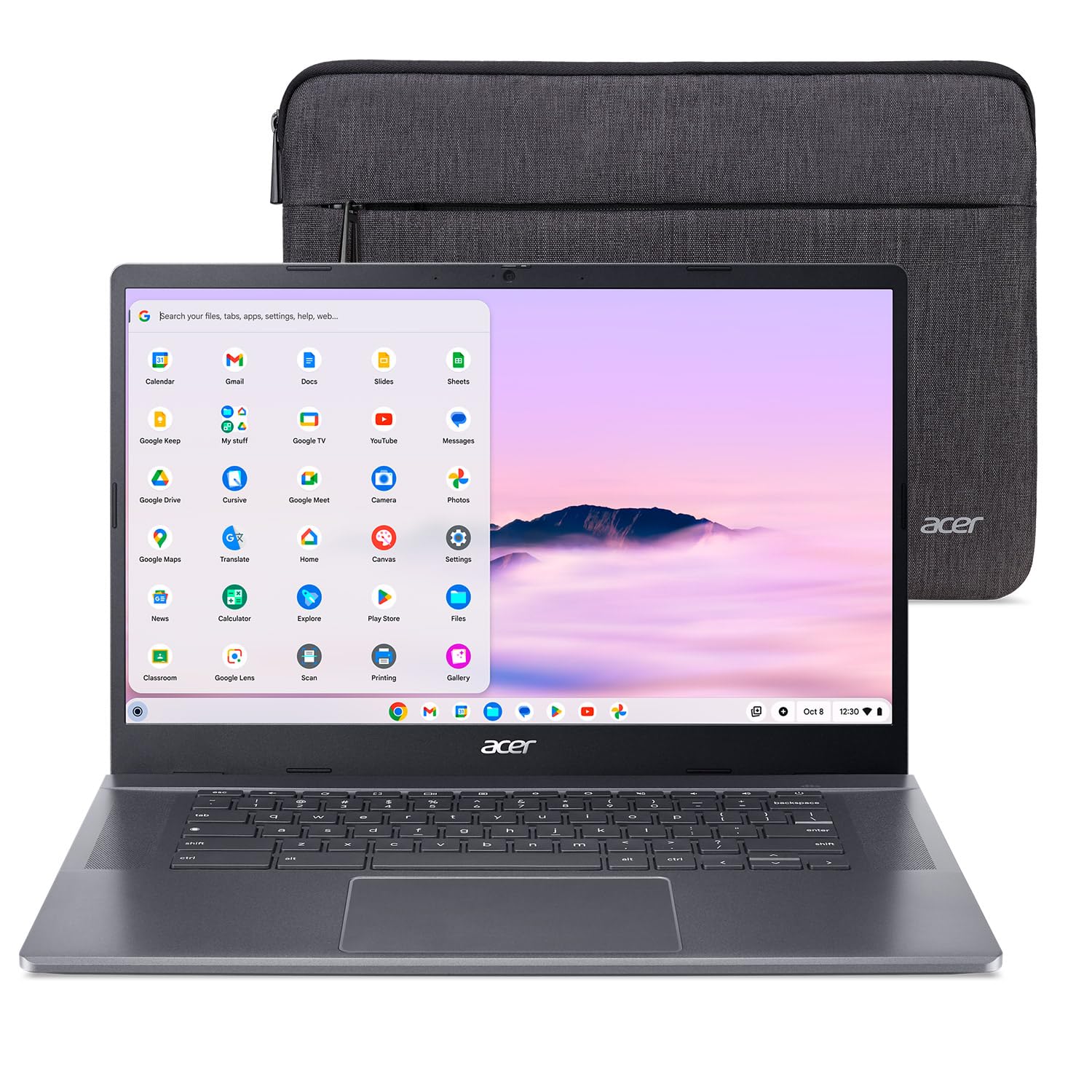
The best chromebooks and laptops for first time buyers depend on the software you need. If your work happens in a browser, choose a Chromebook Plus with 8GB of RAM and 128GB of storage, such as the Acer Chromebook Plus 515. If you need Windows programs or PC games, choose a Windows laptop instead. Check your school or employer's software list before deciding.
Best HP Chromebook Laptops: Tips for First Time Buyers
The best hp chromebook laptops include the HP Chromebook Plus x360 14, a two in one with a Full HD touchscreen, Intel Core i3 N305 and 8GB of RAM. HP's convertible designs suit students who take notes or read in tablet mode. Check the processor generation and storage type, since HP sells several similar looking configurations.
Best Google Chromebook Laptops: Tips for First Time Buyers
The best google chromebook laptops carry the Chromebook Plus label, which guarantees Google's higher minimum specs and adds Google AI features such as writing help and photo editing tools. Look for the longest automatic update date, which Google lists for each model, so your Chromebook stays secure for years.
What Chromebooks Cost at Each Price Tier
Chromebook prices are low, but each tier buys a noticeably different experience.
| Tier | Typical Price | What You Get | Best For |
|---|---|---|---|
| Entry | Around $200 to $300 | Intel N100 or Celeron class chips, 4GB RAM, 64 to 128GB storage | Young students, light browsing, backup laptops |
| Chromebook Plus | Around $400 to $650 | Core i3 or N305 class chips, 8GB RAM, 128GB+, Full HD, 1080p webcam | Most students, families, remote work |
| Premium | Around $650 and up | Core i5 or better, OLED or high refresh screens, premium builds | Power users, cloud gamers |
Who Should Not Buy a Chromebook
A Chromebook is the wrong choice if you depend on Windows or Mac only software. That includes full desktop Adobe Creative Cloud apps, many PC games installed locally, CAD and engineering tools, some exam software used by certain programs and specialized business applications. Video editors working with large files and gamers who want to play offline should also look elsewhere. If you are unsure, list your must have apps and check whether each runs on the web, as an Android app or through Linux on ChromeOS.
Chromebook Features Worth Using
- Phone Hub: view texts, use your Android phone's hotspot and see recent photos from the Chromebook.
- Nearby Share and Quick Share: send files between Chromebooks and Android phones wirelessly.
- Virtual desks: separate school, work and personal windows into their own spaces.
- Linux development environment: run code editors and command line tools on supported models.
- Family Link: set screen time and app controls for children's accounts.
Rookie Mistakes to Avoid
- Buying without checking software: confirm your essential apps run on ChromeOS, on the web or as Android apps.
- Choosing 4GB of RAM for heavy use: it struggles with many tabs and video calls; 8GB is safer.
- Ignoring the update expiration date: older models sold cheaply may have only a few years of updates left.
- Picking a low resolution screen: 1366 x 768 displays look fuzzy on 14 inch screens.
- Expecting offline everything: many tasks work offline, but Chromebooks shine with an internet connection.
How to Check a Chromebook's Update Date
Every Chromebook model has an Auto Update Expiration (AUE) date, after which it stops receiving ChromeOS and security updates. Recent models get up to 10 years from their release, but discounted older models may have only a few years left. Before buying, search the model name on Google's Chromebook auto update policy page, or after purchase open Settings, then About ChromeOS, then Additional details to see the date. Choosing a newer model with a later date is often better value than a cheaper older one, since an unsupported Chromebook becomes a security risk and may lose app compatibility.
Getting Started: Setup and First Use
- Charge the Chromebook, connect to Wi-Fi and sign in with your Google account; your bookmarks, passwords and extensions sync automatically.
- Let ChromeOS install any updates, then restart.
- Install Android apps from the Play Store and pin your most used apps to the shelf.
- Turn on offline access for Google Docs, Sheets and Slides so you can work without internet.
- Set up Phone Hub to connect an Android phone for texts, hotspot and photos.
- Explore settings for night light, keyboard shortcuts and accessibility features.
FAQs
Is a dedicated GPU worth it?
Dedicated GPUs are not offered on mainstream Chromebooks and are not needed for typical use. Integrated graphics handle streaming, video calls and Android games. For demanding games, cloud gaming services stream them to a Chromebook, and for 3D work or heavy video editing, a Windows laptop or MacBook with stronger graphics is the better tool.
How much RAM do I need?
8GB of RAM is the right amount for most Chromebook users. It keeps many tabs, video calls and Android apps running smoothly and is required for Chromebook Plus. 4GB works for light browsing and young students, while 16GB suits power users running Linux apps or dozens of tabs.
Is a Chromebook enough for school?
Yes, a Chromebook is enough for most school work. Many K-12 schools use Chromebooks, and they run Google Classroom, Docs, research tools and video classes well. College students in programs that require Windows or Mac software, such as some engineering or design courses, should check requirements before buying.
How long should a chromebook laptop last?
A Chromebook typically lasts as long as its automatic update support, now up to 10 years on recent models. Hardware often outlasts the battery's peak capacity, so expect some battery fade after a few years. Check the update expiration date on Google's support page before buying, especially on discounted older models.
Should I buy a laptop or a tablet?
Buy a Chromebook laptop if you type often; buy a tablet if you mainly read, stream and draw. A two in one Chromebook gives you both, folding into a tablet for reading and note taking while keeping a full keyboard for essays and email.
Can a Chromebook run Microsoft Office?
Yes, through Microsoft 365 web apps. Word, Excel, PowerPoint and Outlook run in the browser with your Microsoft account. The web versions cover most everyday tasks, though some advanced desktop features are missing.
Can Chromebooks work offline?
Yes, Chromebooks handle many tasks offline. You can write in Google Docs with offline access enabled, read downloaded files, watch downloaded videos in apps that allow it and use many Android apps. Syncing, streaming and web apps need a connection, so download what you need before traveling.
Final Thoughts
Choose a Chromebook if your work lives in the browser, in Google or Microsoft web apps or in Android apps. Look for the Chromebook Plus label, 8GB of RAM, 128GB of storage, a Full HD screen and a long update window. Budget buyers can start with an Intel N100 model, students will do well with a Chromebook Plus and note takers should consider a two in one. Keep those points in mind and choosing among the best chromebook laptops becomes simple. Compare current models in the product table above, and see our guide to the best laptops for colleges if you need Windows or Mac software.


