
Best 144Hz Freesync Monitors in 2026: How to Choose
Disclosure: We may earn a commission when you buy through links on this page, at no extra cost to you. As an Amazon Associate I earn from qualifying purchases. Learn more

What to check before choosing the best 144hz freesync monitors: how adaptive sync works and how to choose among 144Hz screens.
FreeSync is AMD's adaptive sync technology, and it appears on nearly every gaming monitor sold today. The best 144hz freesync monitors use it to match the screen's refresh to your graphics card's output, which removes tearing and stutter without the cost that older approaches carried.
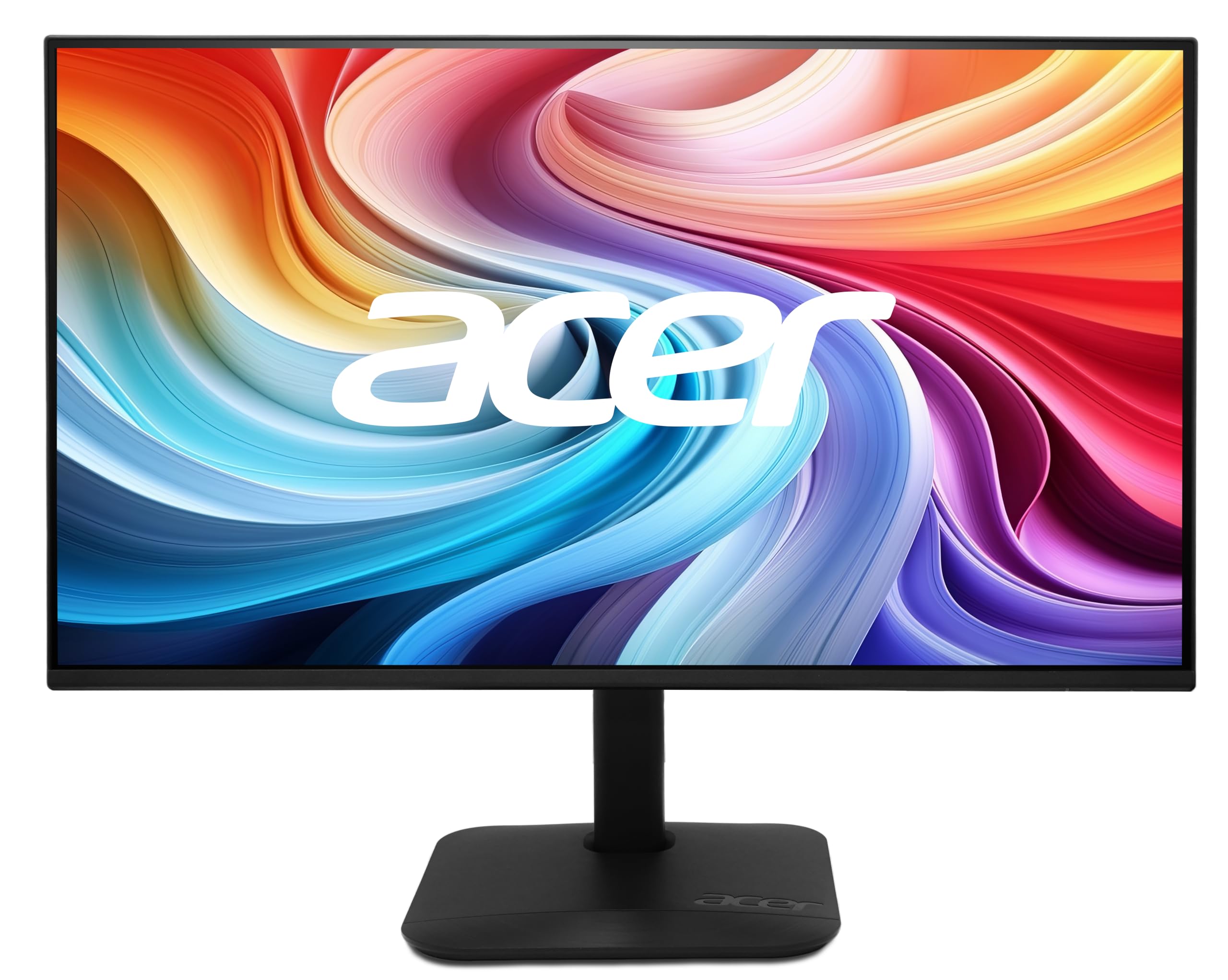
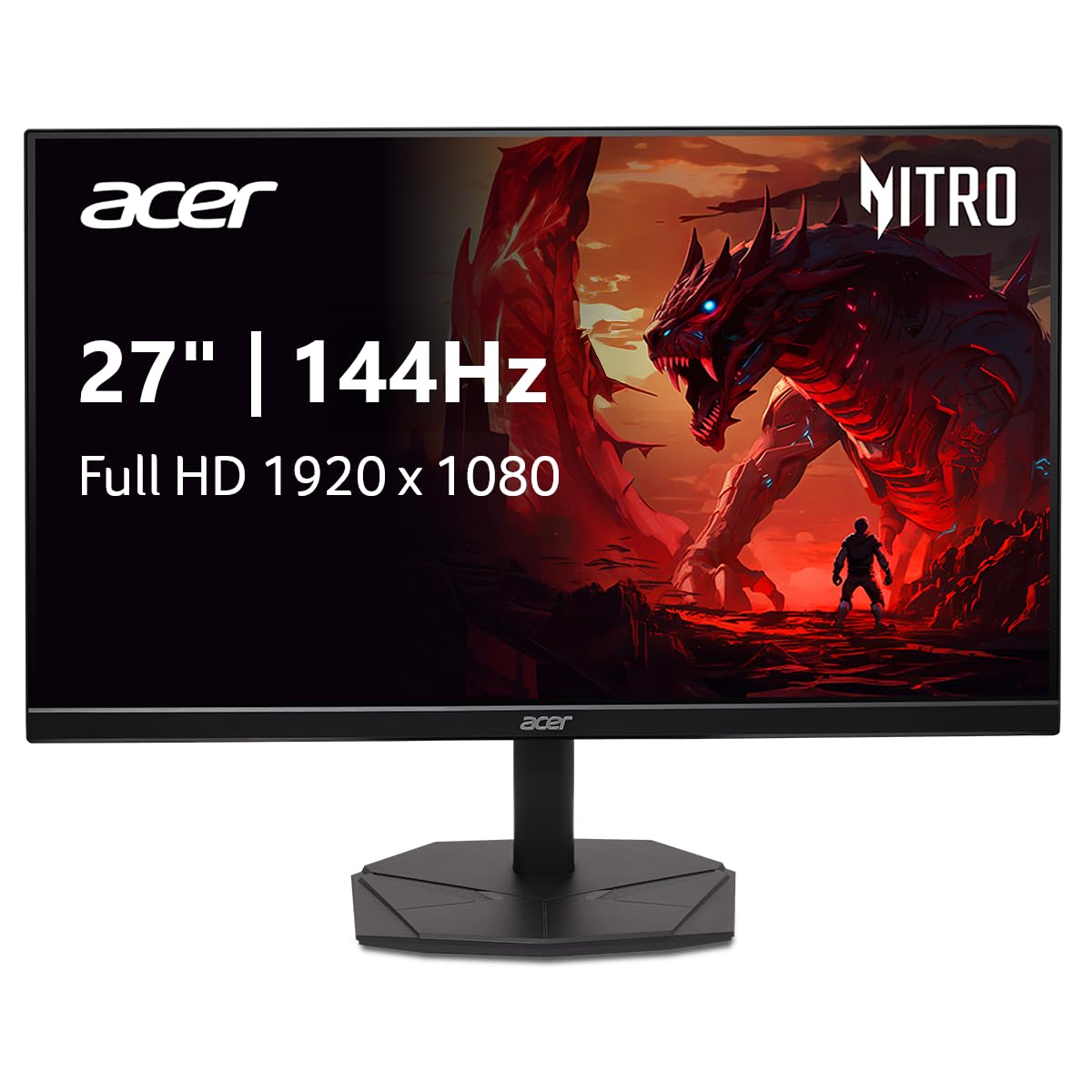
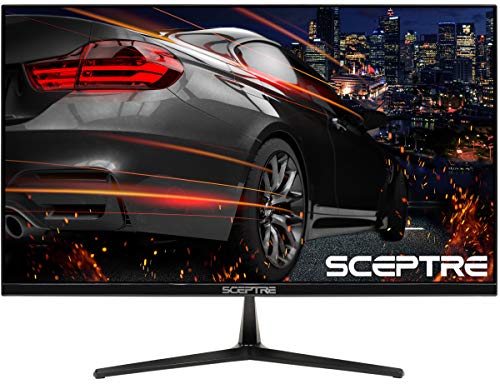
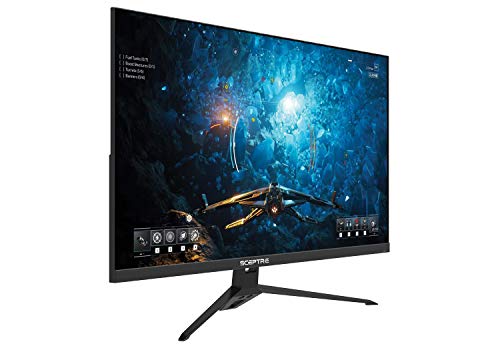
The label alone does not tell you how well it works, though. This guide explains how FreeSync behaves, what to check in the listing and how to pick among 144Hz screens at different price levels, using the table above as your shortlist.


How FreeSync Works in Plain Terms
A normal monitor refreshes at a fixed rate, and when your graphics card finishes frames at a different pace, the picture can tear or stutter. FreeSync lets the monitor wait for each frame, so the refresh follows the frame rate within a supported range. The result is smoother motion, especially when frame rates fluctuate.
It works over DisplayPort and, on many monitors, over HDMI as well. The feature is typically on by default in the monitor menu but must also be enabled in your graphics driver.
Does FreeSync Work With NVIDIA Cards?
Most modern NVIDIA cards support adaptive sync on FreeSync monitors, often under the label G-Sync compatible. It usually works well over DisplayPort. Some monitors are officially validated, while others work but have not been through the same checks.
If you own an NVIDIA card, look for the compatibility label or buyer notes confirming it works. If you use an AMD card, any FreeSync monitor is a natural fit.
FreeSync Tiers and What They Mean
The basic FreeSync label guarantees adaptive sync over a range. Higher tiers add requirements for low framerate compensation, which duplicates frames to keep the screen smooth when your game drops below the minimum range, and for HDR performance.
A wider refresh range is better. A monitor that supports adaptive sync only between 48Hz and 144Hz handles dips below 48 less gracefully than one with low framerate compensation. Look for the range or the tier name in the listing.
Resolution and Size at 144Hz
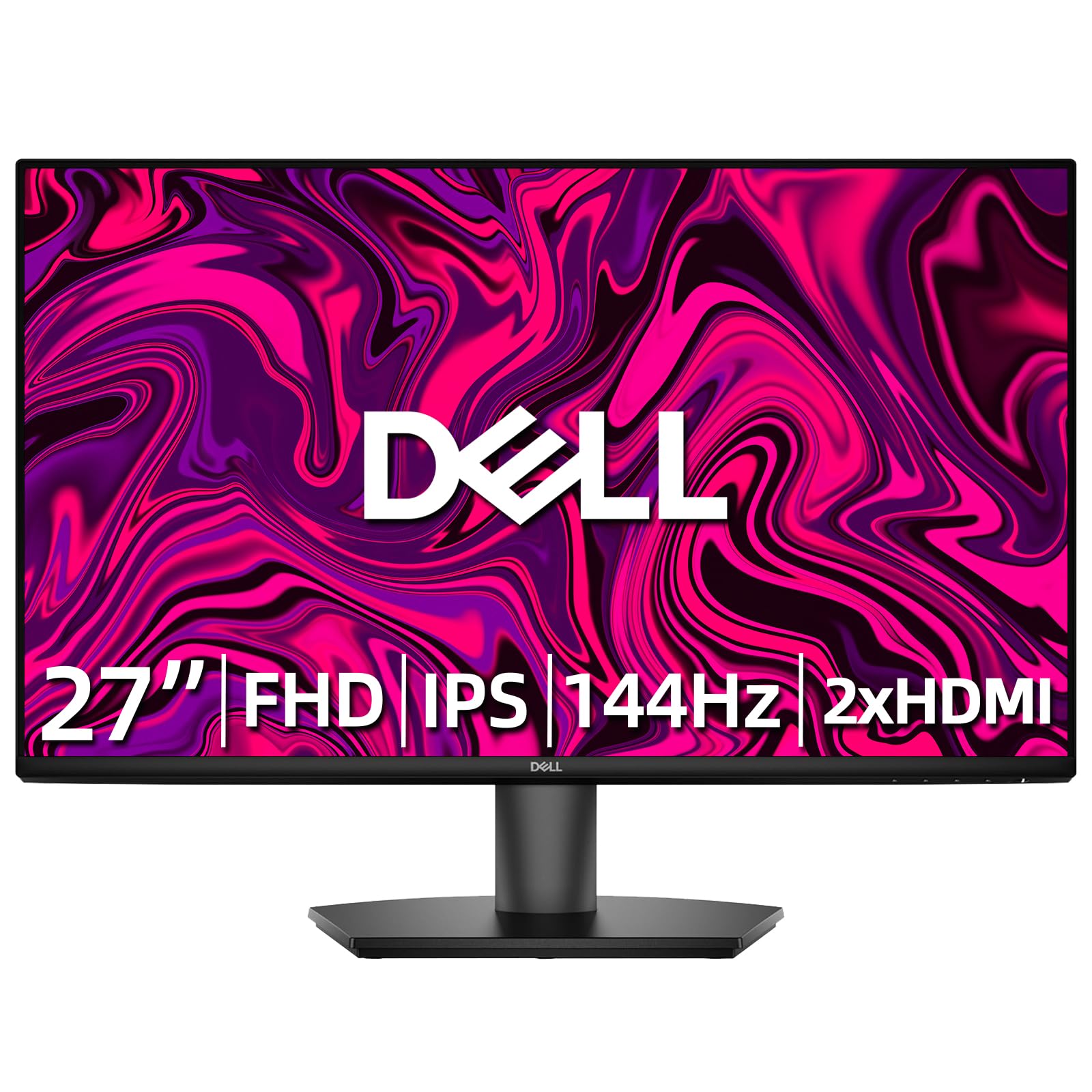
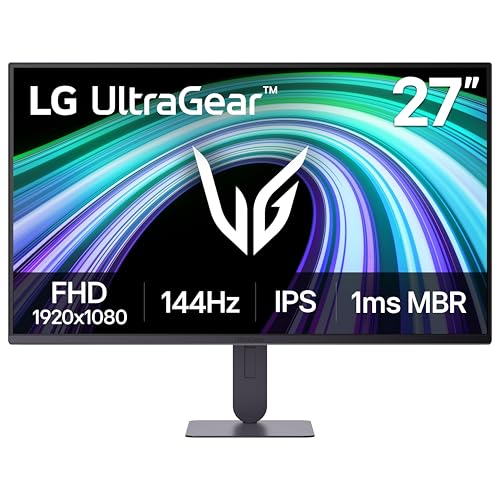
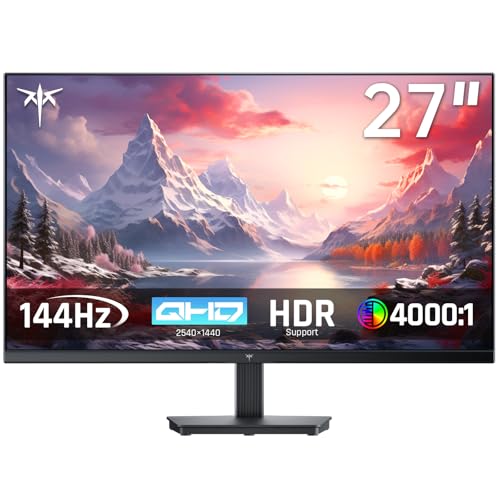
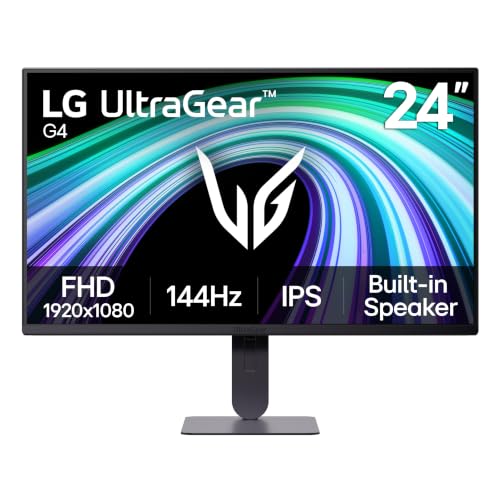
Full HD at 144Hz remains the budget standard and is easy for most graphics cards. QHD is the popular step up, giving a sharper image and a bit more desktop space. 24 to 25 inch screens suit competitive play, and 27 inches suits general gaming.
Pick the resolution your hardware can run at a steady 100 frames or more per second, then enjoy adaptive sync for the dips.
Panel Type and Motion Clarity
Fast IPS is the favorite for balanced colors and speed. VA panels offer higher contrast and are often curved and cheaper, though they can smear in dark scenes. TN panels are rare now but very quick. Look at buyer feedback about ghosting when comparing similar models.
Overdrive settings on the monitor matter too, since a poorly set level can create trails. Try the middle option first.
Ports and Everyday Practicality
- DisplayPort for the best adaptive sync support on a PC.
- HDMI, which may support adaptive sync on newer models.
- A stand with height adjustment, or VESA holes.
- A headphone jack for a headset.
Make sure the cable and port you plan to use actually support adaptive sync at 144Hz.
Budget, Midrange and Premium Options
Budget screens deliver the key benefits at low cost, with plain stands and basic features. Midrange models add better panels, brighter screens and tighter quality control. Premium models offer HDR, higher resolution and OLED, but offer smaller gains for the price if you mainly want smooth gaming.
Most buyers get the best value in the budget to midrange tiers, where adaptive sync and 144Hz are well covered.
Setting FreeSync Up Properly
Start by enabling adaptive sync in the monitor's on-screen menu, since some models ship with it off. Then open your graphics driver control panel and enable adaptive sync for full screen games, and for windowed ones if you play that way. Set the refresh rate to 144Hz in your operating system, because the desktop often defaults to a lower rate.
For the smoothest result, cap the game's frame rate a few frames below the monitor's maximum. This keeps the system inside the adaptive sync range and avoids the small delay that appears when frames hit the upper limit.
Common FreeSync Problems and Fixes
If the screen flickers in menus or loading screens, the cause is usually a large swing in frame rate near the bottom of the supported range. Locking the frame rate in those scenes or enabling low framerate compensation, where available, resolves most cases. Black screens and sudden blinks often come from a worn cable, so try a certified DisplayPort cable.
If adaptive sync does not appear in the graphics driver at all, check that you are using DisplayPort, that the monitor setting is on and that the driver is current. These three checks fix the large majority of cases without needing a replacement.
FreeSync Compared With Other Adaptive Sync Options
G-Sync, FreeSync and the generic adaptive sync standard solve the same problem. Older G-Sync monitors with dedicated hardware offered extra features such as variable overdrive, but they cost noticeably more. Today most buyers are well served by a FreeSync monitor that also carries a G-Sync compatible label, because it works across both brands of graphics card.
If you rarely change graphics card brands, the label matters less than the quality of the panel. Spend your attention on motion clarity, brightness and stand quality rather than the logo on the box.
You may also find our guides to best freesync monitors, best 144hz monitors and best 1080p 144hz monitors useful.
Frequently Asked Questions
Is FreeSync free?
The name reflects that makers do not pay a licensing fee for the basic version. Monitor prices still vary by panel and features.
Do I need FreeSync Premium?
It helps if your game frame rate dips often, since low framerate compensation keeps things smooth. For steady frame rates it matters less.
Will FreeSync work over HDMI?
On many monitors, yes, though DisplayPort is usually more reliable. Check the listing for details.
Is adaptive sync worth it?
For gaming, yes. It makes frame rate changes much less noticeable.
Final Thoughts on the Best 144hz Freesync Monitors
The best 144hz freesync monitors pair a smooth refresh with adaptive sync that holds across the range you actually use. Pick the resolution and size your hardware can drive, then use the table above to compare current prices. Prices and availability can change, so check the product page before ordering.


