
Best 27 Inch Computer Monitors in 2026: A Plain-Language Buying Guide
Disclosure: We may earn a commission when you buy through links on this page, at no extra cost to you. As an Amazon Associate I earn from qualifying purchases. Learn more

Screen space for two windows without a huge desk is what the best 27 inch computer monitors offer, and a few specs decide whether you enjoy the extra room.
Twenty seven inches is the size most people reach when they outgrow a small office monitor. A panel of that diagonal measures roughly 23.5 inches wide and 13 inches tall, enough to place two full documents side by side or a video next to a chat window. The best 27 inch computer monitors make that space comfortable to use and affordable to buy.
This guide skips the jargon and explains the few choices that matter: how many pixels you need, which panel type fits your room, what ports to look for, and how to avoid paying for features you will never use at a desk.
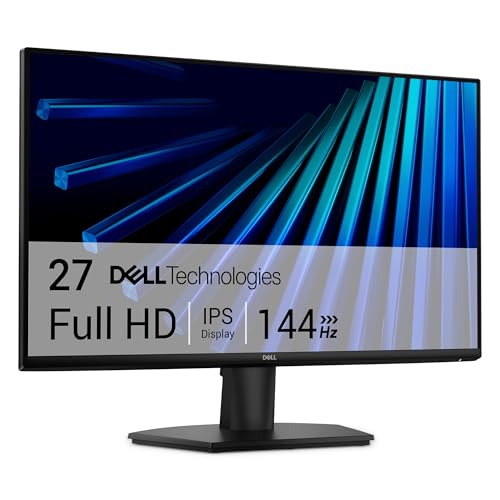

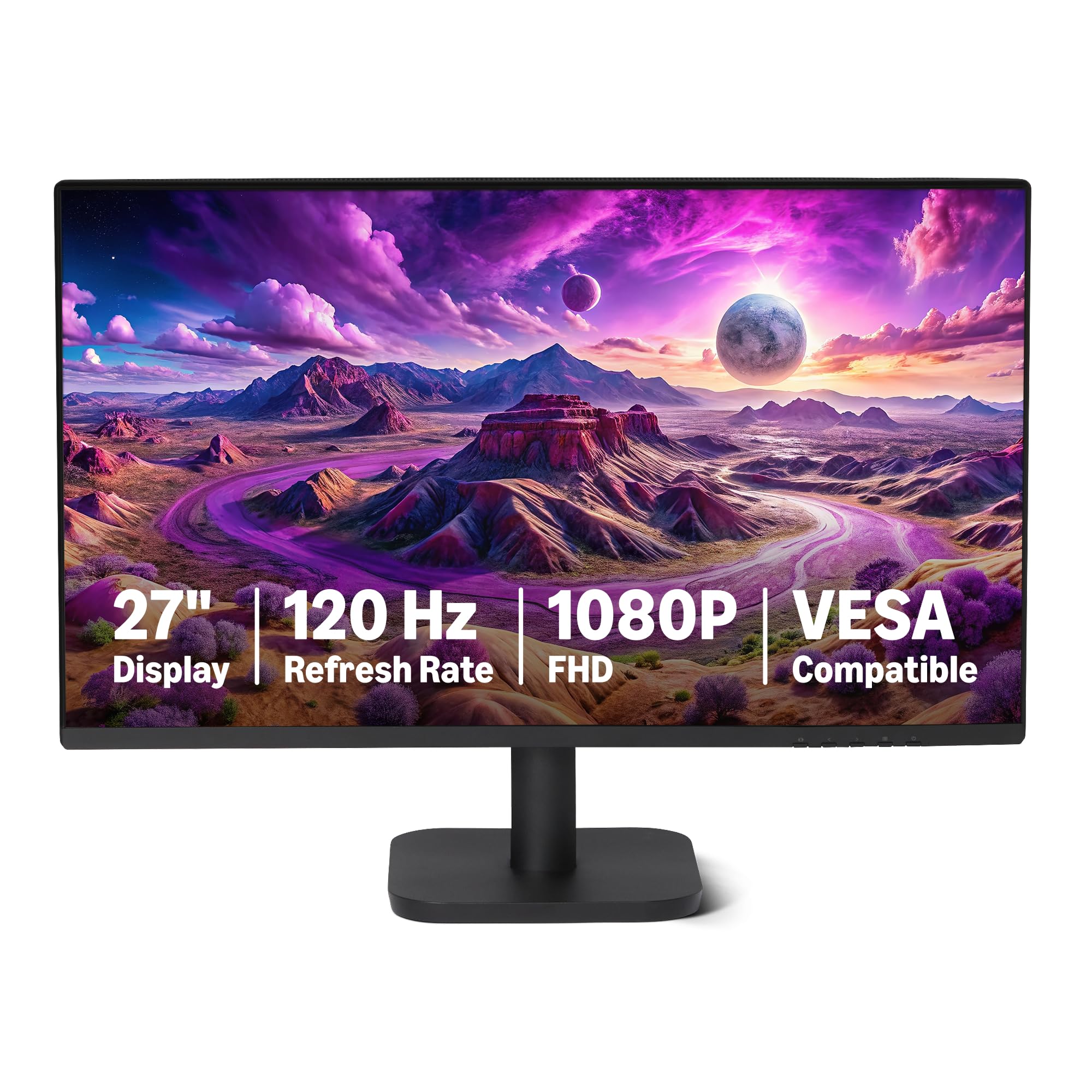


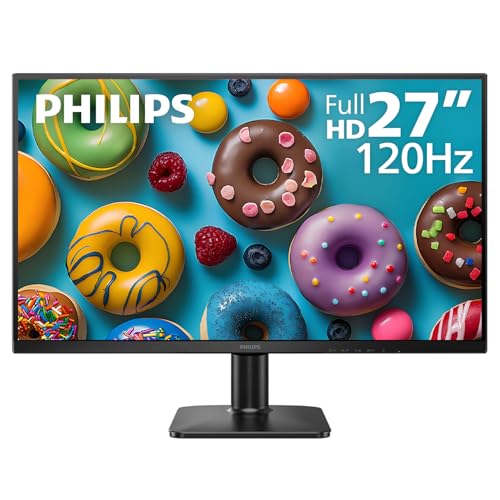


How Big 27 Inches Really Is
Measured diagonally, a 27 inch screen is a good fit for a desk about 24 to 30 inches deep, with your eyes roughly an arm's length from the glass. At that distance you can see the whole screen without turning your head, which is why the size is a favorite for offices and home study.
If your desk is shallow, a 24 inch screen may be easier to live with. If you want to run two windows at full size, 27 inches is the point where the second window stops feeling cramped. Beyond 32 inches you tend to move your head, and the desk needs more depth.
Resolution: 1080p, 1440p or 4K
A 27 inch 1080p screen is the budget pick: it is fine for documents and video but the pixels become visible if you sit close. A 1440p screen is noticeably sharper and is the sweet spot for most people. A 4K screen is sharpest of all, and it suits those who read, edit or design all day, but it needs a capable computer and some interface scaling.
For general computing, 1440p gives the best balance of sharpness and ease. If your budget is tight, a 1080p screen at 100 hertz still serves a household well. Consider the next step up if you often see small text or edit photos. Our guides to 27 inch 4K monitors and the 1440p models go deeper.
Panel Types and What They Mean
IPS panels have wide viewing angles and stable color, which suits shared screens and photos. VA panels have deeper blacks and stronger contrast, and they are good for movies in a dim room, but color can shift when you view them from the side. Most affordable 27 inch screens are one of these two, and either is fine for office use.
The panel surface matters too. A matte finish cuts reflections from windows and lamps, which is useful in a bright room. A glossy finish looks richer but shows reflections.
Eye Comfort Features
If you work long hours, look for flicker free backlighting and a low blue light mode. Both reduce strain for many people. Adjustable brightness is also key: a screen that is too bright for the room tires your eyes quickly. Place the screen so that windows are to the side rather than behind or in front of it.
Take breaks every half hour and look at something far away. No monitor setting replaces that habit, and it is the cheapest comfort upgrade you will find.
Ports, Stand and Mounting
Check which inputs the monitor has. HDMI works with most laptops and consoles, DisplayPort suits desktop computers and often supports higher refresh rates, and USB-C can carry picture and power from a laptop. A VGA port is only needed for an old computer.
A stand with height adjustment is worth a small premium. If it is missing, the VESA mount on the back lets you fit an arm. Arms free up desk space and let you position the screen precisely, and many are inexpensive.
Budget Tiers in Plain Terms
Around the lowest price band you will find 1080p panels at 75 to 100 hertz, usually with basic stands. A step up brings 1440p sharpness, faster refresh and better stands. Higher still, you see 4K, USB-C docking and wide color coverage. Decide which jump matters most for your daily use and stop there.
If you want to add games to the mix, see the best budget computer monitor page, and for a comparison of resolutions read about 4K versus 1440p.
Setting It Up Right
Unbox the screen next to the desk and connect it with the cable that suits your computer before you attach the stand fully, so you can test the signal. Set the native resolution in the display settings, then adjust the scale so that text looks natural at your sitting distance. Lower the brightness until a white document does not glow compared with the room.
Position the top edge of the screen at or just below eye level and tilt it back slightly. If you use a laptop beside it, keep both at the same height so that your neck does not twist. Cable clips on the stand keep the desk tidy and avoid tugging on the connector.
Mistakes to Avoid
- Buying on screen size alone and ignoring resolution, which decides how sharp text looks.
- Paying for gaming features such as very high refresh rates when you only browse and write.
- Skipping the stand check: a stand without height adjustment forces you to prop the screen on books.
- Forgetting the port on your computer: some older laptops only have HDMI and cannot drive a high refresh rate over it.
- Leaving the screen at factory brightness, which is often too bright for a home office.
Frequently Asked Questions
Is 27 inches too big for a desk?
It depends on desk depth. With about two feet of depth it works well. On a shallow desk a 24 inch screen is more comfortable.
What resolution should I choose?
1440p suits most people. Choose 1080p to save money, or 4K if you read small text or edit images for hours.
Do I need a curved screen?
No. Curves help some games and movies but are not needed for office work.
Are built in speakers good enough?
They are fine for notifications and video calls. For music, use headphones or separate speakers.
Final Thoughts
The best 27 inch computer monitors give you room to work without overwhelming the desk. Pick 1440p if you can, check the stand and ports, and keep an eye on comfort features if you work long hours. Everything else is a nice extra rather than a need.
Prices and availability can change, so check the product page before ordering.


