
Best 27 Inch Monitors under 200: What Your Budget Really Buys in 2026
Disclosure: We may earn a commission when you buy through links on this page, at no extra cost to you. As an Amazon Associate I earn from qualifying purchases. Learn more

Under 200 dollars you can find 1440p or fast 1080p panels, and the best 27 inch monitors under 200 spend the budget on the panel and stand, not on gimmicks.
Two hundred dollars goes a long way in the monitor market. A few years ago it bought a basic 1080p screen. Today it can buy a 27 inch panel at 1440p with a fast refresh rate, or a polished 1080p screen with decent ergonomics.
The best 27 inch monitors under 200 are not the ones with the longest feature list. They are the ones that spend the budget on the panel, the stand and the warranty.


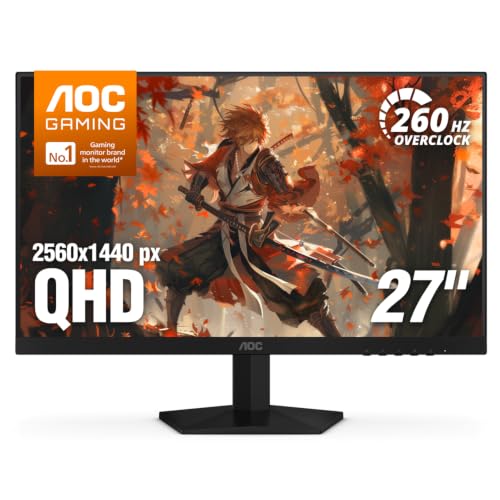
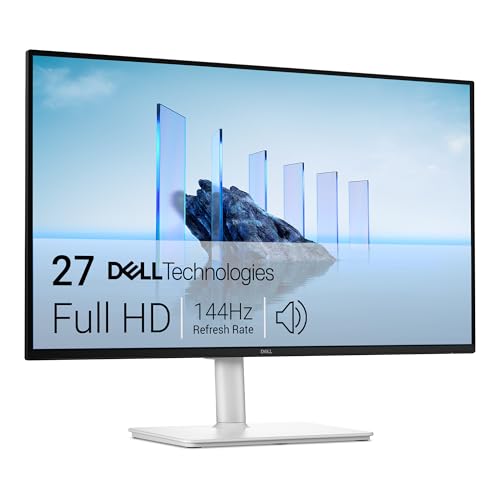
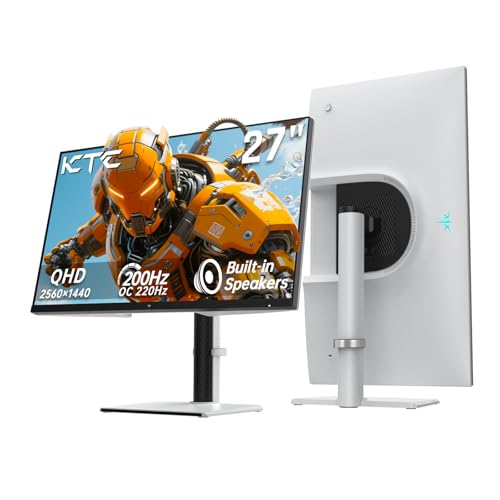
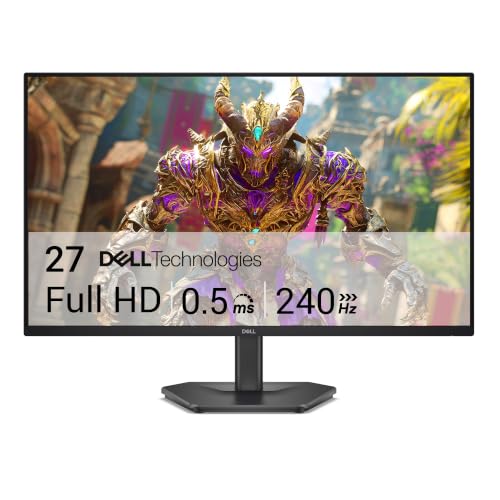

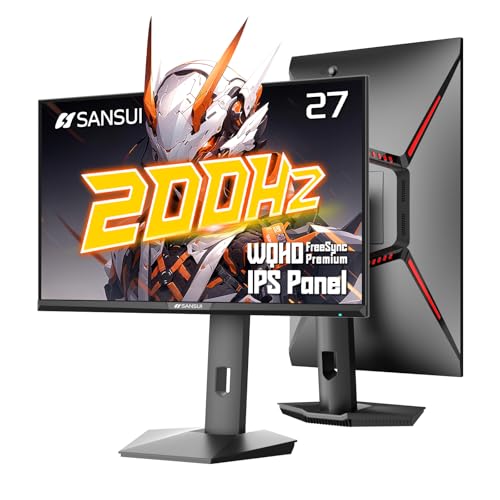
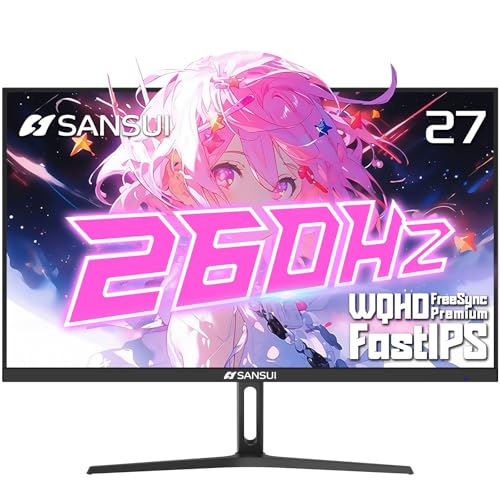

This guide shows what each part of the budget buys, where makers cut corners, and how to avoid paying for badges you will never use.
What the Budget Buys
In the lower part of the range, around 100 to 130 dollars, expect a 1080p panel at 75 to 120 hertz, a basic stand and sometimes built in speakers. In the middle, around 130 to 170 dollars, you start to see 1440p panels, faster refresh rates and better stands. At the top of the range, near 200 dollars, you can find 1440p at 144 hertz or more with a good IPS panel.
If your budget stretches only a little, going from 1080p to 1440p is the most noticeable upgrade for the money. If you are strictly near the lower end, a good 1080p IPS panel at 100 hertz is perfectly serviceable for office work and video.
Resolution Beats Everything Else
At 27 inches, 1080p shows visible pixels when you sit close. 1440p gives a clearly sharper picture, with smoother text and more detail. For the money, it is the best investment. Do not spend on HDR badges or extreme refresh rates before you have chosen the resolution you want.
If your computer cannot drive 1440p at a high frame rate, the sharper picture may still be worth it for work, since desktop tasks are light. For gaming at 1440p, a mid-range graphics card is useful. Our guide to the best 27 inch monitors lists higher priced models too.
Panel Type at This Price
IPS panels dominate the range and offer good color and wide viewing angles. VA panels offer higher contrast and cost a little less. Both are fine.
Check the listing for the panel type, since a few screens at this price still use cheaper technology. A flat IPS panel with 99 percent sRGB coverage is a reliable pick.
Refresh Rate and Response
For work, 75 hertz is enough. For gaming, 144 hertz is a big step up. Response times are quoted in impressive numbers, but they are often best case values.
Use overdrive in the middle setting and judge the motion yourself. Do not pay extra for 240 hertz on a budget unless your graphics card can deliver those frames.
Where Makers Cut Corners
The stand is the usual weak point. Many budget screens offer only tilt, so you may need a monitor arm or a stack of books. Built in speakers are typically weak.
Ports are limited: you may get one HDMI and one DisplayPort, but no USB-C. Backlight uniformity can be uneven, so inspect the screen for light bleed in a dark room.
Warranty and return policies matter, since cheap panels can arrive with dead pixels. Buy from a seller with an easy return policy and test the screen in the first week. For lower priced alternatives, look at the guide to the monitors under 200 and our page on 24 inch monitors under 200. If you can stretch the budget a bit, the 27 inch monitors under 300 guide shows what the next step adds.
Mistakes to Avoid
- Paying for 4K badges or HDR labels that the panel cannot support.
- Choosing the highest refresh rate and ignoring resolution.
- Skipping the stand check and ending up with a low screen.
- Ignoring the return policy on a budget panel.
- Buying a curved screen for office work without trying one first.
A Shopping Routine for Tight Budgets
Start with resolution, then panel type, then the stand, and only then look at refresh rate and extras. Open several listings in tabs and compare ports, stand adjustments and warranty terms side by side. Check how the seller handles returns, because the ability to send back a screen with a dead pixel is worth more than a small price difference.
When the screen arrives, set it to its native resolution, choose an sRGB or standard mode, and run a few full screen colors in a dark room to look for stuck pixels and uneven light. Do this within the first days, while returns are simple.
Where to Spend an Extra Twenty Dollars
If you can stretch the budget a little, the best upgrades are an IPS panel over a cheaper alternative, a stand with height adjustment, and a longer warranty. Skip built in speakers and HDR badges. A monitor arm for a small extra cost often improves ergonomics more than any spec on the panel itself, and it frees up desk space for a lamp or a notepad.
Frequently Asked Questions
Can I get 1440p for under 200 dollars?
Yes. Several 27 inch 1440p panels sit near or under that price, usually with 144 hertz or more.
Is 1080p fine at 27 inches?
It is acceptable for casual use, but 1440p looks sharper for the money.
Do cheap monitors have dead pixels?
Occasionally. Check the screen in the first week and use the return window if you see a defect.
Do I need speakers?
They are handy for calls but weak for music. Use headphones for better sound.
Is an IPS panel worth choosing at this price?
Yes. IPS gives better color and viewing angles than most cheaper alternatives, and many screens in this range use it.
Should I buy a screen on sale?
Sales can be a good chance, but check that the model has the panel, refresh rate and ports you need. A discount on the wrong screen is not a bargain.
Final Thoughts
The best 27 inch monitors under 200 put money into resolution and a good IPS panel, accept simple stands and limited ports, and skip extras. Check the return policy and inspect the screen quickly. With these steps you can end up with a screen that feels far more expensive than it is.
Prices and availability can change, so check the product page before ordering.


