
Best 2K Computer Monitors: Sharper Than 1080p, Easier Than 4K for 2026
Disclosure: We may earn a commission when you buy through links on this page, at no extra cost to you. As an Amazon Associate I earn from qualifying purchases. Learn more

For work, study and mixed use, the best 2k computer monitors give clear text and plenty of room at 24, 27 or 32 inches without demanding a powerful computer.
2K is the middle child of monitor resolutions: more detailed than full HD and much lighter on your computer than 4K. In monitors, 2K means 2560 by 1440 pixels, also called QHD or 1440p. It gives you roughly 78 percent more pixels than 1080p, which is why text looks clearer and you can fit more on the screen. The best 2k computer monitors use that resolution on a size that suits your desk and a panel that suits your work.
This guide treats 2K as an everyday computing choice, not a gaming one. It covers which size gives the best sharpness, how to choose between panel types, which ports matter and how to set up a screen for long hours of work.

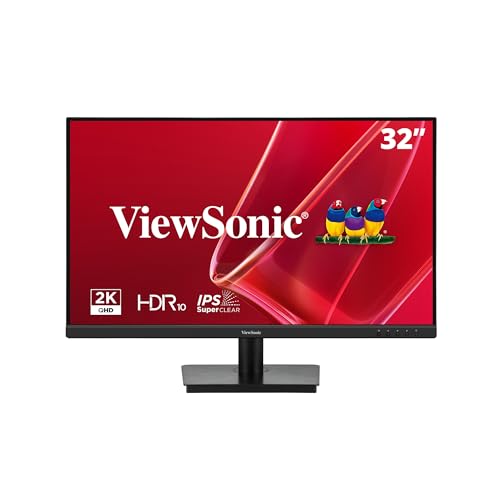

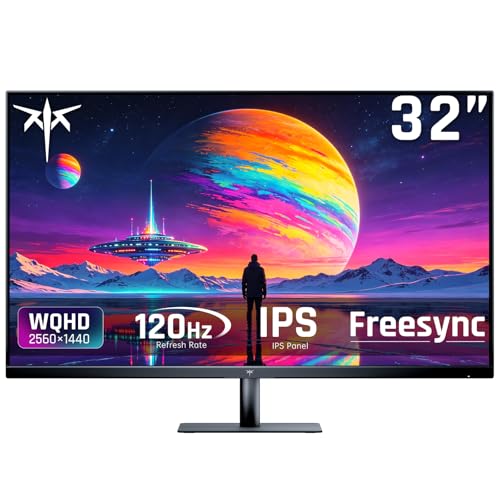


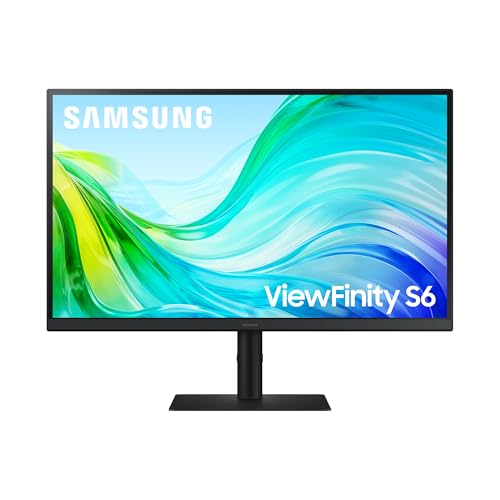
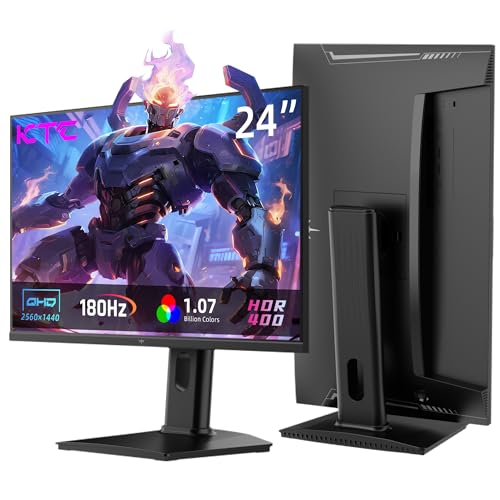

Size Changes How 2K Looks
On a 24 inch screen, 1440p is very sharp, about 122 pixels per inch, but text is small and you may use some scaling. On a 27 inch screen the density is about 109 pixels per inch, which is the popular balance of sharpness and size. On a 32 inch screen it drops to about 92 pixels per inch, so you get lots of room but text looks closer to a standard office screen.
Choose by desk and eyesight. A 24 inch 2K screen suits a small desk and sharp text lovers. A 27 inch screen is the allrounder. A 32 inch screen gives a cinema feel for people who sit farther back.
Why 2K Beats 1080p for Work
The extra pixels let you open two windows side by side, view a full spreadsheet without scrolling and read small text without eye strain. Photos and video look cleaner and web pages show more content. If you spend long hours at a computer, the upgrade from 1080p is among the most noticeable you can make.
Compared with 4K, 2K is easier to drive and needs no scaling on a 27 inch panel, so every program looks right at once. See our guide to 2K monitors and the comparison of good looking computer monitors for more choices.
Panel Types for Work
IPS panels offer wide viewing angles and stable color, and they suit shared screens and everyday tasks. VA panels offer higher contrast and suit movies and dark themes, though viewing angles are narrower. At large sizes such as 32 inches, a VA screen gives a pleasing contrast, and an IPS panel gives a more even look from the side.
Look for a matte coating, flicker free backlight and a low blue light option for long sessions. Adjustable stands help you set the screen at the right height.
Ports and Connectivity
HDMI and DisplayPort cover most computers. USB-C with power delivery is a bonus for laptops. A built in USB hub makes it easy to plug in a keyboard and webcam. Check the refresh rate supported over each port, because older HDMI ports may limit 1440p to 60 hertz.
For gaming, you may want a higher refresh rate. Our pages on the computer monitors for gaming and portable monitors cover those needs.
Budget and Value
2K screens now sit at modest prices. Spend on a good panel and stand first, and treat HDR labels and very high refresh rates as extras. If you only do office work, 60 to 100 hertz is plenty. A solid warranty and an easy return policy matter more than a small price difference.
Setting Up
Connect with the supplied cable, set the native resolution and a scale that suits your eyes. Adjust the brightness to the room and enable a standard or sRGB color mode. Raise the screen to the right height, and keep it about an arm's length away.
Mistakes to Avoid
- Picking a 32 inch 2K screen and expecting very sharp text.
- Using an old HDMI cable and being stuck at 60 hertz.
- Choosing a glossy screen for a bright room.
- Overpaying for speed that office work never uses.
- Skipping the stand check.
Different Jobs, Different 2K Screens
A student wants a clear screen that is comfortable for reading and typing. A 27 inch IPS model with a flicker free backlight and a stand that adjusts for height is a good choice. A remote worker needs USB-C for a laptop, and a hub for the webcam and headset. A designer wants better color, so look at wide gamut coverage and a factory calibration report.
A family computer in a shared room benefits from a screen with wide viewing angles and built in speakers. A spare room or kitchen screen may only need a basic panel with a simple stand. Think of the main person who will use it and pick the features they will use every day.
Making the Most of the Resolution
Use the screen at its native resolution to keep text sharp. On Windows, set the scale to 100 percent at 27 inches or 125 percent at 24 inches. Choose a larger font in the browser if you prefer. Enable a night mode in the evening to reduce eye strain, and consider a darker theme in your editor or reading app.
If you game occasionally on the same screen, set a higher refresh rate in the display options and turn on variable refresh rate. Your work will not suffer, and games feel smoother. Keep an eye on the cables: a damaged HDMI cable can cause flicker and drops that look like a screen fault.
Frequently Asked Questions
Is 2K good for office work?
Yes. It gives clear text and plenty of room for multiple windows.
What size is best for 2K?
27 inches is the balanced choice. 24 inches is sharper, and 32 inches gives more room.
Do I need scaling at 2K?
At 27 inches, usually not. At 24 inches, some people use 125 percent.
Is 2K enough for photo editing?
Yes for casual work. For serious color work, look for wide gamut and calibration.
Final Thoughts
The best 2k computer monitors give clear text, plenty of room and an easy load on your computer. Choose the size by your desk, the panel by your room and the ports by your devices, and keep the setup comfortable for long hours.
Prices and availability can change, so check the product page before ordering.


