
Best Art Tablets at Every Price: What Your Money Really Gets You
Disclosure: We may earn a commission when you buy through links on this page, at no extra cost to you. As an Amazon Associate I earn from qualifying purchases. Learn more

Art tablets sorted by price, from pen tablets to large pen displays, with three picks and buying advice.
Art tablets range from simple pen pads under $40 to large pen displays and professional screens that cost more than a laptop. The price spread is huge, and so is the difference in how they feel to use, which makes it easy to overspend on features you do not need or to buy something that holds you back. This guide to the best art tablets explains what your money buys at each price tier, which features are worth paying for and how to choose between a pen tablet, a pen display and a standalone tablet.
The short answer: beginners and hobbyists should start with an affordable screenless pen tablet, artists who want to draw directly on the image will get the best value from a 13 to 16 inch pen display, and professionals who work long hours benefit from a large, color accurate pen display.


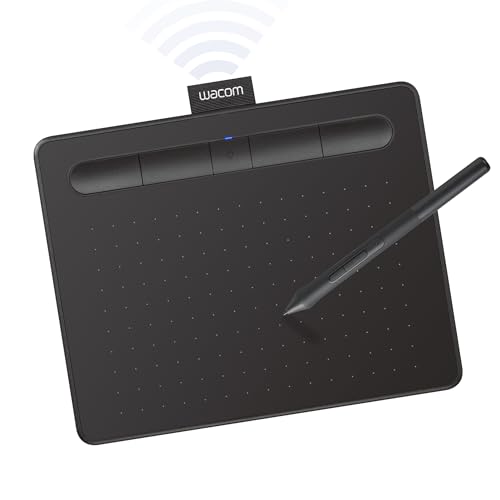
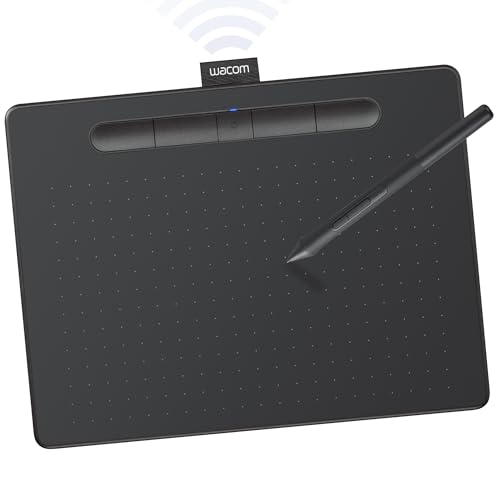


Top 3 Picks by Budget
The HUION Inspiroy H640P is our best budget pick, the HUION Kamvas 13 (Gen 3) is the best midrange pick and the XPPen Artist Pro 22 (Gen 2) is the best premium pick.
Best Budget Pick: HUION Inspiroy H640P
The HUION Inspiroy H640P suits beginners, students and anyone who wants to replace a mouse with a pen for drawing, photo editing or note taking. At around $30, it is one of the cheapest ways to try digital art without compromise on the essentials.
Its two standout strengths are a battery free pen with 8,192 pressure levels and six customizable press keys for shortcuts like undo and brush switching. It is just 0.3 inches thin and works with Windows, Mac, Linux and many Android devices. The limitation is the small 6 by 4 inch drawing area and the lack of a screen, so you draw on the pad while looking at your monitor, which takes some practice.

Best Midrange Pick: HUION Kamvas 13 (Gen 3)
The HUION Kamvas 13 (Gen 3) suits hobbyists and students who want to draw directly on the screen. At around $229, it is a 13.3 inch pen display that connects to a computer.
Its strengths are a fully laminated screen with anti sparkle Canvas Glass 2.0 for reduced glare, and a pen with 16,384 pressure levels and a light 2g activation force. Color accuracy is rated at average delta E under 1.5 with 99 percent sRGB coverage, it ships with a factory calibration report and it uses a single USB C cable, with five shortcut keys, dual dials and an adjustable stand. The limitation is that it must be connected to a computer or compatible Android device to work.

Best Premium Pick: XPPen Artist Pro 22 (Gen 2)
The XPPen Artist Pro 22 (Gen 2) suits illustrators, designers and professionals who spend hours drawing each day. At around $600, it offers a large 22 inch 2.5K screen with 16K pressure levels and Calman color calibration.
Its strengths are the large canvas, which lets you draw with full arm movements rather than tight wrist strokes, and the higher resolution that keeps lines sharp. The limitation is size: it needs desk space and a sturdy stand, and it is not portable.

What Your Money Gets You at Each Price Tier
Here is what to expect at each level.
Budget Tier: Around $30 to $100
Budget art tablets are screenless pen tablets, also called graphics tablets. You draw on a pad while looking at your computer screen. They offer good pressure sensitivity, shortcut keys and battery free pens, and they are durable and portable. The trade off is hand eye coordination: drawing without seeing your pen on the image takes a few weeks to feel natural. They are perfect for beginners, students and photo editors.
Midrange Tier: Around $200 to $450
This tier introduces pen displays, screens you draw on directly, typically 13 to 16 inches. Expect laminated screens that reduce the gap between pen tip and cursor, anti glare glass, good sRGB coverage and adjustable stands. This is the sweet spot for most hobbyists and art students, as drawing on screen feels much closer to paper.
Premium Tier: Around $500 and Up
Premium art tablets offer larger 22 to 27 inch screens, higher resolutions, wider color gamuts, factory calibration and refined pens with tilt and very low activation force. Standalone pro tablets and creative focused iPads also sit in this range. Spending more pays off for professionals and serious artists who draw daily and need accurate color for print or client work.
Features Worth Paying For (and Ones to Skip)
Some features make a real difference to drawing; others are nice extras.
Pen Display vs Pen Tablet
The biggest upgrade is moving from a screenless tablet to a pen display. Drawing directly on the image makes linework, painting and detailed editing much more intuitive. If your budget allows only one upgrade, this is the one to pay for.
Display Size, Resolution and Color
Larger screens give room for arm movement and bigger canvases. 1080p is fine at 13 inches, while 2.5K or 4K helps at 16 inches and above. Color gamut matters most if you prepare work for print or clients; casual artists can stick with good sRGB coverage.
Laminated, Anti Glare Glass
Laminated screens reduce parallax, the gap between pen tip and cursor, and anti glare etched glass adds a paper like texture. Both are worth paying for in a pen display.
Pen Pressure, Tilt and Activation Force
Pressure levels beyond 8,192 offer diminishing returns, but tilt support and a low activation force make light strokes and shading feel more natural.
Shortcut Keys and Dials
Programmable keys and dials speed up workflows by putting undo, zoom and brush size under your other hand. They are useful but can be replaced with a keyboard.
Connectivity and Compatibility
Single cable USB C connection keeps desks tidy. Check compatibility with your operating system and art software, and whether the tablet works with Android or Chromebooks if needed.
Skip: Huge Pressure Numbers in Marketing
Do not choose a tablet just because it claims higher pressure levels. Pen feel, accuracy and driver quality matter more.
Art Tablet Types Compared
| Type | Best For | Pros | Cons | Typical Price |
|---|---|---|---|---|
| Pen Tablet | Beginners, photo editing | Cheap, durable, portable | Draw while looking at another screen | around $30 to $150 |
| Pen Display | Hobbyists, students, pros | Draw directly on the image | Needs a computer, takes desk space | around $200 to $1,500 |
| Standalone Tablet | Artists on the go | No computer needed, portable apps | Pricier, app limitations | around $350 to $1,500 |
Best Art Tablets for Different Uses
The best art tablets for one person can be the wrong choice for another, so match the tablet to how you will use it.
For Kids and Young Students
Children and young students do well with small, durable pen tablets that plug into a family computer. They are inexpensive, survive drops and teach pen control. Very young kids may prefer simple LCD writing boards for doodling before moving to a real graphics tablet.
For Photo Editing and Design
Photographers often prefer a medium screenless tablet for retouching, because it gives precise pressure control for brushes and masks while keeping the monitor in view. Designers working with vector tools may find a mouse plus a small tablet the most efficient combination.
For Animation and Comics
Animators and comic artists spend long hours on linework, so a pen display with a laminated screen and accurate tracking is worth the investment. A 16 inch screen gives room for panels and timelines.
For Note Taking and Teaching
Teachers, tutors and students who annotate slides or write math by hand can use a small pen tablet as a digital whiteboard during video calls, often more comfortably than writing with a mouse.
Setting Up a Comfortable Drawing Space
Long drawing sessions are easier on your body with the right setup. Angle pen displays with a stand so you are not hunching over a flat screen, and keep the top of the display around eye level when possible. Place a pen tablet close to the front of the desk so your forearm can rest, and keep the keyboard within reach of your other hand for shortcuts. Take short breaks to stretch your wrists and shoulders, and use good lighting to reduce glare.
Common Mistakes to Avoid
- Buying a large pen display before knowing whether you enjoy digital art.
- Ignoring desk space for 16 inch and larger screens.
- Skipping driver updates, which fix lag and compatibility issues.
- Choosing by pressure numbers alone instead of screen quality and pen feel.
Software to Pair With Your Tablet
Many art tablets include free trials or bundled software. Free programs such as Krita, MediBang and GIMP are excellent for learning. Clip Studio Paint is popular for illustration and comics, Adobe Photoshop and Illustrator suit design and photo work, and Procreate is a favorite on iPad. Choose your tablet with your preferred software in mind, since a standalone tablet locks you into its app ecosystem.
Tips for Getting Started With Digital Art
- Map the tablet to your screen in the driver settings so proportions feel natural.
- Adjust pressure curves until light and heavy strokes feel right.
- Use a drawing glove to reduce smudges and friction on pen displays.
- Practice simple line exercises for a few minutes daily to build control.
- Set up shortcut keys for undo, brush size and zoom early.
Long Term Costs to Factor In
Pen nibs wear down and need replacing, especially on textured glass; most tablets include spares and replacements are inexpensive. Factor in art software subscriptions if you use Adobe or similar tools, a stand or arm for larger displays and possibly a color calibration device for professional work. A good tablet often lasts many years, so investing a little more in build quality usually pays off.
Art Tablets: Your Questions Answered
These are the questions artists ask most before buying.
Should I buy a pen tablet or a pen display?
Beginners on a tight budget should start with a pen tablet. If you know you enjoy digital art and can afford it, a pen display offers a more natural drawing experience.
Can I use an art tablet with a laptop?
Yes. Most pen tablets and pen displays connect to Windows and Mac laptops by USB, and some work with Chromebooks and Android devices. Check your laptop's ports for pen displays.
How long should an art tablet last?
A quality tablet can last five years or more. Pens and nibs are the parts that wear, and replacements are usually easy to find.
Is an iPad a good art tablet?
An iPad with Apple Pencil is an excellent standalone art tablet, especially with Procreate. It costs more than a pen tablet and relies on iPad apps, but its portability is a major plus.
Do art tablets work with Chromebooks?
Many pen tablets now support ChromeOS, and some pen displays work with Chromebooks that support video over USB C. Check the compatibility list before buying, and use web based or Android drawing apps on the Chromebook.
Do I need a drawing glove?
A two finger drawing glove reduces friction and smudges on pen displays and helps palm rejection on standalone tablets. It is inexpensive and many tablets include one.
What size art tablet should I get?
Small pen tablets suit beginners and travel. For pen displays, 13 inches is portable, 16 inches balances space and size, and 22 inches suits professional desk setups.
Our Verdict
The three things that matter most are choosing between a pen tablet and a pen display, matching screen size to your space and getting a pen that feels natural. Beginners should start with an affordable pen tablet, most hobbyists will love a 13 inch pen display and professionals should invest in a large, accurate screen. Use this guide to choose the best art tablets for your budget, then check the product table above for current prices. For a full creative setup, see the best computer monitors for your desk.


