Best Business Tablets: Everything to Know Before Your First Purchase
Disclosure: We may earn a commission when you buy through links on this page, at no extra cost to you. As an Amazon Associate I earn from qualifying purchases. Learn more

iPad, Android and Windows tablets for work compared, with specs explained and three picks.
A business tablet can replace a laptop for many workers, or sit alongside one as a lighter device for meetings, travel, sales calls and note taking. Today's tablets run full office suites, video conferencing and cloud apps, and with a keyboard cover they handle email and documents comfortably. The challenge is choosing between iPadOS, Android and Windows, and between sizes, storage tiers and accessories. This guide to the best business tablets explains the basics, the specs that matter in plain English and how to set up a tablet for work.
The short answer: most professionals will be happiest with an iPad Air or Samsung Galaxy Tab S series tablet plus a keyboard case for email, documents and video calls; anyone who relies on desktop Windows software should choose a Windows 2 in 1 like the Surface Pro, which works as a full laptop when docked with its keyboard.


Our Top 3 Picks at a Glance
For a quick starting point, these three tablets cover the main platforms.
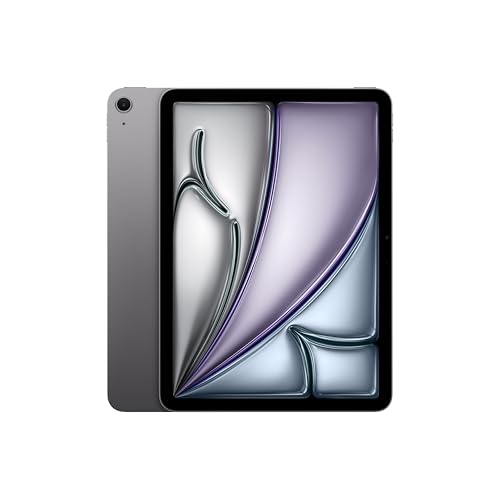
Best overall: the Apple iPad Air 11 inch (M4), around $699, offers a Liquid Retina display, 12MP front and back cameras and Wi Fi 7, with a huge library of business apps and excellent battery life.
Best Android value: the Samsung Galaxy Tab S10 FE+, around $570, is a 13.1 inch Android tablet with 128GB of storage, a large screen for split screen multitasking and Samsung DeX for a desktop style layout.

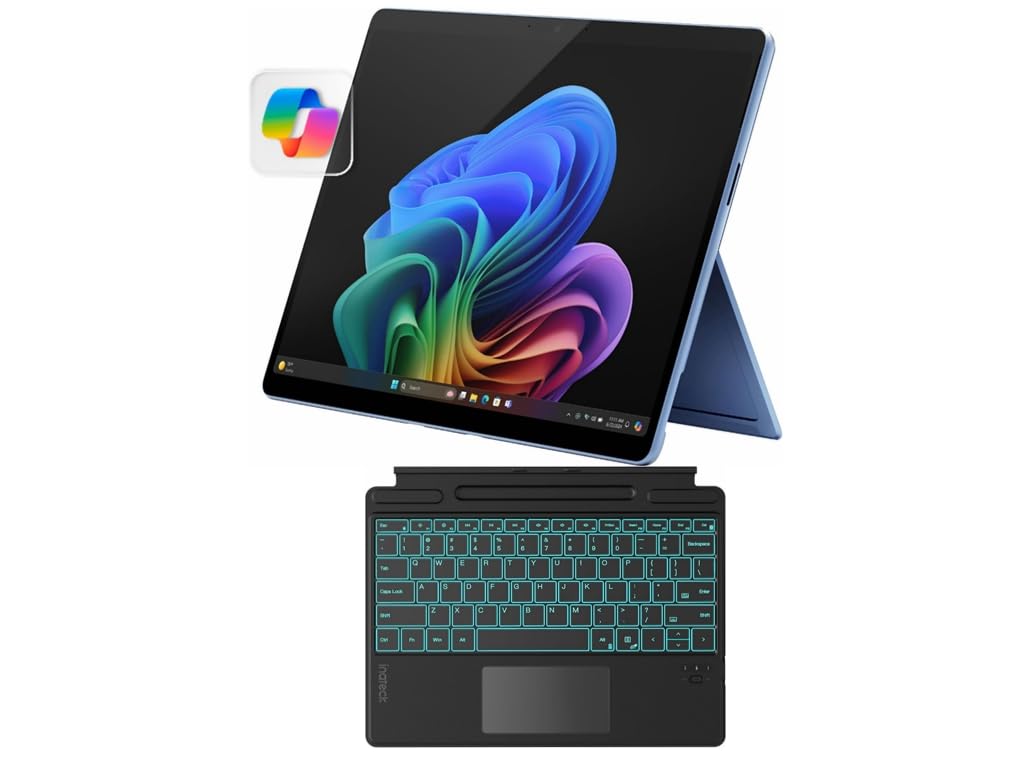
Best Windows 2 in 1: the Microsoft Surface Pro 11 Bundle, around $1,900, is a 13 inch Copilot+ PC that comes with the Pro Keyboard and Slim Pen, so it runs full Windows apps as a laptop or a tablet.

Business Tablets 101: The Basics
A business tablet is any tablet you use primarily for work: reading and editing documents, presenting, joining video calls, signing contracts, taking handwritten notes or running industry apps. The three main platforms behave quite differently.
iPads run iPadOS, with polished apps such as Microsoft Office, Google Workspace, Zoom, Teams, Slack and many industry tools, plus Apple Pencil for notes and signatures. Android tablets, led by Samsung's Galaxy Tab line, run Google apps natively and offer Samsung DeX, a desktop style mode with resizable windows. Windows 2 in 1 tablets like the Surface Pro run the full desktop version of Windows, so they work with any Windows software your company uses, including line of business applications and VPN clients.
Keyboard covers, styluses and docks turn tablets into flexible work machines. Some companies manage tablets through mobile device management tools, so check with your IT team before buying if the tablet will access company systems.
Key Specs Explained in Plain English
These specs decide how well a tablet handles your workday.
Processor and Performance Tier
The processor determines how smoothly the tablet handles multitasking, large spreadsheets and video calls. Apple's M series chips in iPad Air and Pro models are very fast and efficient. Samsung's higher end Galaxy Tab S models use flagship Snapdragon or MediaTek chips, while FE models use midrange chips that handle office work comfortably. Windows tablets with Intel Core Ultra or Snapdragon X processors behave like laptops. For email, documents and calls, midrange chips are fine; for photo editing, large files or heavy multitasking, choose a higher tier.
Display Size, Resolution and Brightness
An 11 inch screen balances portability and usability, while 12 to 13 inch screens make split screen work and document editing much easier. Higher resolution keeps text sharp, and brightness of 500 nits or more helps when working near windows or outdoors. Anti glare coatings or matte screen protectors reduce reflections in bright offices.
Battery Life in Real World Use
Manufacturers often quote best case figures. In real work with video calls, bright screens and WiFi, expect around 8 to 10 hours from good iPads and Android tablets, and somewhat less from Windows 2 in 1s under heavy use. Fast charging helps if you can top up between meetings.
Operating System
Choose the platform that matches your work apps. iPadOS suits people in the Apple ecosystem and those who want the widest choice of polished tablet apps. Android suits Google Workspace users and people who want file system flexibility and DeX. Windows suits anyone who needs desktop software, multiple user accounts or company specific tools. ChromeOS tablets are inexpensive and simple but rely mainly on web apps.
Storage and Memory
128GB is a reasonable minimum for business use if you rely on cloud storage; 256GB or more suits people who keep large files offline. On Android, microSD support adds cheap storage. Windows tablets benefit from at least 16GB of RAM for smooth multitasking.
Keyboard, Trackpad and Build
A good keyboard cover with a trackpad turns a tablet into a laptop replacement for typing. Look for comfortable key travel, backlighting and a sturdy kickstand or hinge that works on your lap. Metal bodies and strengthened glass resist daily wear; consider a protective case for field work.
Weight and Portability
Most 11 inch tablets weigh around a pound, rising to about 1.5 to 2 pounds for 13 inch models, plus the keyboard. That is still lighter than most laptops, which makes tablets ideal for travel and moving between meetings.
Connectivity and Security
Wi Fi 6E or 7 helps in busy offices, and cellular models keep you connected on the road. Look for biometric login, encryption and regular security updates, and check that your company's VPN and management tools support the platform.
Which Platform Should You Choose?
| Platform | Best For | Strengths | Trade Offs |
|---|---|---|---|
| iPadOS | Most professionals, creatives | App quality, battery, Pencil | Limited desktop software |
| Android | Google users, value seekers | DeX desktop mode, microSD, S Pen | Fewer tablet optimized apps |
| Windows | Desktop software users | Full Windows apps and peripherals | Shorter battery, higher price |
| ChromeOS | Simple web based work | Low price, easy management | Relies on web apps |
Best Business Tablets for Different Roles
Sales teams and consultants benefit from light tablets with long battery life and good cameras for video calls. Field workers, inspectors and contractors should look for rugged cases, bright screens and cellular connectivity. Executives who mainly read, annotate and approve documents often prefer an iPad with Apple Pencil. Finance and IT staff who rely on specialized Windows software should choose a Windows 2 in 1. Retailers and restaurants may use tablets as point of sale devices, where durability and compatible payment apps matter most.
What Your Budget Buys
Under about $400, you can find capable Android tablets and entry iPads that handle email, video calls and document review, though storage, screen quality and keyboard options are more limited. Between about $500 and $900, you get iPad Air and Galaxy Tab S FE or S series tablets with fast processors, larger and brighter screens, better cameras and premium keyboard covers. Above about $1,000, expect iPad Pro, flagship Galaxy Tab S models and Windows 2 in 1s like the Surface Pro, which offer laptop class performance, the best displays and full desktop software on Windows. Remember to budget for a keyboard and stylus, which can add $100 to $300.
Note Taking, Signatures and Markup
Handwriting is one of the biggest advantages of tablets over laptops. With a stylus such as Apple Pencil, Samsung S Pen or Surface Slim Pen, you can take meeting notes, sketch diagrams, mark up PDFs and sign contracts. Apps like GoodNotes, Notability, Microsoft OneNote and Samsung Notes can search handwriting and sync notes across devices. For professionals who sit in many meetings, this alone can justify a tablet.
Presenting From a Tablet
Tablets make excellent presentation devices. You can mirror the screen to a TV or projector wirelessly with AirPlay or Chromecast where supported, or use a USB C adapter for HDMI. Presentation apps like PowerPoint, Keynote and Google Slides support presenter view on many setups, and a stylus works as a pointer or highlighter. A tablet is also easy to pass around a table to show a client a design or proposal.
Security Tips for Work Tablets
Treat a work tablet like a laptop. Use a strong passcode with biometric unlock, enable device encryption, keep the operating system updated and only install apps from official stores. Turn on Find My or Find My Device so you can locate, lock or erase a lost tablet. If your company uses mobile device management, enroll the tablet so IT can apply security policies and separate work data from personal apps.
Accessories That Make a Tablet Work Like a Laptop
- A keyboard case with trackpad for comfortable typing.
- A stylus for handwritten notes, signatures and markup.
- A USB C hub or dock for monitors, USB drives and Ethernet.
- A portable monitor for a second screen on the road.
- A protective case and screen protector for travel.
Rookie Mistakes to Avoid
- Buying the wrong platform for the software your job requires.
- Choosing too little storage and running out of space for offline files.
- Skipping the keyboard, then struggling to type long documents.
- Ignoring company IT policies on device management and security.
- Expecting laptop performance from entry level tablets.
- Forgetting a charger plan for long travel days, when a compact USB C charger or power bank keeps you working.
- Buying without a case and cracking the screen in the first month of travel.
Getting Started: Setup and First Use
- Sign in with your work account and enable two factor authentication.
- Install your core apps: email, calendar, office suite, video calling and cloud storage.
- Set up your company VPN or device management profile if required.
- Pair the keyboard and stylus, and learn the main shortcuts and gestures.
- Turn on automatic backups and encryption, and set a strong passcode.
FAQs
These are the questions professionals ask most.
How long should a business tablet last?
Most quality tablets stay useful for four to six years. Apple and Samsung provide several years of software updates on recent models, and Windows tablets follow Windows support timelines. Battery capacity gradually declines, so expect shorter runtime in later years.
Should I buy a laptop or a tablet?
If you type for hours, run desktop software or need many ports, a laptop is better. If you value portability, handwriting, presenting and reading, a tablet with a keyboard cover can be a great primary or secondary device.
Can a tablet replace a laptop for work?
For email, documents, calls and web apps, yes for many people. Windows 2 in 1s can fully replace a laptop because they run desktop software.
How much RAM do I need?
iPads and Android tablets manage memory efficiently, so 8GB is ample for most work. Windows tablets benefit from 16GB for smooth multitasking.
Is a Chromebook tablet enough for work?
For web based jobs that run on Google Workspace or browser tools, a ChromeOS tablet or 2 in 1 can be enough and is easy to manage. If you need desktop apps or offline editing of complex files, choose iPadOS, Android with good offline apps or Windows.
Do I need a stylus for a business tablet?
Not always, but a stylus is valuable if you take handwritten notes, sign documents or mark up drawings and PDFs. If you mainly type, invest in a good keyboard first.
Is a cellular model worth it?
If you work on the road and cannot rely on WiFi or phone hotspots, a cellular model is convenient. Otherwise, tethering to your phone is usually enough.
Whichever of the best business tablets you choose, pairing it with the right keyboard, stylus and apps is what turns it into a genuine work tool.
Our Verdict
The three things that matter most are choosing the right platform for your work software, getting a keyboard for typing and buying enough storage. Most professionals will be happiest with an iPad Air, Android users get great value from a Galaxy Tab and Windows users should choose a Surface Pro. Use this guide to choose the best business tablets for your role, then check the product table above for current prices. For more options, see the best PC tablets.