
Best CPU Monitors: Everything to Know Before Your First Purchase
Disclosure: We may earn a commission when you buy through links on this page, at no extra cost to you. As an Amazon Associate I earn from qualifying purchases. Learn more

A first time buyer's guide to computer monitors, with specs explained and three picks.
Many people call their desktop tower the CPU, so when they search for a CPU monitor they simply mean a screen to plug into their computer. Choosing one can still feel confusing, with terms like QHD, IPS, refresh rate, HDR and USB C on every listing. This first time buyer's guide to the best cpu monitors explains the basics in plain English, which specs actually matter for work, school, entertainment and light gaming, and how to set up a new monitor so it is comfortable to use every day.
The short answer: for most people, a 27 inch QHD (2560 by 1440) IPS monitor with a refresh rate of 100Hz or more and a height adjustable stand is the sweet spot; budget buyers can start with a 24 or 27 inch Full HD IPS monitor, and creators or Mac users who want sharp text and accurate color should step up to a 4K USB C monitor.



Our Top 3 Picks at a Glance
For a quick starting point, these three monitors cover the main budgets.
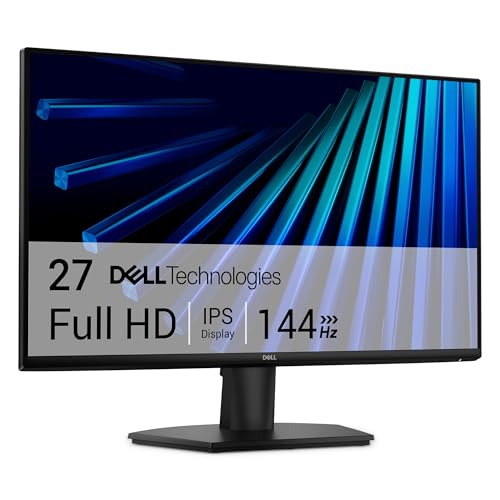
Best overall: the Dell 27 Plus QHD Monitor (S2725DSM), around $170, offers a 27 inch 2560 by 1440 display, a 144Hz refresh rate, built in speakers, AMD FreeSync and a stand that adjusts for height, tilt, pivot and swivel.

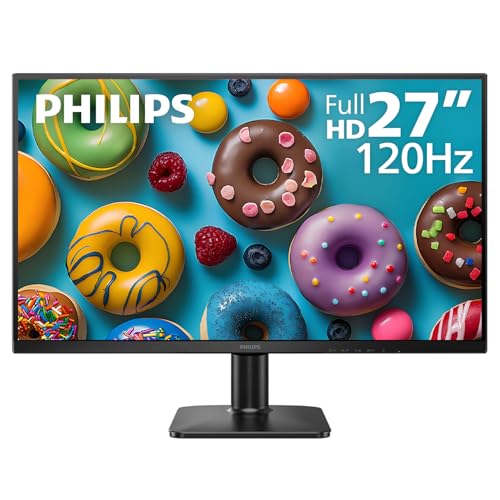
Best value: the Philips 27 Inch Computer Monitor (27E2N2100), around $100, delivers a 27 inch Full HD IPS panel at 120Hz with ultra narrow bezels, HDMI, DisplayPort and VGA inputs and flicker free LowBlue mode for long sessions.

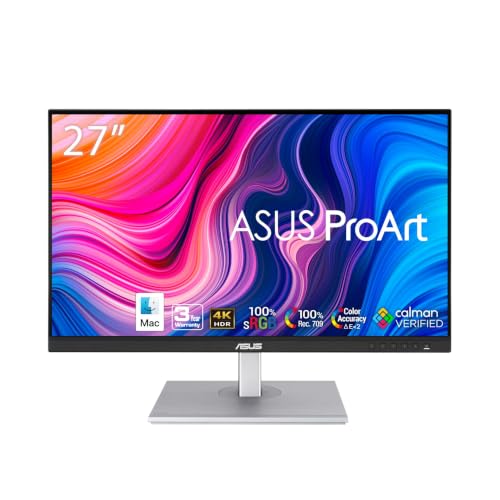
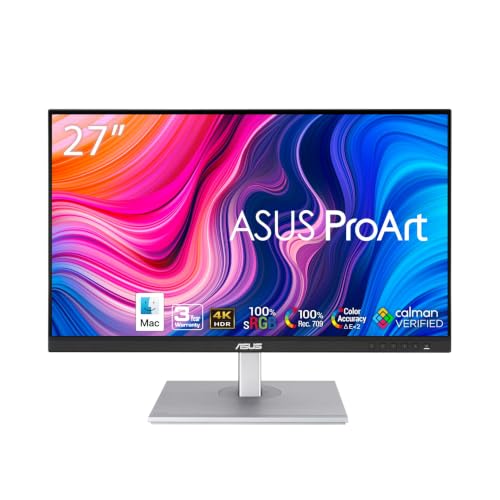
Best for creators: the ASUS ProArt PA279CV, around $312, is a 27 inch 4K UHD professional monitor with USB C connectivity, aimed at photo editing, design and anyone who wants razor sharp text.
CPU Monitors 101: The Basics
A computer monitor connects to your desktop or laptop through a cable such as HDMI, DisplayPort or USB C. The monitor's size, resolution, panel type and refresh rate decide how sharp, colorful and smooth the picture looks, while the stand and ports decide how comfortable and convenient it is.
Most desktop towers, also called CPUs or system units, have video outputs on the back. If your computer has a separate graphics card, plug the monitor into the card's ports rather than the motherboard's. Laptops usually connect through HDMI or USB C. Before buying, check which ports your computer has so you choose a monitor with matching inputs, or plan to buy an adapter.
Key Specs Explained in Plain English
These are the specs that make the biggest difference.
Screen Size
24 inch monitors suit small desks and close viewing. 27 inch monitors are the most popular choice, giving more room for side by side windows. 32 inch and ultrawide monitors suit large desks, spreadsheets, video editing and immersive gaming. Measure your desk depth: you should sit roughly an arm's length from the screen.
Resolution
Resolution is the number of pixels on screen. Full HD (1920 by 1080) looks sharp on 24 inch screens. QHD (2560 by 1440) is ideal at 27 inches, giving crisper text and more workspace. 4K (3840 by 2160) is sharpest and great for creative work and Macs, but it needs a capable computer for gaming.
Panel Type: IPS, VA, TN and OLED
IPS panels offer accurate colors and wide viewing angles, the best all rounder for most people. VA panels have deeper contrast, which suits movies and dark rooms, but colors shift at angles. TN panels are cheap and fast but have poor viewing angles. OLED monitors deliver perfect blacks and vivid HDR but cost more and can be prone to burn in with static content.
Refresh Rate and Response Time
Refresh rate, measured in Hz, is how many times per second the image updates. 60Hz is fine for office work, while 100Hz to 144Hz makes scrolling and gaming noticeably smoother. Competitive gamers may want 165Hz or more. Response time affects motion blur; 1 to 5 milliseconds is good for most users.
Connectivity and Ports
HDMI is the most common input. DisplayPort supports higher refresh rates on PCs. USB C with power delivery lets a single cable carry video, data and laptop charging, which is ideal for laptop users. Built in USB hubs and headphone jacks add convenience.
Stand and Ergonomics
A height adjustable stand helps you position the top of the screen at or slightly below eye level, reducing neck strain. Tilt, swivel and pivot add flexibility. VESA mounting holes let you use a monitor arm.
Eye Comfort Features
Flicker free backlights and low blue light modes can make long sessions more comfortable. Matte anti glare coatings reduce reflections from windows and lights.
Which Monitor Size and Resolution Is Right for You?
| Use | Suggested Size | Suggested Resolution | Refresh Rate |
|---|---|---|---|
| School and office work | 24 to 27 in | Full HD or QHD | 60 to 100Hz |
| Home office multitasking | 27 in or dual monitors | QHD | 75 to 144Hz |
| Photo and video editing | 27 to 32 in | 4K | 60Hz or more |
| Casual gaming | 24 to 27 in | Full HD or QHD | 120 to 165Hz |
| Competitive gaming | 24 to 27 in | Full HD or QHD | 165Hz or more |
Matching a Monitor to Your Computer
Your computer's graphics determine what the monitor can show. Integrated graphics in most office PCs and laptops easily drive a QHD or 4K monitor for work and video, but gaming at high resolutions needs a dedicated graphics card. For high refresh rates, check that your computer's port supports them: older HDMI versions may cap refresh rates, while DisplayPort and HDMI 2.1 handle higher rates. Mac users often prefer 4K or 5K monitors at 27 inches because macOS scales text best at those resolutions.
Single Monitor vs Dual Monitors
Two monitors let you keep email on one screen and work on the other, or view a document while writing. Many people find dual 24 or 27 inch monitors more productive than one larger screen. A single ultrawide monitor offers similar space without a gap in the middle. Check that your computer has enough video outputs or supports daisy chaining before buying two screens.
Best CPU Monitors for Different Users
The best cpu monitors for a student are not the same as the best for a video editor, so here is how to match a screen to the person using it.
For Students
Students need clear text for reading and writing, enough space to keep notes beside a document and a price that leaves room for other gear. A 24 or 27 inch Full HD IPS monitor with flicker free technology is ideal, and built in speakers save desk space in dorm rooms.
For Home Office Workers
Remote workers benefit most from a 27 inch QHD monitor or two side by side screens, a height adjustable stand and, for laptop users, USB C with power delivery so one cable charges the laptop and carries video. A built in webcam or a mount for one makes video calls easier.
For Mac Users
Macs look sharpest on 4K or higher resolution monitors at 27 inches because of how macOS scales text. USB C or Thunderbolt connectivity keeps setup simple with MacBooks, and good color accuracy matches the Mac's built in display.
For Gamers
Gamers should prioritize refresh rate and response time: 144Hz or more with FreeSync or G Sync compatibility for smooth play. QHD at 27 inches is the sweet spot for most graphics cards, while competitive players often prefer 24 inch Full HD at very high refresh rates.
For Photo and Video Editors
Creators need accurate color, wide gamut coverage such as sRGB and DCI P3 and higher resolution for detail. Factory calibrated 4K monitors save time, and hardware calibration support helps for print work.
For Older Users and Eye Comfort
Larger screens with higher brightness and anti glare coatings make text easier to read. Increase scaling in your operating system for bigger text, and choose flicker free monitors with low blue light modes for comfort.
Monitor Accessories Worth Considering
- A monitor arm frees desk space and allows precise positioning.
- A quality DisplayPort or USB C cable ensures full resolution and refresh rate.
- A webcam that clips to the top bezel for video calls.
- A screen cleaning kit with a microfiber cloth.
- A surge protector to protect your monitor and computer.
Care and Maintenance Tips
Wipe the screen gently with a dry microfiber cloth and avoid household glass cleaners, which can damage anti glare coatings. Keep vents clear, avoid leaving bright static images on OLED monitors for long periods and update monitor firmware if the manufacturer provides updates. Turn the monitor off or let it sleep when not in use to extend its life.
Rookie Mistakes to Avoid
- Buying a 4K monitor for gaming without a graphics card that can drive it.
- Ignoring ports and discovering your computer has no matching output.
- Choosing a monitor too large for a shallow desk.
- Leaving the refresh rate at 60Hz in settings after buying a 144Hz monitor.
- Skipping an adjustable stand and craning your neck all day.
Getting Started: Setup and First Use
- Connect the monitor with the best cable your computer supports, ideally DisplayPort or USB C.
- In your display settings, set the native resolution and the highest refresh rate available.
- Adjust the stand so the top of the screen sits at or slightly below eye level.
- Turn on low blue light or flicker free modes if you work long hours.
- Calibrate brightness to your room and enable FreeSync or G Sync if you game.
What Your Budget Buys
Around $90 to $150 buys a good 24 or 27 inch Full HD IPS monitor, often with 100Hz to 120Hz refresh rates. Between about $150 and $350, you get QHD 27 inch monitors with high refresh rates, better stands and sometimes USB C. Above about $350, expect 4K professional monitors with accurate color, USB C hubs and premium gaming or OLED monitors. Most home users get the best value from a QHD 27 inch monitor in the middle tier.
FAQs
These are the questions first time monitor buyers ask most.
What is the best monitor size for a desktop computer?
27 inches is the most popular size because it balances workspace and desk space. Choose 24 inches for small desks and 32 inches or ultrawide for large desks and heavy multitasking.
Is QHD worth it over Full HD?
At 27 inches, yes. QHD gives sharper text and more workspace, and most modern computers handle it easily for office work and video.
Do I need a high refresh rate if I do not game?
Not necessarily, but 100Hz to 144Hz makes scrolling and moving windows smoother, and many budget monitors now include it.
Can I connect a monitor to a laptop?
Yes. Most laptops connect through HDMI or USB C. USB C monitors with power delivery can charge your laptop over the same cable.
Is a curved monitor better?
Curved monitors help on very wide screens, such as 34 inch ultrawides, by keeping the edges at a similar distance from your eyes. On 24 and 27 inch monitors, curves are a matter of taste rather than a real benefit.
Do monitors come with cables?
Most include at least one video cable, often HDMI, and a power cable. Check the box contents if you need DisplayPort or USB C, since you may need to buy the right cable separately.
How long does a monitor last?
Most LCD monitors last many years, often 30,000 hours or more of use. OLED monitors need some care with static images to avoid burn in.
The Bottom Line
The three things that matter most are the right size and resolution for your desk, an IPS panel with a smooth refresh rate and ports that match your computer. Most people will be happiest with a 27 inch QHD monitor, budget buyers can start with a Full HD IPS screen and creators should choose 4K USB C. Use this guide to choose the best cpu monitors, then check the product table above for current prices. For gaming screens, see the best gaming monitors.


