
Best Laptops for Photoediting: Reviews and Buying Guide
Disclosure: We may earn a commission when you buy through links on this page, at no extra cost to you. As an Amazon Associate I earn from qualifying purchases. Learn more

A buying guide to laptops for Lightroom and Photoshop: screens, color accuracy, RAM, processors and ports, with three short picks.
Photo editing is one of the most demanding everyday tasks for a laptop. Lightroom catalogs with thousands of RAW files, Photoshop documents with dozens of layers and AI powered masking all lean heavily on the processor, memory and storage, while the screen decides whether your colors are accurate at all. This guide to the best laptops for photoediting explains which specs matter most, then highlights three picks for different budgets.
The short answer: the best laptop for photo editing has a color accurate screen covering close to 100 percent of DCI P3 or sRGB, such as an OLED or mini LED panel, a fast multi core processor like Apple M4 Pro, Intel Core Ultra 7 or Ryzen AI 7, at least 16GB and ideally 32GB of RAM, a 1TB SSD and fast ports for card readers and external drives; expect to pay around $1,300 to $2,000 for a laptop that handles professional workflows.


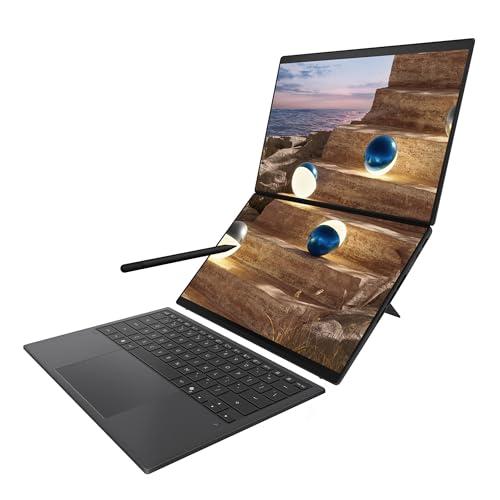
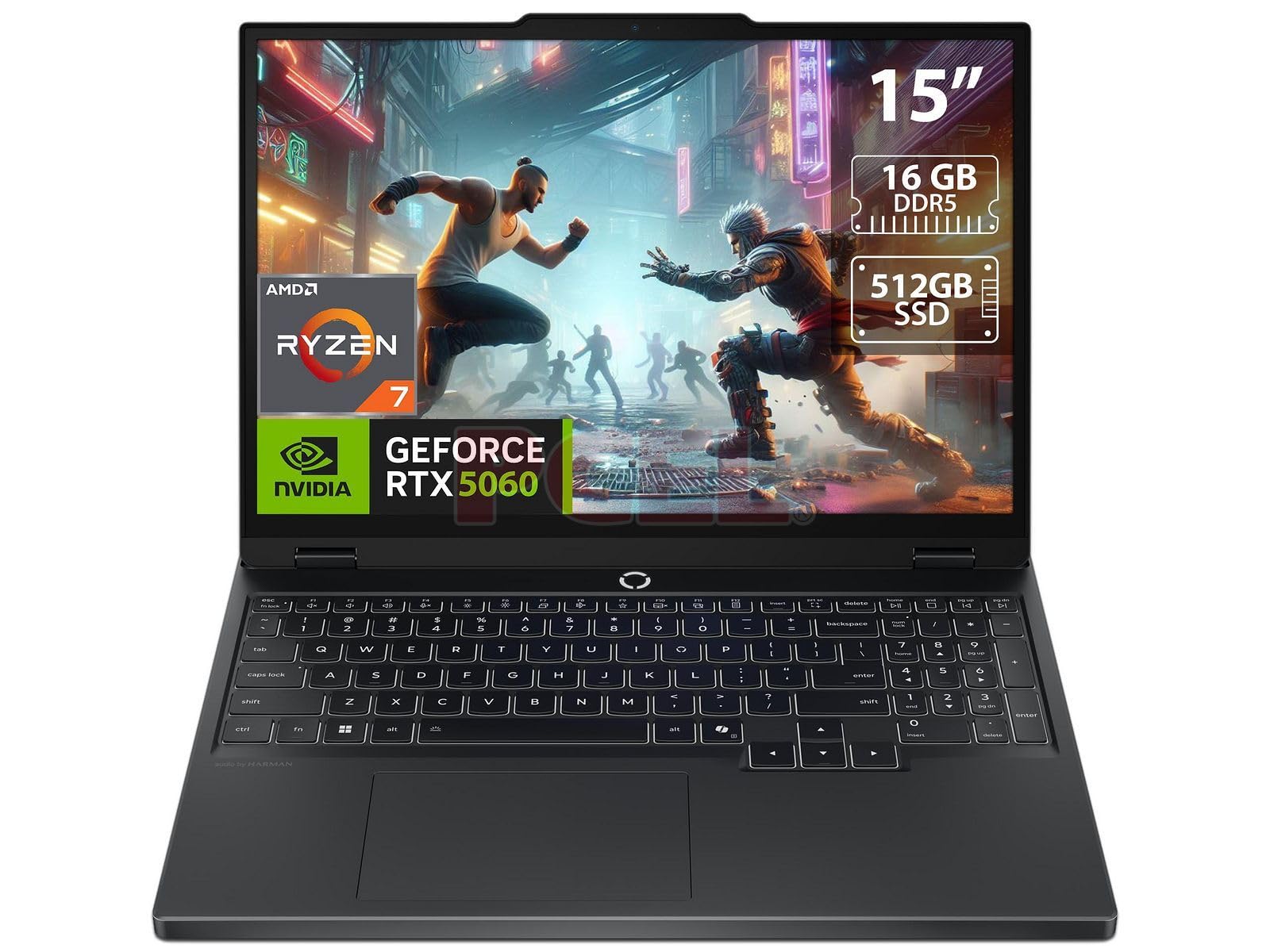
Our Top 3 Picks at a Glance
These three laptops from the product table above cover the best all round choice, a value option and a premium Windows workstation.


Best Overall
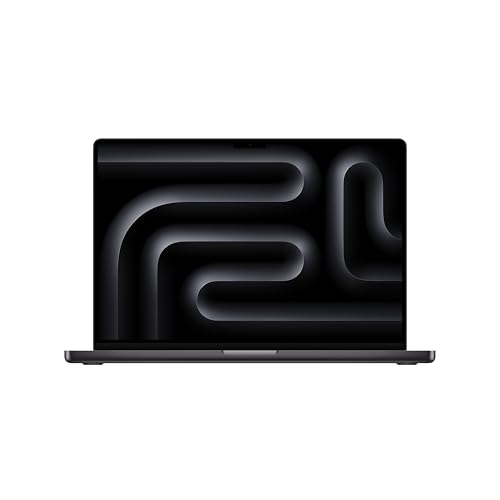
The Apple MacBook Pro 14 inch with the M4 Pro chip, around $2,000, is our pick for photographers who want speed, battery life and an outstanding screen in one portable machine. Its first strength is performance: the M4 Pro's 12 core CPU and 16 core GPU accelerate Lightroom imports, exports and AI masking while staying quiet. Its second strength is the Liquid Retina XDR display, a mini LED panel with high brightness, wide color and excellent HDR, ideal for editing and previewing images. An SD card slot and Thunderbolt ports simplify card offloads and external drives.
The limitation is price, plus memory and storage that cannot be upgraded after purchase, so choose configurations carefully.
Best Value
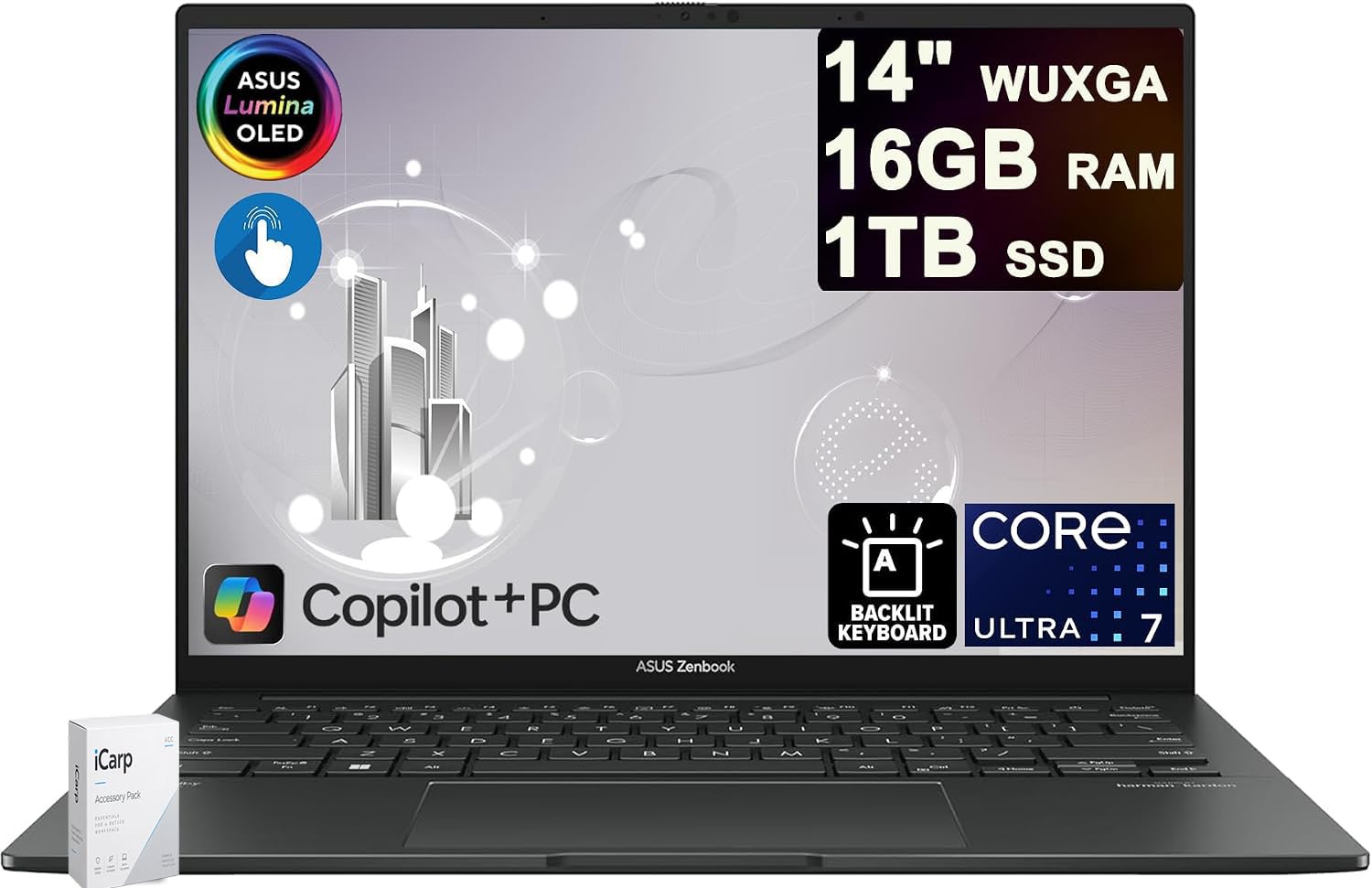
The ASUS Zenbook 14 OLED, around $1,370 in the configuration listed, suits enthusiasts and freelancers who want a color rich screen without paying premium prices. Its first strength is a 14 inch WUXGA OLED touchscreen with 100 percent DCI P3 coverage and 500 nit HDR peak brightness, delivering vivid colors and deep blacks for editing. Its second strength is a 16 core Intel Core Ultra 7 255H processor, providing strong multi core performance for Lightroom and Photoshop in a light, portable chassis.
The limitation is the smaller 14 inch screen, which feels cramped for complex Photoshop panels, so many users pair it with an external monitor.
Best Premium Pick
The Dell Premium 16, formerly the XPS 16, around $3,300, is for professionals who want a large 4K OLED touchscreen and maximum Windows performance. Its first strength is the 16.3 inch 4K OLED display, offering exceptional detail and color for retouching and print work. Its second strength is a high performance Intel Core Ultra processor with dedicated graphics in a premium aluminum chassis, handling heavy files and batch processing with ease.
The limitation is cost and weight compared with 14 inch laptops, making it best for photographers who edit mostly at a desk.
How to Choose the Best Laptops for Photoediting: Buying Guide
The specs below separate the best laptops for photoediting from machines that slow down when your catalog grows.
Features That Matter for Photoediting
The display is the most important feature for editing. Look for at least 100 percent sRGB coverage, ideally 95 to 100 percent DCI P3, a resolution of 2560 by 1600 or higher and brightness of 400 nits or more. OLED and mini LED panels offer the deepest contrast. Factory calibration and support for hardware calibration tools help keep colors accurate.
Fast storage and card readers matter too. A built in SD card slot speeds up imports, and Thunderbolt or USB4 ports connect fast external SSDs for archives.
Processor and Performance Tier
Photo editing apps rely on both single core speed for responsive sliders and multi core performance for exports and AI features. Apple M4, M4 Pro and M4 Max, Intel Core Ultra 7 and 9 and AMD Ryzen AI 7 and 9 chips are excellent choices. Entry level Core i5 or Ryzen 5 processors handle lighter editing but slow down with large RAW batches.
Neural processing units in newer chips accelerate AI tools like subject selection, denoise and generative fill in supported apps.
Operating System (Windows, macOS)
Both macOS and Windows run Lightroom, Photoshop, Capture One and Affinity Photo. macOS offers consistent color management, excellent displays and efficient Apple silicon. Windows provides more hardware choice, touchscreens, pen support and dedicated GPUs. ChromeOS is not suitable for serious photo editing. Choose the platform your other devices and workflows use.
Keyboard, Trackpad, and Build
A large, precise trackpad helps with quick adjustments, though many editors prefer a mouse or pen tablet for detailed work. Aluminum and magnesium builds stay rigid and durable for travel. Backlit keyboards with good key travel make keyboard shortcuts faster, which matters during long editing sessions. Touchscreens with pen support on some Windows models allow direct masking and retouching.
Ports and Connectivity
Photographers often connect card readers, external drives, monitors and calibration devices. Look for Thunderbolt 4, Thunderbolt 5 or USB4 ports for fast transfers and external displays, an HDMI port for client presentations and a built in SD card slot. WiFi 6E or WiFi 7 helps with cloud syncing of large catalogs.
Battery Life in Real World Use
Editing on location or while traveling requires long battery life. Apple silicon laptops often last a full day of editing, while Windows ultraportables typically deliver six to ten hours. Laptops with high end dedicated GPUs drain faster under load. USB C fast charging lets you top up quickly between shoots.
Graphics (Integrated vs Dedicated GPU)
Modern integrated graphics in Apple and Intel Core Ultra chips handle most photo editing smoothly. Dedicated NVIDIA or AMD GPUs accelerate some Photoshop filters, AI denoising and video work, and they help if you also edit video or play games. For pure photo editing, prioritize RAM, CPU and screen quality over a powerful GPU.
RAM and Storage
RAM keeps large files and many open images responsive. Sixteen gigabytes is the minimum for Lightroom and Photoshop, while 32GB suits professionals working with high megapixel RAW files, panoramas and layered composites. Storage should be a fast NVMe SSD of at least 1TB, with external SSDs for archives and backups.
Types of Laptops
Gaming Laptops
Gaming laptops offer powerful CPUs, dedicated GPUs and high refresh screens at competitive prices. Some include OLED panels with wide color. However, many gaming screens prioritize speed over color accuracy, and the laptops are heavier with shorter battery life. They suit photographers who also edit video or play games.
Ultraportables
Ultraportables are light and efficient, often with OLED or high resolution screens. Modern chips make them capable photo editors for enthusiasts and travel photographers. They may have fewer ports and smaller screens, so pairing with an external monitor helps.
Budget Laptops
Budget laptops under about $800 can handle light editing of JPEGs and small RAW batches but usually have dim screens with limited color coverage and less RAM. They suit beginners learning Lightroom, though an external color accurate monitor improves results significantly.
Care and Maintenance Tips
- Keep the OS and firmware updated. Updates improve performance, security and compatibility with editing apps.
- Avoid running at 100 percent charge all the time. Enable battery optimization features to extend battery life.
- Use a padded sleeve when commuting. Protect the screen and hinges during travel to shoots.
- Clean vents with compressed air. Dust buildup causes thermal throttling during long exports.
- Calibrate your screen regularly. A colorimeter keeps colors accurate as displays age.
- Back up your catalog. Use external drives and cloud backup to protect your images.
Using an External Monitor for Photo Editing
Even the best laptop screen benefits from a larger external display at your desk. A 27 inch 4K monitor with wide color coverage gives more room for Lightroom panels and Photoshop tools, reduces eye strain and makes it easier to judge detail at 100 percent zoom. Professional photographers often choose hardware calibrated monitors for print work.
Connect monitors through Thunderbolt or USB C for single cable docking with power delivery. Calibrate both the laptop and external monitor so colors match, and set your editing app to use the monitor's color profile. This setup gives you portability on location and a precise editing station at home.
Understanding Color Gamut and Calibration
Color gamut describes the range of colors a screen can display. sRGB is the standard for web images and most online sharing, while DCI P3 is a wider gamut used by modern phones, HDR content and many premium laptops. Adobe RGB is important for some print workflows. For editing photos that will be shared online, a screen covering close to 100 percent of sRGB is essential, while wide gamut DCI P3 panels help when editing for HDR displays and modern devices.
Calibration ensures the screen displays colors accurately. Many premium laptops ship factory calibrated, but displays drift over time. A hardware colorimeter measures your screen and creates a profile that corrects color and brightness. Calibrating every few months keeps edits consistent, especially if you print photos or deliver work to clients.
Also set your screen brightness to a consistent level, around 120 nits for print matching, and edit in a room with stable lighting. Bright screens in dark rooms lead to prints that look darker than expected.
How Much to Spend on a Photo Editing Laptop
Around $800 to $1,200 buys capable laptops with good screens and 16GB of RAM, suitable for enthusiasts editing JPEGs and moderate RAW files. Around $1,300 to $2,000 is the sweet spot, including OLED ultraportables and MacBook Pro models with excellent color and performance. Above $2,500, workstation class laptops with 4K OLED screens, 32GB or more RAM and powerful GPUs suit professionals handling large commercial workloads.
Frequently Asked Questions
What features matter most in laptops for photoediting?
A color accurate display, a fast processor and plenty of RAM matter most. Look for wide color coverage, at least 16GB of RAM, a fast multi core CPU and a 1TB SSD. An SD card slot and Thunderbolt ports speed up imports and backups.
Is a Chromebook enough for photo editing?
A Chromebook is not enough for serious photo editing. It runs web and Android editors for quick adjustments, but lacks full Lightroom Classic and Photoshop desktop support, color management and processing power. Choose Windows or macOS for real editing work.
Is a dedicated GPU worth it for photo editing?
A dedicated GPU is helpful but not essential for photo editing. It speeds up some AI features and filters, but CPU, RAM and screen quality matter more. Choose a dedicated GPU if you also edit video or play games.
How long should a photo editing laptop last?
A good photo editing laptop should last around four to six years. Choosing 32GB of RAM, a fast processor and a quality screen helps it handle future software updates and higher resolution cameras.
Should I buy a laptop or a tablet for photo editing?
Most photographers should buy a laptop. Laptops run full desktop editing apps, manage large catalogs and connect to drives and monitors. Tablets like iPads are great for quick edits and retouching with a pen, but they are best as companions to a laptop.
How much RAM do I need for photo editing?
Sixteen gigabytes is the minimum, and 32GB is ideal for professional photo editing. More RAM keeps large RAW files, layered Photoshop documents and AI tools running smoothly. Panorama and composite work benefits from 32GB or more.
Our Verdict
The right photo editing laptop combines an accurate screen with strong processing power and enough memory. Prioritize wide color coverage, at least 16GB of RAM and a fast processor, then choose size and platform based on how and where you edit. Most photographers will love a MacBook Pro, enthusiasts get great value from OLED ultraportables and professionals can step up to large 4K OLED workstations.
Compare the best laptops for photoediting in the product table above to find the right balance of screen quality, performance and price.


