
Best 24 Inch Gaming Monitors in 2026: Fast Screens for Competitive Play
Disclosure: We may earn a commission when you buy through links on this page, at no extra cost to you. As an Amazon Associate I earn from qualifying purchases. Learn more

Best 24 inch gaming monitors suit esports and desk setups. Compare 144Hz to 240Hz refresh, IPS and VA panels, curve and adaptive sync.
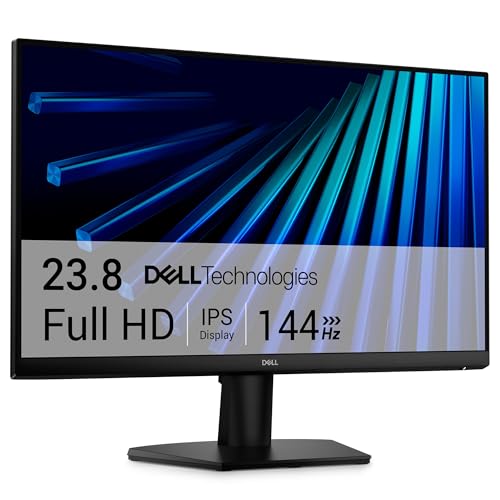
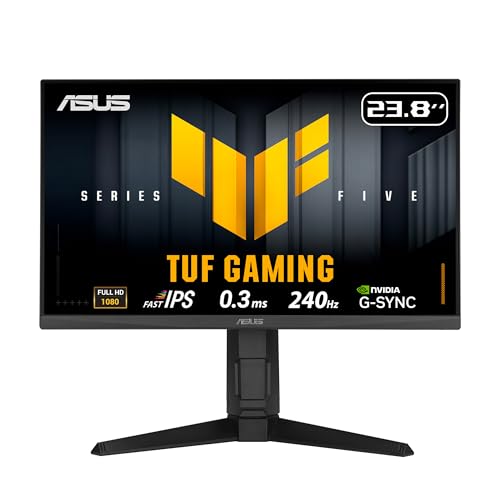
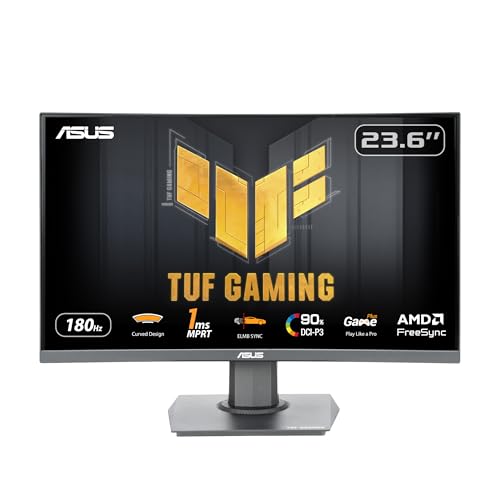
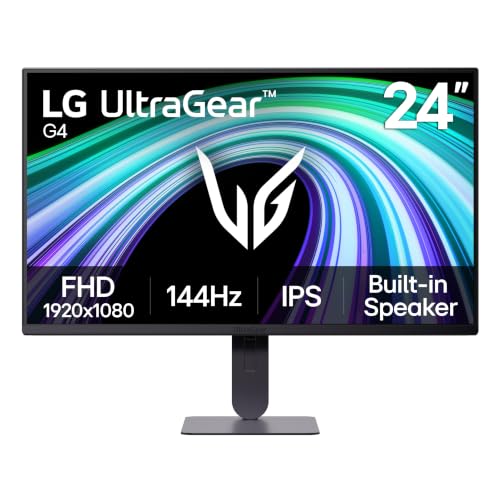
For competitive shooters and fast action games, 24 inches is the traditional sweet spot: the whole screen sits in your field of view, so you see the minimap and the crosshair without moving your head. The best 24 inch gaming monitors pair that size with fast refresh rates, quick response and sync features at prices that suit most budgets.
The product table lists current 24-inch gaming monitors from 120Hz up to 240Hz, with flat and curved designs, IPS and VA panels, and models from budget to premium. This guide explains which specs matter, what to ignore and how to match a monitor to your graphics card.
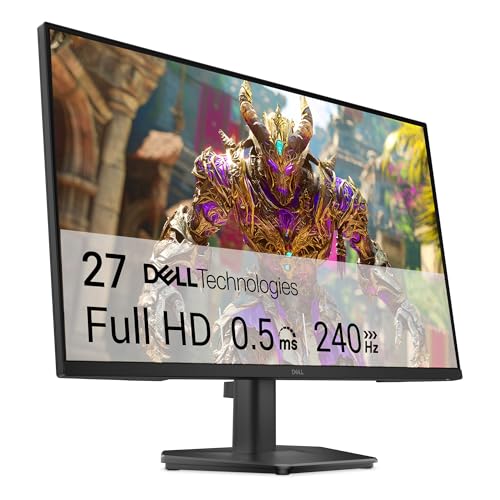
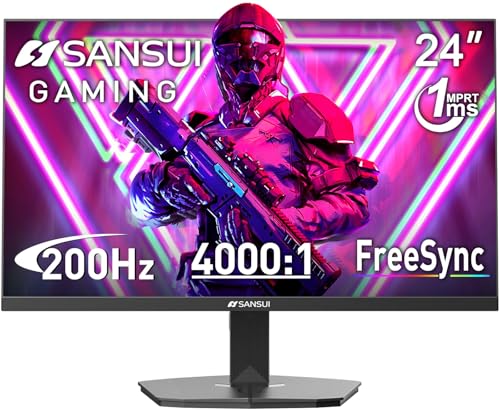
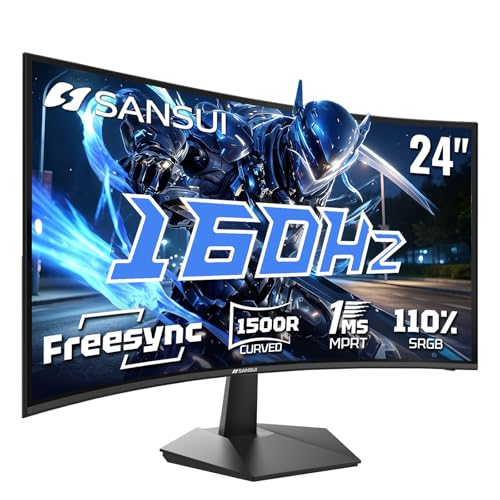
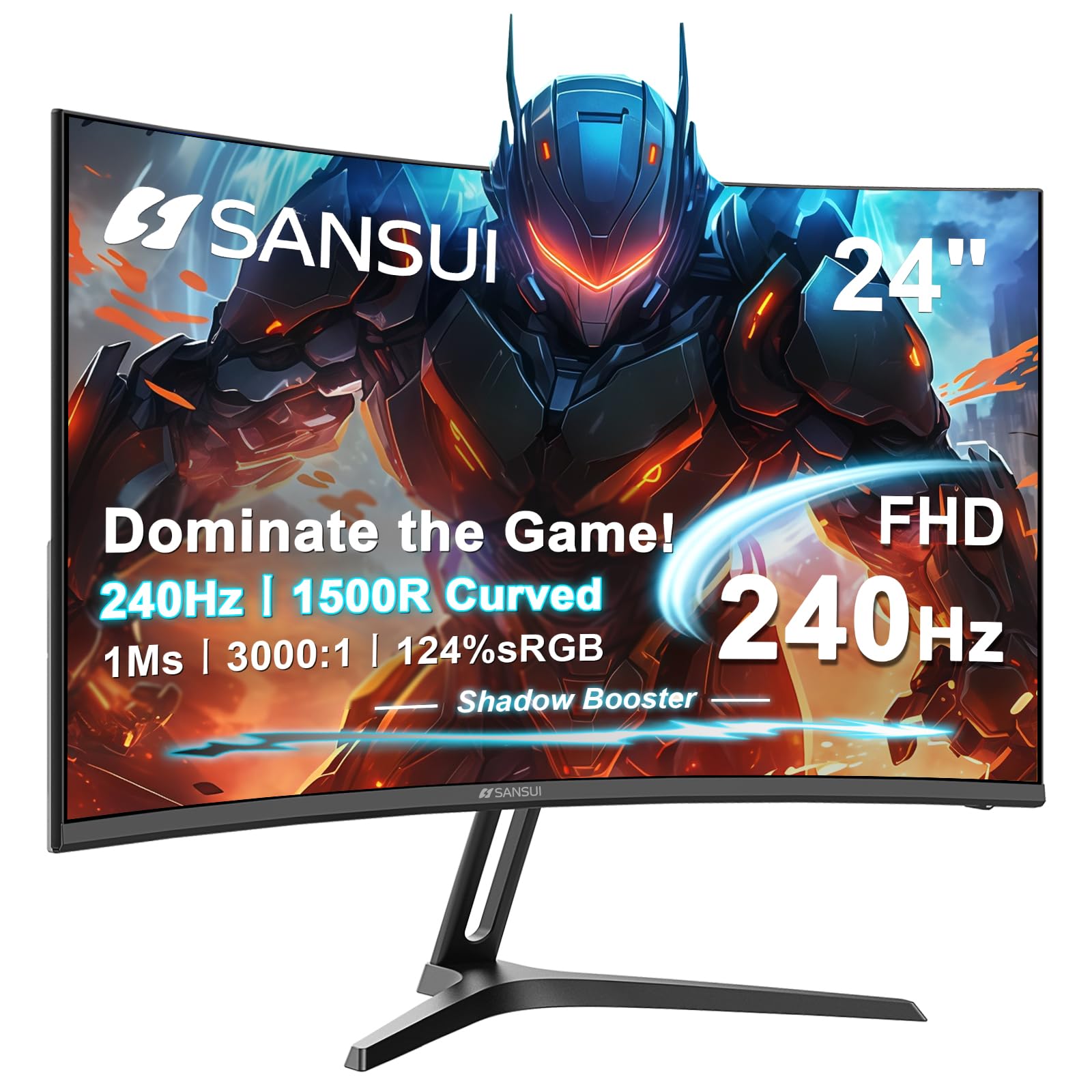

Why 24 Inches Suits Fast Games
A smaller screen at a normal distance keeps every corner within easy reach of your eyes, so you react faster. Pixel density at 1080p looks sharp, and graphics cards render 1080p at very high frame rates, which is what a fast monitor needs. Larger screens often add resolution that demands more power, which is not what a competitive player wants.
For a bit more room, our best budget gaming monitor page compares sizes. If you play a mix of games and want deeper colors, the OLED vs IPS monitor comparison explains the trade-off.
Refresh Rate: 144, 165, 180, 200 or 240Hz
The table includes monitors from 120Hz through 240Hz. The jump from 60Hz to 144Hz is the biggest change you will feel, and each step above that brings smaller gains. A 240Hz monitor is excellent for competitive shooters with a graphics card that can hold a high frame rate, but wasted on a weak system.
Check the actual rate in the listing. Some models advertise overclocked rates that need a specific connection. Set the refresh rate in the operating system after you connect the monitor, and use DisplayPort when it is available. Our guide on how to change refresh rate walks you through it.
Panel Type: IPS or VA
IPS panels have fast response, wide viewing angles and good color, and are the usual choice for esports. VA panels offer richer blacks and higher contrast and are common in low-price curved monitors, but dark scenes can smear at very high speed. For competitive play, IPS is safer.
Look for a rapid response mode and an overdrive setting you can adjust. Too much overdrive causes halos; too little leaves blur. Start with the middle setting and adjust by eye.
Curved or Flat
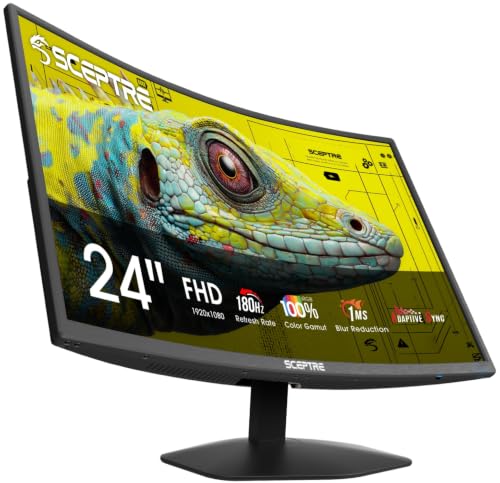
A curved monitor at 24 inches has a gentle bend. Some players like the feel, and some prefer flat for consistency and a straighter view of lines. If you plan to use two monitors together, flat usually looks tidier. The choice is mostly personal, so choose the one that feels natural to you.
Adaptive Sync and Input Lag
Adaptive sync keeps the monitor in step with your graphics card and removes tearing without adding much delay. Look for G-Sync Compatible or FreeSync in the listing, and enable it in your graphics settings. Input lag is rarely listed, but gaming monitors from known makers tend to keep it low.
Avoid motion smoothing and image enhancement modes that add lag. Use the game or FPS mode only if it lowers delay, and judge it by feel.
Ports, Stand and Extras
DisplayPort is the best connection for high refresh rates on PC. HDMI works for consoles and lower rates. Check the stand for height and tilt adjustment, and look for a VESA mount if you want an arm. Built-in speakers are convenient, but a headset sounds better and gives positional audio.
Console Players
If you play on a console, check what refresh rate your console outputs and which HDMI version the monitor supports. A 120Hz monitor works with modern consoles that support it. For most consoles, the benefit of higher refresh rates is smaller than on a PC.
Mistakes to Avoid
Do not buy a 240Hz monitor if your PC cannot reach high frame rates. Do not forget to enable the refresh rate in your settings. Do not trust a response time figure without context. And do not ignore the stand, since a wobbly base ruins a competitive setup. The best 24 inch gaming monitors reward a bit of setup care.
Setting Up for the Best Performance
Connect with DisplayPort, enable the top refresh rate in your operating system and turn on adaptive sync in the graphics driver. Cap your frame rate slightly below the refresh rate if you see tearing, and use a standard or sRGB picture mode before you tweak anything. Many gaming presets raise brightness and sharpness in ways that hide shadow detail.
Check the monitor's overdrive setting while moving a window quickly across a dark background. If you see colored trails, lower it. If you see blur, raise it. Keep the stand at a height where your eyes meet the top third of the screen, and sit an arm's length away. These steps help the best 24 inch gaming monitors perform the way the box promises.
Budget Tiers
The lowest-priced models in the table give 120Hz to 165Hz and a basic stand. The middle tier adds IPS panels, better sync support and a longer warranty. The top tier reaches 240Hz with a sturdier build. For most players, the middle tier offers the best value, since the gap between 144Hz and 240Hz is smaller than the gap between 60Hz and 144Hz.
FAQs
Is 240Hz worth it on a 24-inch monitor?
For competitive shooters with a strong PC, yes. For casual play, 144Hz is plenty.
Should I buy IPS or VA?
IPS for esports. VA for darker contrast in single-player games.
Is curved better?
It is a matter of taste.
Can a console use these monitors?
Yes, though a console may not reach the highest rates.
Final Thoughts
The best 24 inch gaming monitors are fast, clear and matched to your graphics card. Choose a refresh rate you can use, pick IPS for esports, and set up your sync and cables carefully. Then compare the models in the product table.
Prices and availability can change, so check the product page before ordering.


