
Best 2K 144Hz Monitors for 2026: Smooth 1440p Without Overspending
Disclosure: We may earn a commission when you buy through links on this page, at no extra cost to you. As an Amazon Associate I earn from qualifying purchases. Learn more

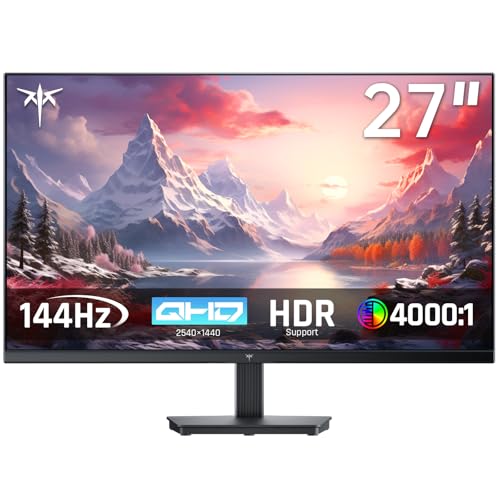
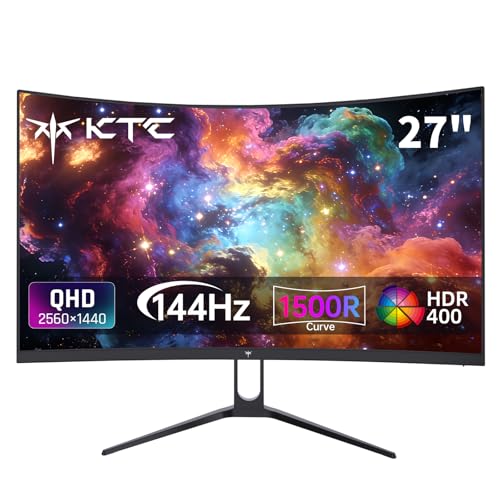
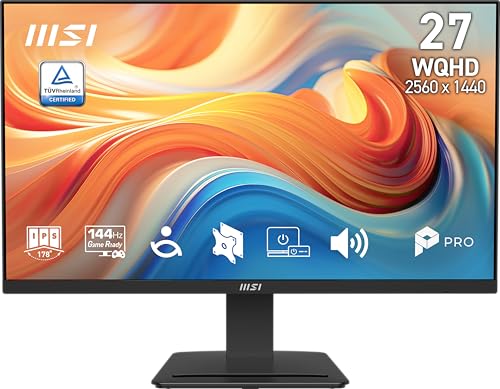
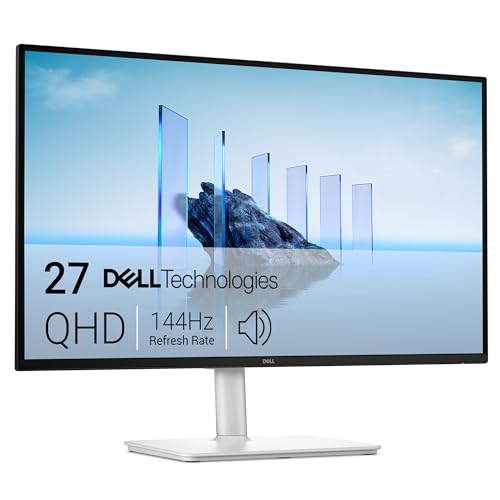
Sharp 1440p and smooth 144 hertz motion make a popular pair, and the best 2k 144hz monitors differ in panel type, sync support and how well they handle a mid-range card.
The combination of 2K resolution and 144 hertz has become the default recommendation for PC gamers who want more than a basic screen. 2K here means 2560 by 1440 pixels, also called QHD, and 144 hertz means the picture updates 144 times per second. Together they give sharp detail and fluid motion without the heavy graphics load of 4K. The best 2k 144hz monitors deliver that combination with good panels and sensible features.
This guide explains what the numbers deliver, what graphics card you need, which panel type to choose, how to set up sync, and what to check in ports and stands.



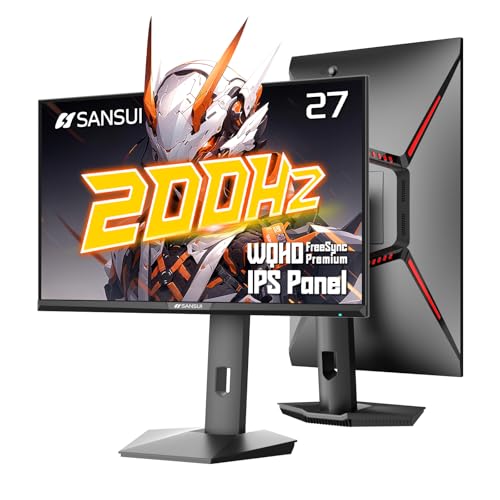
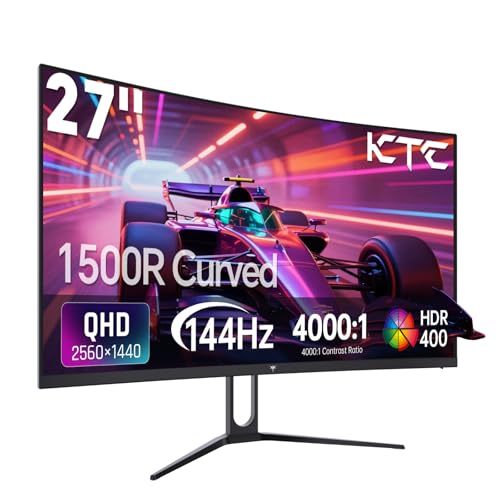
What 2K at 144 Hertz Means
At 27 inches, 1440p has a pixel density of about 109 pixels per inch, sharp enough that individual pixels disappear at a normal distance. At 144 hertz, each frame lasts under seven milliseconds. That makes camera pans smoother, aiming more precise and scrolling pleasantly fluid. Many players who move from 60 hertz say they cannot go back.
The jump from 60 to 144 hertz is bigger than the step from 144 to 240 hertz, so 144 is the sweet spot for most buyers. Our overview of 144hz monitors looks at other resolutions, while the 2K monitors page covers general options.
What Graphics Card You Need
A 144 hertz screen only helps if your graphics card produces about 144 frames per second. At 1440p, a mid-range to upper mid-range card can do that in many games at medium to high settings, while demanding titles may need lower settings or upscaling. Check your frame counter in the games you play.
If your card averages 80 frames, a 144 hertz screen still shows a smoother picture than 60 hertz, especially with variable refresh rate. But you will not reach the full benefit. Consider the graphics card and screen as a pair when planning an upgrade.
Panel Types
Fast IPS panels are the common choice at this price, with wide viewing angles and good color. VA panels give higher contrast and are good in dark rooms, though dark scenes can smear a little. Some screens use mini LED backlights for better HDR. Choose IPS for all round use and VA for dark atmospheric games.
Check the response time claims with caution and use the overdrive setting in the menu. A middle setting avoids trails and halos. Many monitors let you pick among several levels.
Sync Technology
Variable refresh rate keeps the screen and graphics card in step, which removes tearing and reduces stutter. FreeSync and G-SYNC Compatible work with most modern cards. Turn it on in the monitor menu and in the graphics driver settings. Cap your frame rate a few frames below the maximum to keep the screen in its sync range.
Ports and Cables
Use DisplayPort for the full 144 hertz at 1440p. HDMI can handle it on newer versions, but older ports may be limited, so read the table in the listing. After connecting, set the refresh rate in the operating system, since new screens often default to 60 hertz.
If you also use a console, check that HDMI supports the refresh rate your console outputs, and that the screen has game modes. Our guide to the 4K 144hz monitors and the 2K gaming monitors shows alternatives.
Size and Stand
27 inches is the standard size for 1440p, with 24 and 32 inch models as alternatives. A good stand adjusts for height and tilt, and a VESA mount lets you add an arm. Ergonomics matter during long sessions, so place the top of the screen at eye level.
Mistakes to Avoid
- Leaving the screen at 60 hertz after setup.
- Expecting 144 frames from a card that cannot deliver them.
- Using an old HDMI cable that limits the refresh rate.
- Choosing the highest response claim and ignoring overdrive artifacts.
- Skipping variable refresh rate settings in the driver.
Getting the Full Experience
The first step after setup is checking that the screen really runs at 144 hertz. In the display settings choose the refresh rate, and use an online motion test or a game to see the difference. If it looks the same as before, the cable or port may be limiting it. Switch to DisplayPort or a newer HDMI cable, and check that the graphics driver is up to date.
Next, adjust the picture. Many screens ship with brightness set too high and colors oversaturated. Choose a standard or sRGB mode, lower the brightness until a white page looks natural, and test the overdrive setting in a fast game. Save a profile if the monitor lets you, and keep a second profile for competitive play with higher contrast.
Buying Smart
Compare specifications side by side: resolution, refresh rate, panel type, sync support, ports and stand adjustments. Read about how the screen handles HDR and whether it has a game mode with a crosshair or a timer, which are gimmicks for some players but handy for others.
Check the warranty and the dead pixel policy. Buy from a seller with a straightforward return window, test the screen in the first week, and send it back if it shows stuck pixels or heavy backlight bleed. These checks cost little time and prevent a lot of disappointment.
Frequently Asked Questions
Is 2K the same as 1440p?
In monitor marketing, yes. It means 2560 by 1440, also called QHD.
Do I need a powerful graphics card?
A mid-range to upper mid-range card is a good match. Weaker cards still benefit from the smoother picture.
Is 144 hertz enough for competitive games?
Yes for most players. Higher rates help only if your frame rate is also very high.
Which cable should I use?
DisplayPort is the safest choice for full speed.
Final Thoughts
The best 2k 144hz monitors combine sharp detail with smooth motion at a manageable price. Match the screen to your graphics card, choose IPS for general use, turn on variable refresh rate and use DisplayPort for the full rate.
Prices and availability can change, so check the product page before ordering.


