
Best 27 Inch PC Monitors: Matching the Screen to Your Graphics Card and Desk in 2026
Disclosure: We may earn a commission when you buy through links on this page, at no extra cost to you. As an Amazon Associate I earn from qualifying purchases. Learn more

A desktop PC can drive almost any screen, so the best 27 inch pc monitors are chosen by graphics card, cables, refresh rate and the job the computer does.
A desktop PC is the most flexible partner a monitor can have. It offers several video outputs, accepts almost any resolution and refresh rate, and often has a graphics card strong enough to push a high end display. That freedom makes it easy to buy the wrong screen. The best 27 inch pc monitors are matched to the computer that drives them and the work it does.
This guide starts from the PC side. It explains how to check your graphics outputs, which cables to use, how resolution and refresh rate depend on your hardware, and what to look for if you split the screen between work and games.



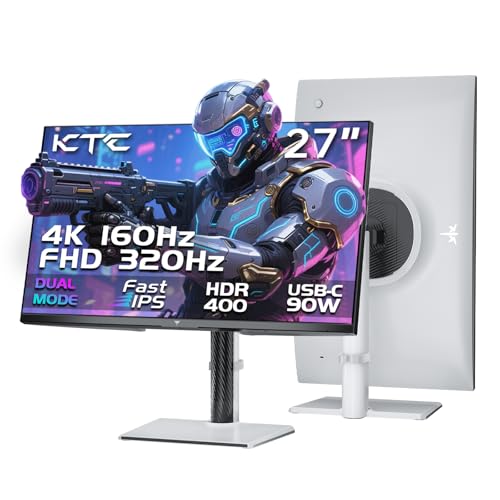
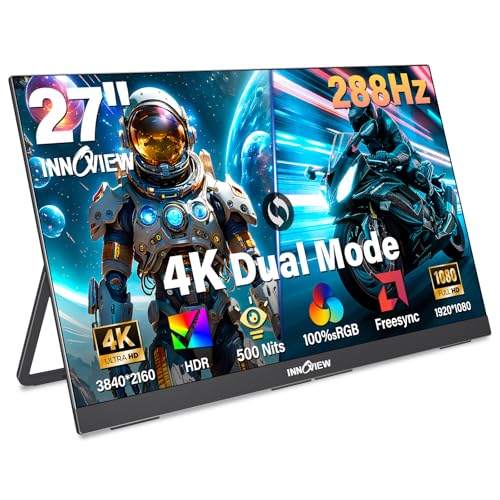
Start with Your Graphics Outputs
Look at the back of your computer. Most graphics cards have several DisplayPort outputs and one or two HDMI outputs. DisplayPort is usually the best for monitors, since it supports high refresh rates at high resolutions. HDMI works too, but the version matters: older versions limit the refresh rate at 1440p and 4K.
If your motherboard output is used instead of a graphics card, the options may be limited. Plug the monitor into the graphics card, not the motherboard, or you will run on the weaker integrated graphics and lose performance and features.
Resolution and Graphics Power
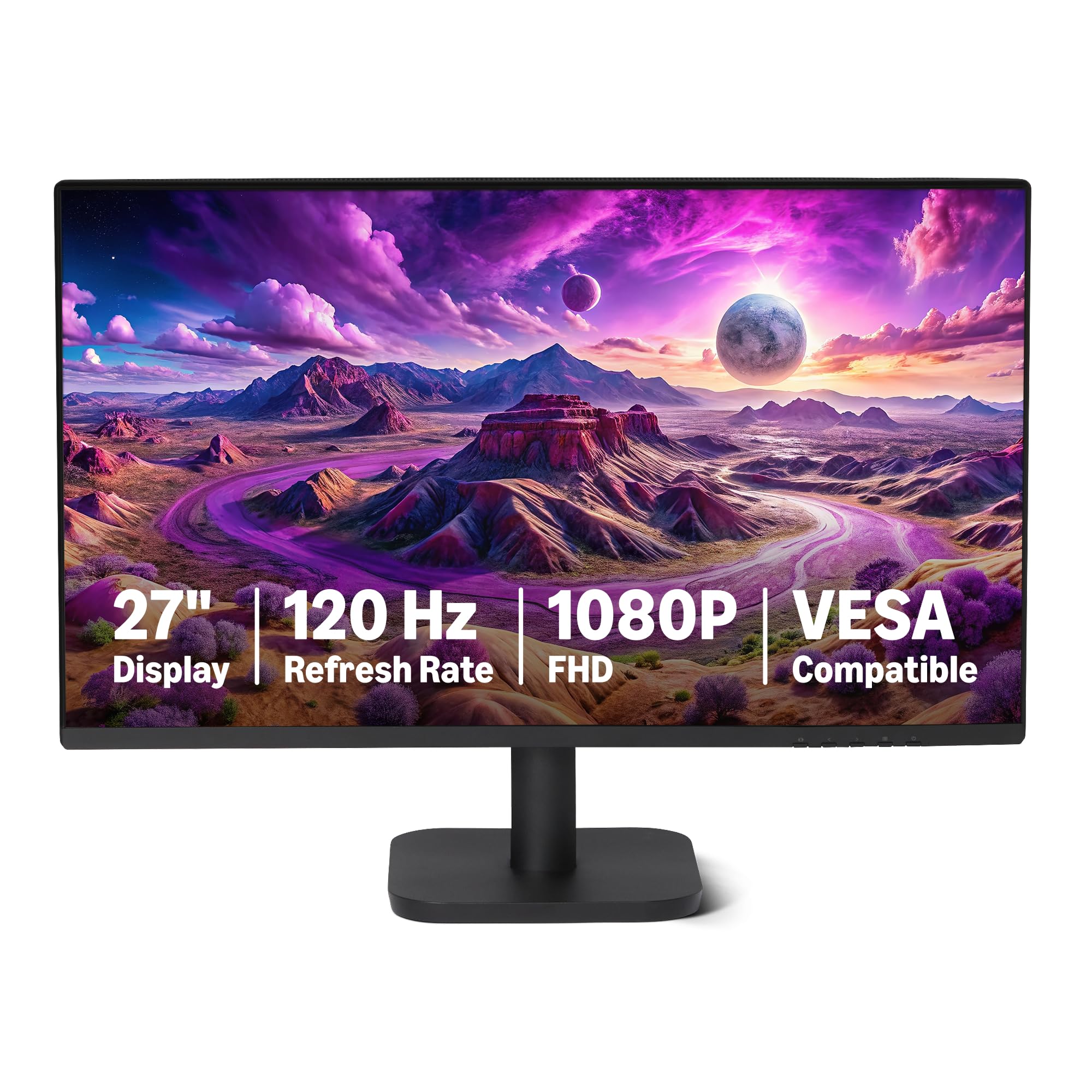
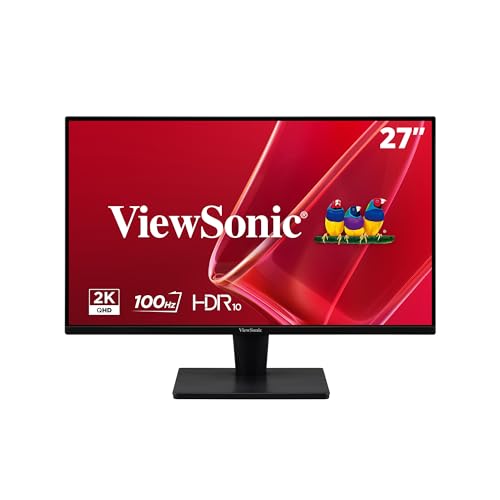
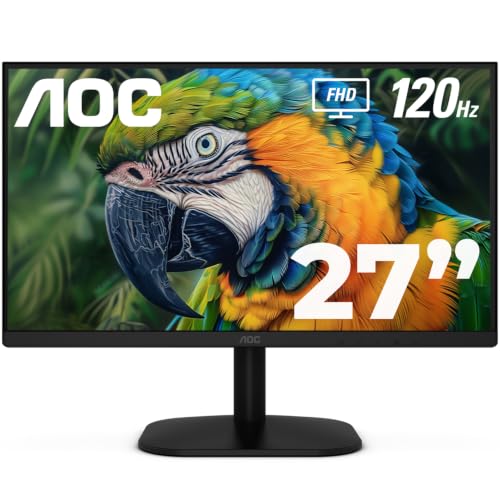
At 27 inches, 1080p suits a modest graphics card and fast competitive games. 1440p is a balanced choice for most gaming PCs, and 4K needs a powerful card for games, though it handles office work with ease. Match the resolution to the weakest part of your build, or the screen will outpace the computer.
If you use the PC for office tasks, video and the occasional game, 1440p is the safe choice. For specifics, see our guides to the 27 inch 1440p monitors and the 4K models.
Refresh Rate on a PC
Windows lets you set the refresh rate in the advanced display settings, and many monitors default to 60 hertz until you change it. After connecting, open the display options and choose the highest rate. If it is missing, check the cable and the port.
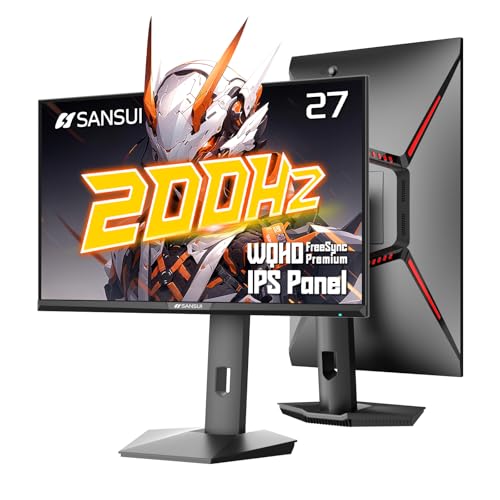
Variable refresh rate removes tearing in games. Turn it on in the monitor menu and in the graphics driver. For competitive play, a high refresh rate pays off only when your frame rate matches, so use the in game counter to decide. For more on fast screens, see the PC monitors for gaming guide.
Cables You Can Trust
Use the cable supplied with the monitor if it is DisplayPort or a certified HDMI. A cheap cable can cause flickering, dropouts or a lower refresh rate than expected. Keep cable runs short, and avoid adapters when possible, since adapters can limit refresh rates.
Multi Monitor Setups
A desktop PC can drive two or three screens easily. Choose matching 27 inch monitors so that colors and edges line up, and use an arm to set the angle. Place the main screen in front of you and the second to the side. If you game on one and work on another, set the gaming screen as the primary display.
HDR on Windows
Windows has an HDR switch in the display settings. It only improves the picture on screens with real HDR capability. On a basic panel the HDR mode can look washed out, so leave it off. If you have a screen with local dimming, calibrate it with the Windows HDR tool.
Mistakes to Avoid
- Plugging the monitor into the motherboard instead of the graphics card.
- Leaving the refresh rate at 60 hertz after installation.
- Using a long or cheap HDMI cable and wondering why the rate is capped.
- Buying 4K with a graphics card that cannot manage games at that resolution.
- Switching on HDR for a screen that cannot display it properly.
Choosing by What the PC Does
A gaming PC needs a screen that matches its graphics card, so aim for the highest refresh rate your frame counter supports. A work PC needs sharp text, so favor resolution and a good stand over speed. A media PC in a living room benefits from a screen with good contrast and viewing angles, and built in speakers can help.
If the PC does all three, choose a balanced 1440p panel at 144 hertz with an adjustable stand. It handles office tasks, streaming and most games without a big premium, and it leaves room to upgrade the graphics card later without replacing the monitor.
Stand, Mount and Desk Layout
A PC monitor sits at the center of a desk full of other equipment, so the footprint matters. A narrow stand leaves space for a keyboard and a notepad, and a VESA arm frees even more room. Make sure the arm's weight rating covers the screen and that the pattern matches the mount on the back.
Keep the top edge of the screen at eye level and place the keyboard where your elbows rest at about a right angle. If you use a second monitor, align the edges and the height so you do not tilt your head to move between screens.
Frequently Asked Questions
Which cable is best for a PC monitor?
DisplayPort in most cases. It supports the highest refresh rates at 1440p and 4K.
Why is my new monitor stuck at 60 hertz?
Often the refresh rate was never changed in the display settings, or the cable or port limits it.
Can I use two different monitors?
Yes, but matching models look better and avoid color differences.
Do I need a gaming monitor for office work?
No. A standard screen with good text clarity is enough.
Should I buy a monitor with speakers for my PC?
Only if you lack desk speakers or a headset. Built in speakers are weak, so they work for notifications and voices but not for music or games.
How do I know if my graphics card can drive 4K?
Check the specifications of your card and test your games at 4K with the frame counter on. If you cannot hold a smooth frame rate, choose 1440p instead.
Final Thoughts
The best 27 inch pc monitors are matched to your graphics outputs, your cables and your use. Plug into the graphics card, set the refresh rate, and choose a resolution your computer can handle. Add a second screen only if you need it.
Prices and availability can change, so check the product page before ordering.


