
Best Wireless Internet Routers: Everything to Know Before Your First Purchase
Disclosure: We may earn a commission when you buy through links on this page, at no extra cost to you. As an Amazon Associate I earn from qualifying purchases. Learn more

Everything to know before buying the best wireless internet routers: WiFi standards, ports, mesh and setup.
Your router decides how well your internet plan actually performs at home. An old or underpowered router can slow down a fast fiber plan, drop video calls in the back bedroom and choke when the whole family streams at once. Newer WiFi 6, 6E and 7 routers handle many more devices, deliver faster speeds and offer better security. For first time buyers, though, router boxes are full of confusing numbers. The best wireless internet routers match your internet speed and home size, cover every room reliably and are easy to set up and keep secure.
This guide explains the basics, the key specs in plain English, rookie mistakes and how to set up a new router for the best performance.


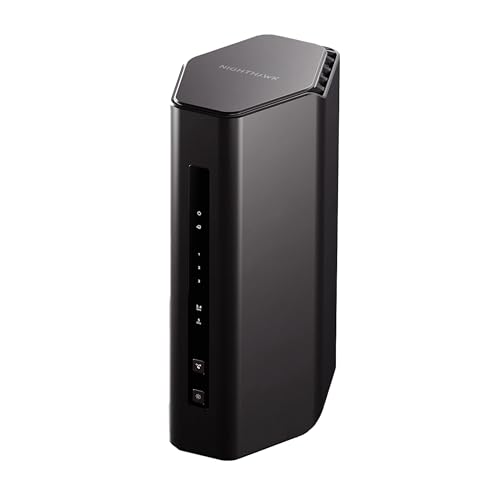


Wireless Internet Routers 101: The Basics
A wireless router takes the internet connection from your modem and shares it with your devices over WiFi and Ethernet, while directing traffic, assigning addresses and protecting your network with a firewall.
Your internet provider's modem brings the signal into your home. Some providers supply a combined modem router, or gateway, while others let you connect your own router. Most routers broadcast on multiple bands: 2.4GHz travels farther but is slower and more crowded, 5GHz is faster at shorter range and 6GHz, available with WiFi 6E and WiFi 7, offers the fastest, least congested channels at shorter distances.
Other common terms include mesh (multiple units that blanket a home with WiFi), tri band (three radio bands), WAN port (where the modem connects), LAN ports (for wired devices) and multi gig (Ethernet ports faster than 1Gbps).
Key Specs Explained in Plain English
Six specs decide whether a router fits your home and internet plan.
WiFi Standard: WiFi 6, 6E, 7
WiFi 6 handles many devices efficiently and is plenty for most plans up to about 1Gbps. WiFi 6E adds the 6GHz band for faster, less crowded connections with compatible devices. WiFi 7 adds wider channels and multi link operation that can combine bands for higher speeds and lower latency, ideal for multi gig plans and future devices. Your devices must also support the newer standards to benefit.
Wired Ports: Multi Gig, WAN and LAN
If your internet plan exceeds 1Gbps, choose a router with a 2.5Gbps or 10Gbps WAN port so the router does not become a bottleneck. Multiple LAN ports, ideally with at least one multi gig port, help connect gaming PCs, consoles, NAS drives and mesh backhaul. Routers like the ASUS RT-BE88U include two 10G ports for power users.
Speed Ratings vs Your Internet Plan
Router names like BE9300 or BE6500 add up the theoretical maximum speeds of all bands combined. Real world speeds on a single device are much lower. Match the router to your plan: a dual band WiFi 6 or WiFi 7 router suits plans up to about 1Gbps, while multi gig plans benefit from tri band WiFi 7 with multi gig ports.
Coverage and Mesh
Coverage claims, such as up to 2,500 square feet, assume open layouts. Walls, floors and appliances reduce range. Homes over about 2,500 to 3,000 square feet, multi story homes or homes with thick walls often do better with a mesh system, like the NETGEAR Orbi 370 3 pack that covers up to 6,000 square feet, according to NETGEAR.
Gaming Features: QoS and Low Latency
Quality of Service (QoS) prioritizes gaming and video call traffic over downloads and streaming. Gaming routers add device prioritization, game acceleration and dedicated gaming ports. For more gaming focused options, see our best gaming routers guide.
Setup and App Management
Modern routers use phone apps to guide setup in minutes, update firmware automatically and show connected devices. Look for clear apps, automatic updates and the ability to create guest networks easily.
Security and Parental Controls
Look for WPA3 encryption, automatic firmware updates and built in security features that block malicious sites. Parental controls let you set schedules, filter content and pause internet for specific devices. Some brands charge subscriptions for advanced security and parental controls, so check what is included free.
Single Router vs Mesh System
A single router is best for apartments and homes under about 2,000 to 2,500 square feet with the router placed centrally, while a mesh system is best for larger or multi story homes and spaces with WiFi dead zones. Mesh systems use satellites that communicate with the main unit, creating one seamless network as you move around. They cost more, but they solve coverage problems that no single router can. Wired Ethernet backhaul between mesh units delivers the best performance if your home has Ethernet cabling.
How Much to Spend on the Best Wireless Internet Routers
Most homes find the best wireless internet routers for their needs between about $130 and $300.
- Under $150: dual band WiFi 6 or entry WiFi 7 routers like the TP-Link BE400 and NETGEAR RS300 class for plans up to about 1Gbps.
- Around $150 to $300: tri band WiFi 7 routers with multi gig ports for faster plans and busy households.
- Around $300 and up: mesh systems for large homes and flagship gaming routers.
Rookie Mistakes to Avoid
- Hiding the router in a cabinet or basement: walls and floors weaken WiFi; place it centrally and up high.
- Buying more speed than your plan: a router cannot make your internet plan faster than its subscribed speed.
- Keeping default passwords: change the admin and WiFi passwords immediately.
- Using a 1Gbps WAN port with a multi gig plan: it caps your speed.
- Running two routers in conflict: put your provider's gateway in bridge mode if you add your own router.
Getting Started: Setup and First Use
- Choose a central, elevated spot away from microwaves, thick walls and metal furniture.
- Connect the router's WAN port to your modem with an Ethernet cable.
- Download the router's app and follow the guided setup.
- Set a strong WiFi password and admin password, and enable WPA3 if your devices support it.
- Update firmware immediately and turn on automatic updates.
- Create a guest network for visitors and smart home devices.
- Check speeds with a speed app near the router and in far rooms to check coverage.
Router Placement Tips
- Place the router in the middle of your home, on a shelf rather than the floor.
- Keep antennas vertical for horizontal coverage, or angle some for multi story homes.
- Avoid kitchens, fish tanks and mirrors, which interfere with signals.
- Use Ethernet for stationary devices like TVs, consoles and desktops to free up WiFi.
- Add a mesh satellite halfway between the router and dead zones, not in the dead zone itself.
Your Provider's Gateway vs Your Own Router
Many internet providers rent combined modem router gateways for a monthly fee. They are convenient but often have weaker WiFi, fewer features and slower firmware updates. Buying your own router can improve coverage and control, and it pays for itself in about one to two years if you stop paying a rental fee for a gateway. If you keep the provider's modem, set its WiFi to bridge or passthrough mode so your new router handles the network.
Routers and Smart Home Devices
Smart plugs, cameras, doorbells and speakers add dozens of connections to a network. Many smart devices still use only 2.4GHz, so make sure your router keeps a 2.4GHz band available, and consider a separate guest or IoT network to isolate them from laptops and phones. Routers with good device management let you see every connected gadget, name them and block unknown devices.
Fixing Slow or Unreliable WiFi
- Restart the modem and router: power cycling clears temporary glitches.
- Move the router: a few feet higher or more central can make a big difference.
- Switch bands: connect nearby devices to 5GHz or 6GHz and distant ones to 2.4GHz.
- Change channels: most apps can pick the least crowded channel automatically.
- Update firmware: fixes bugs and improves performance.
- Add mesh or wired access points: solve persistent dead zones.
- Check your plan: if wired speeds at the modem are low, contact your provider.
Choosing a Router by Home and Plan
| Home and Plan | Recommended Setup |
|---|---|
| Apartment, plan up to 500Mbps | Dual band WiFi 6 or entry WiFi 7 router |
| Medium home, plan up to 1Gbps | Dual or tri band WiFi 7 router placed centrally |
| Large or multi story home | Mesh system with two or three units |
| Multi gig fiber plan | Tri band WiFi 7 router with 2.5G or 10G WAN |
| Competitive gaming household | Gaming router with QoS and wired connections for consoles |
Router Security Checklist
- Change the default admin username and password.
- Use WPA3 or WPA2/WPA3 mixed mode with a long WiFi password.
- Turn on automatic firmware updates.
- Disable WPS and remote management if you do not use them.
- Put smart home and guest devices on a separate network.
- Review connected devices monthly and remove unknown ones.
Router Terms Glossary
- Mbps and Gbps: megabits and gigabits per second, the units of internet speed.
- Latency or ping: the delay before data starts moving; lower is better for gaming and calls.
- MU MIMO and OFDMA: technologies that let routers talk to many devices at once.
- Beamforming: focuses WiFi signals toward devices for better range.
- Backhaul: the connection between mesh units, wireless or wired.
- WPA3: the latest WiFi security standard.
Wireless Internet Routers: Your Questions Answered
Mesh or a single router: which is better?
A single router is better and cheaper for small to medium homes with central placement. A mesh system is better for large or multi story homes, brick or plaster walls and long layouts with dead zones.
Do I need WiFi 7 yet?
Not necessarily. WiFi 7 helps most with multi gig internet plans and newer phones and laptops that support it. WiFi 6 remains excellent for plans up to about 1Gbps. Since WiFi 7 prices have dropped, it is a good future proof choice if your budget allows.
How often should I replace my router?
Every four to five years is a good rule, or sooner if it no longer receives security updates, cannot handle your plan's speed or struggles with many devices.
Will a new router speed up my internet?
It can improve speeds you actually receive over WiFi, especially if your current router is old or overloaded, but it cannot exceed your internet plan's speed. Measure speed over a wired connection at the modem to see your plan's true speed.
Can I use my own router with my internet provider?
Usually yes. Connect your router to the provider's modem, or set the provider's gateway to bridge mode to avoid double routing.
Is a more expensive router more secure?
Not necessarily. Security depends more on regular firmware updates, WPA3 support and strong passwords than price. Choose a brand with a track record of timely security updates.
Should I connect my TV and console with Ethernet?
Yes, if you can. A wired connection gives stable speed and lower latency for 4K streaming and online gaming, and it frees WiFi capacity for phones and laptops. Powerline adapters or MoCA adapters can help where running cable is difficult.
How many devices can a router handle?
Modern WiFi 6 and WiFi 7 routers handle dozens of devices at once, and many list support for 70 or more. Real performance depends on how many devices are active and how much bandwidth they use, such as several 4K streams at the same time.
Do routers wear out?
Routers can slow down with age as components heat up and firmware support ends. If yours is more than five years old, a new model is likely faster and more secure.
The Bottom Line
Choose a router by your internet plan speed, home size and devices. A dual band WiFi 6 or entry WiFi 7 router suits most apartments and plans up to 1Gbps, tri band WiFi 7 with multi gig ports suits fast plans and busy homes and mesh systems suit large or multi story homes. Place it centrally, secure it and keep firmware updated, and the best wireless internet routers will deliver fast, reliable WiFi in every room. Check the product table above for current models and prices.


