
Best 27 Inch 4K Monitors for 2026: Sharper Text and What It Takes to Drive Them
Disclosure: We may earn a commission when you buy through links on this page, at no extra cost to you. As an Amazon Associate I earn from qualifying purchases. Learn more

Very sharp text and photos define the best 27 inch 4K monitors, though scaling, graphics power and port choices decide whether you enjoy them.
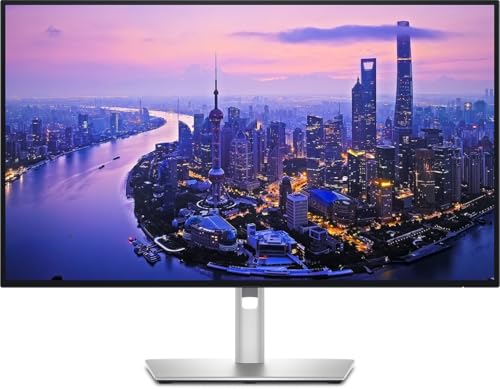
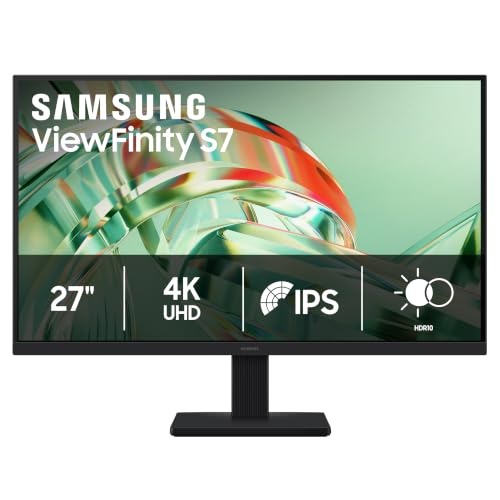
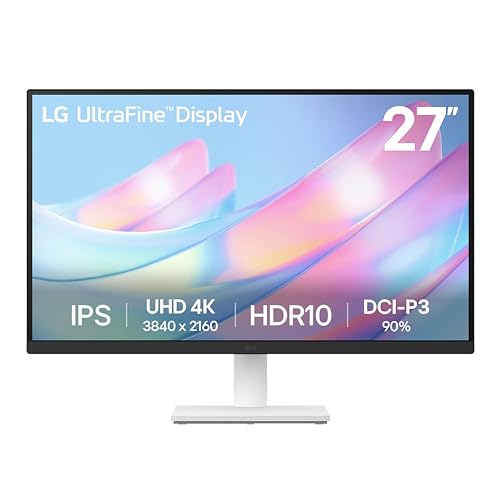
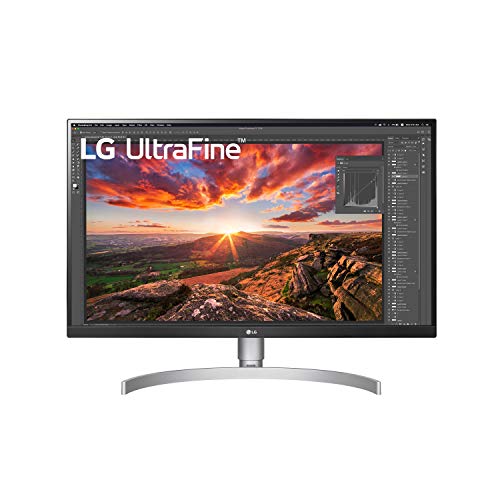
Put a 4K screen next to a 1080p one and the difference is hard to miss. A 27 inch 4K panel packs around 163 pixels per inch, roughly twice the density of a 1080p screen, so text looks printed rather than rendered and photos reveal fine detail. The best 27 inch 4K monitors reward people who read, write or edit for hours and want the sharpest picture a desk monitor can deliver.
This guide explains what that sharpness costs: scaling settings, the graphics power needed to drive it, how refresh rate and gaming fit in, and which ports to look for. It will help you decide whether 4K is the right step up from 1440p for your setup.

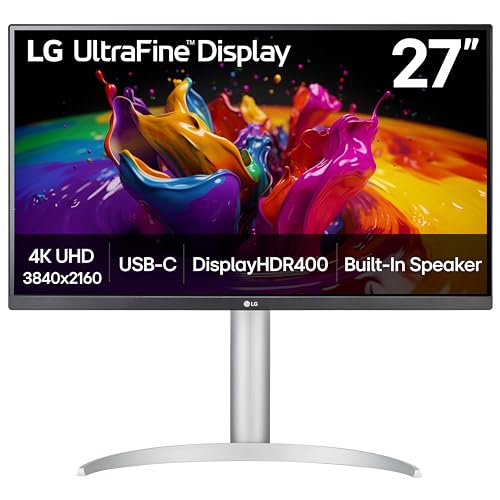

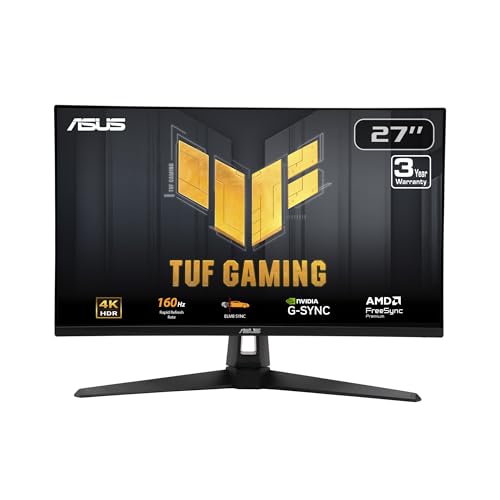
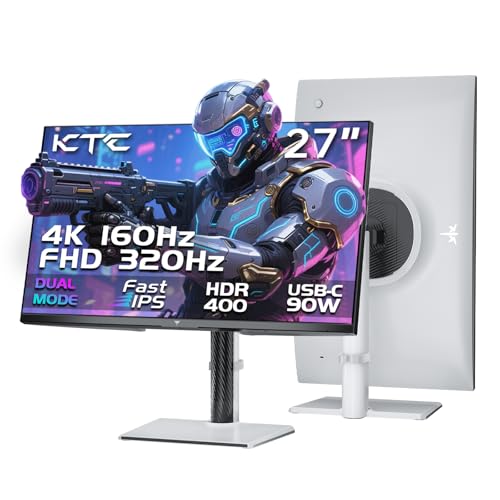
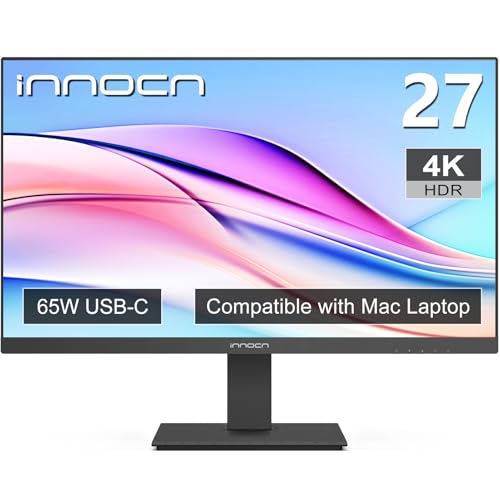
What Pixel Density Does for You
Pixel density determines how smooth curves and small text look. At about 163 pixels per inch, letters have smooth edges and thin fonts remain readable at small sizes. Photos and video look clean even when you lean in close. For writers, programrs and spreadsheet users, this reduces eye strain more than any other single feature.
The catch is that everything is tiny at 100 percent scale. Windows and macOS scale the interface up, and 150 percent is the usual setting on a 27 inch 4K panel. That gives a layout similar to a 2560 by 1440 desktop but with much sharper rendering.
Scaling on Windows and Mac
Windows handles 150 percent scaling well in current programs, though a few older applications can look blurry or oddly sized. Check any specialist software you depend on. On a Mac, 4K at 27 inches runs through a scaled mode that renders at a higher internal size and shrinks it, which looks sharp but is a little heavier on the graphics hardware than a true 2x display.
If you prefer text that looks exactly like a 1080p desktop at double sharpness, you can run 4K at 200 percent, though that leaves you with a small workspace. Try the settings on a free trial or in a shop before you commit if you are sensitive to interface size.
Graphics Power and Refresh Rate
Driving 4K takes about four times the pixels of 1080p. For office work and video, any recent computer can do it. For games, you need a strong graphics card to hold high frame rates at native resolution, and many players use upscaling features to keep the picture smooth. If you plan to game, aim at a screen with variable refresh rate and consider whether 60 hertz will feel limiting.
A growing number of 27 inch 4K panels offer 120 to 160 hertz refresh rates or a dual mode that switches to a lower resolution at a much higher rate. These suit people who want crisp work and fast competitive play in the same screen, but they cost more and demand a modern graphics card and the right cable. For a lower resolution alternative, the 1440p models are far easier to drive.
Ports and Connectivity
For laptop users, a USB-C port with power delivery is the best feature. One cable then carries 4K video, charges the laptop and connects peripherals through a hub. Check that the port supports at least 4K at 60 hertz and look at the power it can supply.
For desktop users, DisplayPort gives the widest range of refresh rates at 4K. HDMI 2.0 manages 60 hertz at 4K, while HDMI 2.1 supports higher rates for consoles and modern graphics cards. A short, certified cable avoids the flickering and dropouts that cheap cables can cause.
Panel Quality, HDR and Color
IPS is the common panel type for 4K and gives wide viewing angles and good color. Many models cover nearly all of sRGB, and some reach wider gamuts that suit photo work. Treat HDR labels with caution: true HDR needs strong peak brightness and local dimming, which only a few models offer. Otherwise the HDR mode is an extra setting you may not use.
Check the stand and the mounting options. Because the panel is dense and detailed, positioning matters: a screen too close or too high causes strain. Look for height adjustment and tilt, and keep the distance at roughly an arm's length. Related guides cover 27 inch monitors in general and larger sizes in 32 inch 4K monitors.
Is 4K Worth It at 27 Inches?
If you spend your day with text or detailed images, yes. The improvement in clarity is clear and lasting. If you mainly play fast games on a mid-range card, a 1440p screen at a higher refresh rate will feel better. For a reasonable middle path, look at dual mode panels that offer both.
Our page on the 4K 27 inch computer monitors explores more options, and the gaming monitors page covers fast ones.
Mistakes to Avoid
- Using the default 100 percent scaling and then wondering why everything looks tiny.
- Buying a high refresh rate 4K panel without a graphics card or cable that can carry it.
- Plugging into an HDMI 1.4 port and being stuck at a low refresh rate.
- Trusting HDR labels instead of checking dimming zones and brightness.
- Placing the screen too close: at this sharpness you can sit a little farther back and still read comfortably.
Frequently Asked Questions
Do I need a special cable for 4K?
Use a certified DisplayPort cable or a high speed HDMI cable that matches the port version. A weak cable can cause sparkles or no picture.
Is 4K too small at 27 inches?
At 100 percent scale, text is small, but at 150 percent it is comfortable and very sharp. Most people use scaling.
Will my laptop drive a 4K screen?
Most recent laptops can output 4K at 60 hertz over USB-C or HDMI. Check the port specifications of your model.
Is a higher refresh rate necessary?
Not for work. If you game, a higher refresh rate adds smoothness, but you need the graphics card to match.
Does 4K make a difference for movies?
Yes, with true 4K content the detail is clearly better, although the effect depends on the quality of the stream or disc.
Can I use a 4K monitor with a Mac?
Yes. Modern Macs support 4K displays over USB-C or Thunderbolt. Use the scaled resolution option for a comfortable interface size.
Final Thoughts
The best 27 inch 4K monitors give a clear step up in sharpness for text and images. Plan for 150 percent scaling, check that your computer and cables can handle the signal, and choose the refresh rate that matches how you use it. If you work with detail all day, the change is worth it.
Prices and availability can change, so check the product page before ordering.


