Best Computer Keyboards: Budget, Midrange, and Premium Picks
Disclosure: We may earn a commission when you buy through links on this page, at no extra cost to you. As an Amazon Associate I earn from qualifying purchases. Learn more

Budget, midrange and premium picks for the best computer keyboards, with switches, layouts, connections and care tips.
You touch your keyboard thousands of times a day, whether you are writing reports, coding, chatting or gaming, so the right one makes work faster and more comfortable. Keyboards differ in switch type, layout size, connection, lighting and build quality, and a model that delights a gamer may frustrate someone who types all day. The best computer keyboards fit how you use your computer, feel good under your fingers and connect reliably to your devices.
Below are our picks at three budgets, followed by what each price tier gets you, features worth paying for, how to choose for gaming or office work and long term costs.


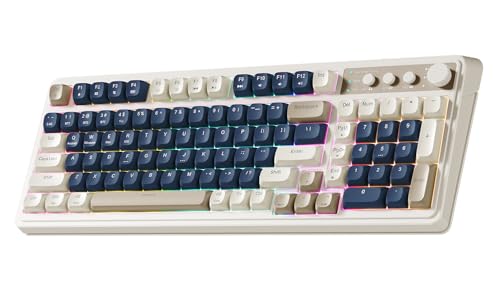

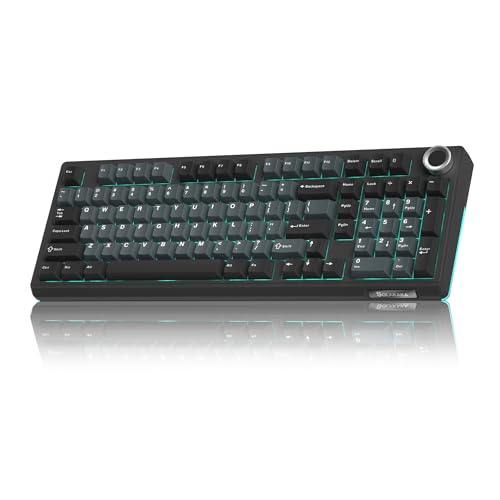

Top 3 Picks by Budget
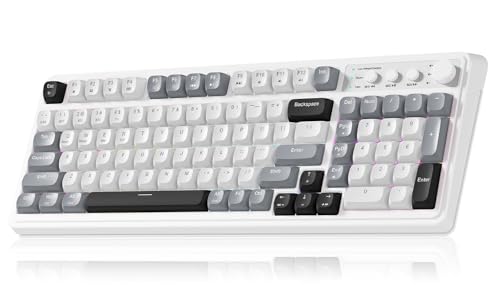
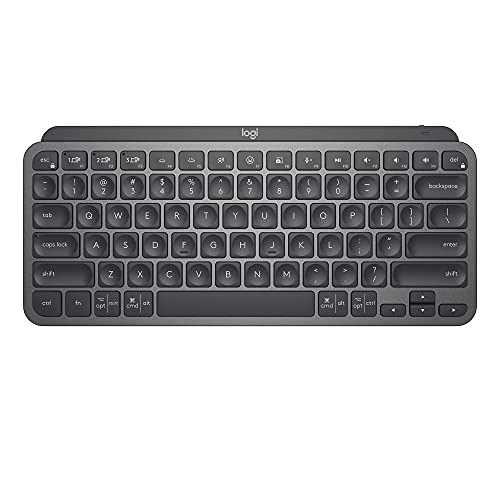
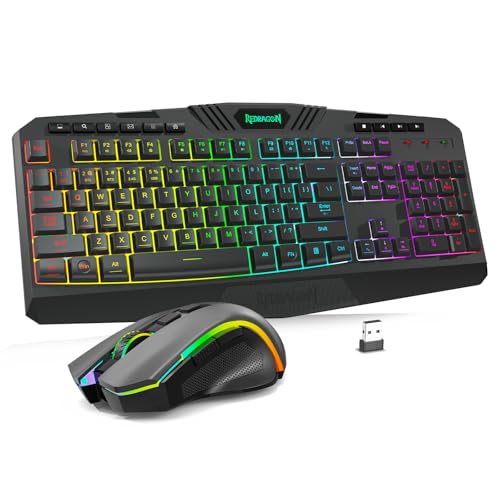
The AULA S99 is the best budget computer keyboard for wireless flexibility and RGB lighting, the Logitech G413 SE is the best midrange mechanical keyboard for gaming and typing, and the Logitech MX Keys S is the best premium keyboard for productivity across multiple computers. Check the product table above for current prices.
| Budget | Product | Key Spec | Best For |
|---|---|---|---|
| Best Budget Pick | AULA S99 Wireless Keyboard | 96% layout, tri mode (BT 5.0, 2.4 GHz, USB-C), RGB, macro keys | Budget gaming and multi device use |
| Best Midrange Pick | Logitech G413 SE | Full size mechanical, PBT keycaps, aluminum top | Gaming and typing on one desk |
| Best Premium Pick | Logitech MX Keys S | Low profile, smart backlight, 3 devices, USB-C | Office work and multi computer setups |
Best Budget Pick: AULA S99 Wireless Keyboard
The AULA S99 is the best budget computer keyboard, at around $38. It packs features usually found on pricier boards into an affordable package.
- Why it stands out: tri mode connectivity with Bluetooth 5.0, a 2.4 GHz wireless receiver and wired USB-C, connecting up to 5 devices with one key switching.
- Features: a compact 96% layout with a number pad, full key macro programming, a dual mode knob and 16.8 million color RGB lighting with 16 preset effects.
- Trade off: its retro styling and build feel are budget grade compared with premium boards.
Best for: students, budget gamers and anyone switching between a PC, tablet and phone. Skip it if you want premium mechanical switches and materials.

Best Midrange Pick: Logitech G413 SE
The Logitech G413 SE is the best midrange computer keyboard, at around $69. It is a full size mechanical keyboard with durable materials.
- Why it stands out: tactile mechanical switches, heat and wear resistant PBT keycaps and a brushed aluminum magnesium alloy top case with minimal flex.
- Gaming features: 6 key rollover anti ghosting, white LED backlighting and 12 function key media controls for volume, playback, lighting and Windows lock.
- Trade off: it is wired only, and white backlighting is less flashy than RGB.
Best for: gamers and typists who want a sturdy mechanical keyboard without paying premium prices. Skip it if you need wireless.

Best Premium Pick: Logitech MX Keys S
The Logitech MX Keys S is the best premium computer keyboard for productivity, at around $130. It is a favorite of office workers, writers and programmers.
- Why it stands out: spherically dished low profile keys for fast, quiet and precise typing, smart backlighting that turns on as your hands approach and Smart Actions shortcuts through the Logi Options+ app.
- Multi device: pairs with up to 3 devices via Bluetooth Low Energy or the included Logi Bolt receiver, works with Windows, macOS and Linux and lasts up to 10 days per charge with backlighting or up to 5 months with it off.
- Trade off: it is not a mechanical or gaming keyboard, so gamers wanting tactile switches should look elsewhere.
Best for: office work, coding and multi computer setups. Skip it if you prefer the feel of mechanical switches.

What Your Money Gets You at Each Price Tier
Computer keyboards fall into three practical tiers.
Budget Tier: What to Expect
Under about $50, expect membrane keyboards, wireless keyboard and mouse combos and entry mechanical or "mechanical feel" gaming boards. Many include RGB lighting and multi device wireless. Compromises include plastic builds, mushier switches and less durable keycaps.
Midrange Tier: The Sweet Spot for Most Buyers
Between about $50 and $120, you get true mechanical switches, PBT keycaps, metal top plates, hot swappable sockets on enthusiast boards and better wireless. This tier delivers the biggest jump in typing feel and durability.
Premium Tier: When Spending More Pays Off
Above about $120, premium keyboards offer refined low profile typing, advanced software, multi device switching, gasket mounted mechanical designs, premium materials and long battery life. Spending more pays off if you type for hours daily or want a keyboard that lasts many years.
Features Worth Paying For (and Ones to Skip)
Some features change how a keyboard feels and works every day, while others are mostly cosmetic.
Switch Type: Mechanical, Membrane or Low Profile Scissor
Mechanical switches use individual spring loaded switches for consistent feel and long life. Linear switches feel smooth, tactile switches have a bump and clicky switches add an audible click. Membrane keyboards are quieter and cheaper but feel softer. Low profile scissor switches, like those on many laptop style keyboards, offer fast, quiet typing. Choose based on feel and noise tolerance.
Ergonomics, Size and Layout
Full size keyboards include a number pad for spreadsheets. 96% and 1800 layouts keep the numpad in less space. Tenkeyless (TKL) and 75% boards save desk space and bring the mouse closer, which many gamers prefer. Split and ergonomic keyboards can reduce wrist strain for heavy typists. Adjustable feet and palm rests help comfort.
Wired vs Wireless (2.4 GHz, Bluetooth)
Wired keyboards never need charging and have the lowest latency for gaming. 2.4 GHz wireless offers near wired responsiveness, while Bluetooth is convenient for tablets and switching between devices. Tri mode keyboards offer all three.
Battery Life and Charging
Backlit wireless keyboards may need charging every week or two, while models with backlighting off can last months. USB-C charging is the most convenient. Some keyboards use replaceable AA or AAA batteries that last a year or more.
Customization and Software
Software lets you remap keys, record macros, adjust lighting and create app specific profiles. Onboard memory saves settings to the keyboard. Enthusiast boards with hot swappable switches let you change switches without soldering.
Features to Skip
Heavy RGB effects, extra macro rows you will never use and gimmicky media screens add cost without improving typing for most people.
Picking the Right Computer Keyboards for Different Uses
Different setups call for different keyboards.
Best Computer Keyboards for Gaming: Where Your Money Goes
For gaming, your money goes to mechanical switches, anti ghosting and N key rollover, low latency connections and compact layouts that leave room for mouse movement. A wired or 2.4 GHz keyboard with responsive switches matters more than lighting.
Best Desktop Computer Keyboards: Where Your Money Goes
For desktop office work, your money goes to comfortable key feel, quiet typing, a full layout with number pad, multi device support and long battery life. Low profile keyboards like the MX Keys S suit long typing sessions.
Best Keyboards for Mac Users
Mac users should look for Mac layouts with Command and Option keys, or keyboards that switch layouts automatically. Logitech offers Mac specific MX versions, and many mechanical keyboards include Mac keycaps.
Best Keyboards for Small Desks
TKL, 75% and 65% layouts save space and keep your mouse closer to your body, which can improve shoulder comfort.
Mechanical vs Membrane vs Low Profile Keyboards
Mechanical keyboards offer the most satisfying, consistent feel, last for tens of millions of keystrokes and are favored by gamers and enthusiasts, but they can be louder. Membrane keyboards are quiet and inexpensive, good for shared offices and light use. Low profile keyboards combine quiet typing with a crisp, laptop like feel, ideal for office work and people who switch between laptop and desktop. Try a switch tester or a friend's keyboard if you are unsure which you prefer.
Mechanical Switch Types Explained
If you choose a mechanical keyboard, the switch type defines how it feels and sounds.
- Linear switches: smooth keystrokes with no bump, popular for gaming because they are fast and quiet. Red switches are a common example.
- Tactile switches: a small bump tells you when the key registers, which many typists like for accuracy. Brown switches are a common example.
- Clicky switches: a bump plus an audible click, satisfying for typing but loud for shared spaces. Blue switches are a common example.
- Silent switches: dampened versions of linear or tactile switches for quieter offices.
- Optical and magnetic switches: use light or magnets to register presses, offering fast response and, on some gaming boards, adjustable actuation points.
Actuation force, measured in grams, also matters: lighter switches feel fast, while heavier ones reduce accidental presses.
Gaming Keyboard Features Explained
- Anti ghosting and N key rollover: register multiple simultaneous presses accurately during complex inputs.
- Polling rate: how often the keyboard reports to the computer; 1,000 Hz is standard for gaming.
- Game mode: disables the Windows key and shortcuts that can interrupt play in the middle of a match.
- Macro keys: record sequences for MMOs and productivity tasks, like pasting templates or launching apps.
- Per key RGB: lighting effects and game integrations; fun but not essential.
- Detachable cables: make transport easier and let you replace a damaged cable instead of the whole keyboard.
Ergonomic Typing Tips
Place the keyboard so your elbows rest at about 90 degrees with relaxed shoulders. Keep wrists straight and floating while typing, using a palm rest during pauses rather than resting on it constantly. A smaller layout brings the mouse closer and reduces shoulder reach. Take short breaks every 30 to 60 minutes to stretch hands and wrists. If you feel persistent pain, consider a split or tented ergonomic keyboard and consult a healthcare professional.
Common Keyboard Problems and Fixes
- Keys repeating or double typing: clean under the keycap with compressed air; on mechanical boards, replace the switch if it is hot swappable.
- Wireless lag or dropouts: move the receiver closer using a USB extension, replace or charge batteries and avoid USB 3.0 ports right next to the receiver.
- Sticky keys after a spill: unplug immediately, flip the keyboard, let it dry fully and clean keycaps; sugary spills may need switch cleaning.
- Bluetooth pairing issues: remove the device from your computer's Bluetooth list and pair again.
- Wrong characters on Mac: switch the keyboard to Mac mode or adjust modifier keys in system settings.
Keyboard and Mouse Combos vs Separate Keyboards
Keyboard and mouse combos bundle matching devices that share one wireless receiver, saving money and USB ports, which suits home offices, family computers and students. Buying separately lets you choose the best keyboard and mouse for your hands and tasks, such as a mechanical keyboard with a lightweight gaming mouse or a low profile keyboard with an ergonomic vertical mouse. Premium combos like Logitech's MX bundles add multi device features and software that links both devices.
Keycaps and Customization
Keycaps affect feel and durability. ABS plastic keycaps are common and can develop shine over time, while PBT keycaps resist shine and wear, as on the Logitech G413 SE. Keycap profiles, such as Cherry, OEM and low profile, change finger feel and sound. Enthusiasts often swap keycaps for different colors or textures, and many mechanical keyboards use standard layouts that accept replacement sets. Check compatibility before buying custom keycaps, since bottom row sizes vary.
Long Term Costs to Factor In
Budget for a wrist rest, replacement keycaps or switches on enthusiast boards, and batteries or charging cables for wireless models. Keyboard cleaning supplies like compressed air and keycap pullers help maintenance. Quality keyboards often last five to ten years, so spending a little more upfront can save replacements.
How to Clean a Keyboard
Unplug or turn off the keyboard, turn it upside down and gently shake out debris. Use compressed air between keys and wipe keycaps with a cloth lightly dampened with isopropyl alcohol. On mechanical boards, remove keycaps with a puller for deeper cleaning and wash them in warm soapy water, letting them dry fully before reinstalling. Avoid spraying liquid directly onto the keyboard.
Computer Keyboards: Your Questions Answered
Wired or wireless: which is better for gaming?
Wired keyboards have the lowest latency and never run out of power, making them a safe choice for competitive gaming. Modern 2.4 GHz wireless keyboards are fast enough for most players, while Bluetooth adds slightly more delay.
Are mechanical keyboards worth it?
Yes, for many people. Mechanical keyboards offer consistent, satisfying key feel, better durability and customization. They can be louder than membrane or low profile keyboards, so choose quieter linear or tactile switches for shared spaces.
Does it work with Mac and console?
Most USB and Bluetooth keyboards work with Macs, though key labels may differ; Mac specific versions match the layout. Many consoles support USB keyboards for text entry and some games, but support varies by title.
What keyboard size should I choose?
Choose full size or 96% if you use a number pad often, tenkeyless or 75% if you want more mouse space, and 65% or smaller for minimalist and portable setups. Your desk size and work style should guide the choice.
How long do keyboards last?
Quality mechanical keyboards often last many years, with switches rated for tens of millions of keystrokes. Membrane and budget keyboards may wear faster, especially frequently used keys.
Are quiet keyboards good for offices?
Yes. Low profile scissor keyboards, membrane keyboards and mechanical boards with silent switches keep noise down in shared spaces and on video calls. Avoid clicky blue style switches in offices.
Do I need a wrist rest?
A wrist rest can improve comfort, especially with taller mechanical keyboards. Use it to rest your palms during pauses rather than anchoring your wrists while typing, which helps keep wrists in a neutral position.
What is a hot swappable keyboard?
A hot swappable mechanical keyboard lets you pull out and replace switches without soldering, so you can try different switch types or replace a faulty switch in minutes. It is a popular feature on enthusiast and many midrange boards.
The Bottom Line
The AULA S99 is the budget pick for wireless flexibility and RGB, the Logitech G413 SE is the midrange mechanical choice for gaming and typing, and the Logitech MX Keys S is the premium productivity keyboard for multi computer setups. Match switch type, layout and connection to how you work and play, and the best computer keyboards will make every keystroke more comfortable. Pair your keyboard with one of our best computer mouse for gaming picks for a complete setup.